Final Cut Pro "Storage Location No Longer Available": The Fix
Final Cut Pro closed your library because a storage location is unavailable? Find which of the four locations broke, reconnect or reset it, and keep media linked.

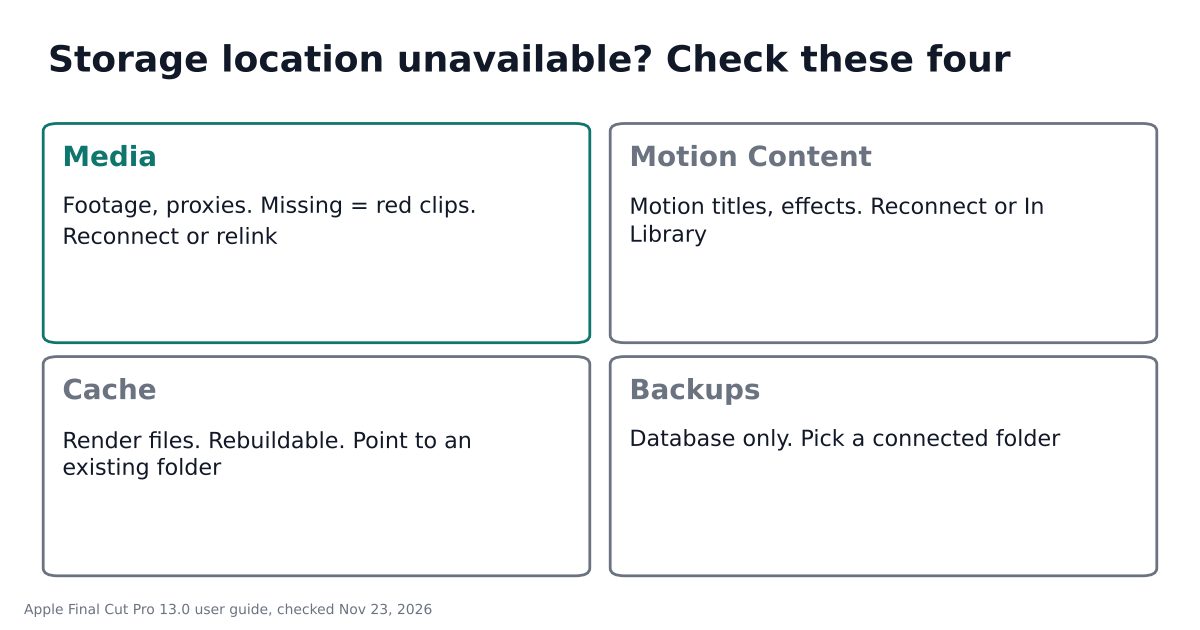
Final Cut Pro shows this alert when a folder set in a library’s Library Properties, for Media, Motion Content, Cache or Backups, sits on a drive or path it can no longer reach. It closes the library to protect it. The fix is to reconnect that drive under its original name, or click Modify Settings and choose a folder that exists, then relink any media still offline.
The steps below follow Apple’s Final Cut Pro 13.0 guide, plus the macOS settings that make the alert come back.
What the alert is telling you
A Final Cut Pro library is a database, plus four places where it puts files. Apple calls them storage locations: Media, Motion Content, Cache and Backups. Each can live inside the library or in a folder elsewhere.
When any one of those folders stops answering, Final Cut Pro closes the library instead of writing into a gap. The message names a storage location for one or more libraries and says it is no longer available. It doesn’t say which location, or which library.
Your edit is usually safe. Projects and events are in the library itself, and Final Cut Pro keeps automatic backups of that database at regular intervals. What can go missing is the link to files outside the library, which is why clips sometimes come back red. That part is covered in Final Cut Pro media offline.
Find which storage location is missing
Start in Final Cut Pro, not the Finder.
- Reconnect every drive you used for editing, then open the library again from File > Open Library or by double-clicking it.
- Select the library in the Libraries sidebar.
- Choose File > Library Properties, or press Control-Command-J.
- Read the Storage Locations section. It lists each location and the storage used on each device.
- Compare each path with what the Finder shows under Locations. A path on a drive that isn’t mounted, or a folder that has been renamed, is your culprit.
If the library itself won’t open, Apple’s storage article shows how to find it with a Finder search and Show in Enclosing Folder, which also tells you which volume it’s on.
One shortcut: if you never changed these settings, Media and Cache are inside the library, Motion Content is in the Motion Templates folder inside Movies, and Backups go to the Movies folder. A missing location then usually means the drive the library itself is on dropped out.
What each location holds, and what breaks when it’s gone
Not every missing location is equally bad. Here is what Apple says each one stores, where it goes by default, and what you can expect to see when it can’t be reached.
| Storage location | What it holds | Default | If it’s unreachable | Fix |
|---|---|---|---|---|
| Media | Imported files, proxy and optimized files, consolidated files | Inside the library | Clips show Missing File or Missing Proxy File | Reconnect, or relink with File > Relink Files |
| Motion Content | Effects, transitions, titles and generators made or customized in Motion | Motion Templates folder in Movies | Missing title, effect or generator alerts | Reconnect, or set to In Library and consolidate |
| Cache | Render files, analysis files, thumbnails, audio waveforms | Inside the library | Render bars return, thumbnails and waveforms rebuild | Point Cache to an existing folder; re-render |
| Backups | Library database backups | Movies folder | New backups can’t be written there | Choose a connected folder, or Do Not Save |
Source: Apple Final Cut Pro for Mac 13.0 user guide (Set storage locations, Manage render files, Restore a library); checked November 23, 2026. The “If it’s unreachable” column is what Final Cut Pro’s alerts show in each case, not a single Apple page.
Media is the one to worry about. Cache files can be rebuilt from the original media. Backups contain only the database, never media. A missing Media folder means real footage is out of reach until you reconnect or relink it.
Why it appears when the drive looks connected
The forum threads that rank for this alert mostly end at “restart and delete preferences.” Those rarely help, because the cause is usually the drive or the path, not Final Cut Pro. Check these in order.
The drive was unplugged while the library was open. Apple’s instruction is to close a library before disconnecting the external storage device it’s on. A bumped cable or a laptop lid closing on a bus-powered drive counts as a disconnect.
The drive went to sleep. macOS has a “Put hard disks to sleep when possible” option, under System Settings > Energy on a desktop Mac and System Settings > Battery > Options on a laptop. If the alert shows up after you step away from an idle edit, turn that option off and test again.
The drive was renamed. The volume name is part of every path on it. Rename a drive from “Footage” to “Footage SSD” and each storage location pointing at it breaks.
The Backups folder is on a drive you don’t always plug in. People often set Backups to an external drive for safety, then edit without it connected. Apple’s 12.4 release also fixed an issue that prevented backing up a library to a network volume, so update if your backups go to a NAS.
The library sits in a synced folder. Apple says not to keep libraries on the Desktop or in Documents with iCloud’s Desktop & Documents turned on, or in third-party cloud storage services.
The drive is almost out of space. In one Creative COW thread, the alert appeared on a Mac where one of three storage drives had only 11 GB free. That’s a community report, not an Apple statement, but low space is cheap to rule out.
The location is on a NAS. Apple supports libraries on SMB volumes only from a macOS server, or from Linux running Samba 4.3.4 or later with Apple’s compatibility modules. A share that drops on Wi-Fi will trigger the same alert. Apple also says to connect shared storage before opening a library that uses it.
Fix it: reconnect, or point the library somewhere else
Decide first whether the missing folder is coming back. The two paths are different, and mixing them makes more red clips.
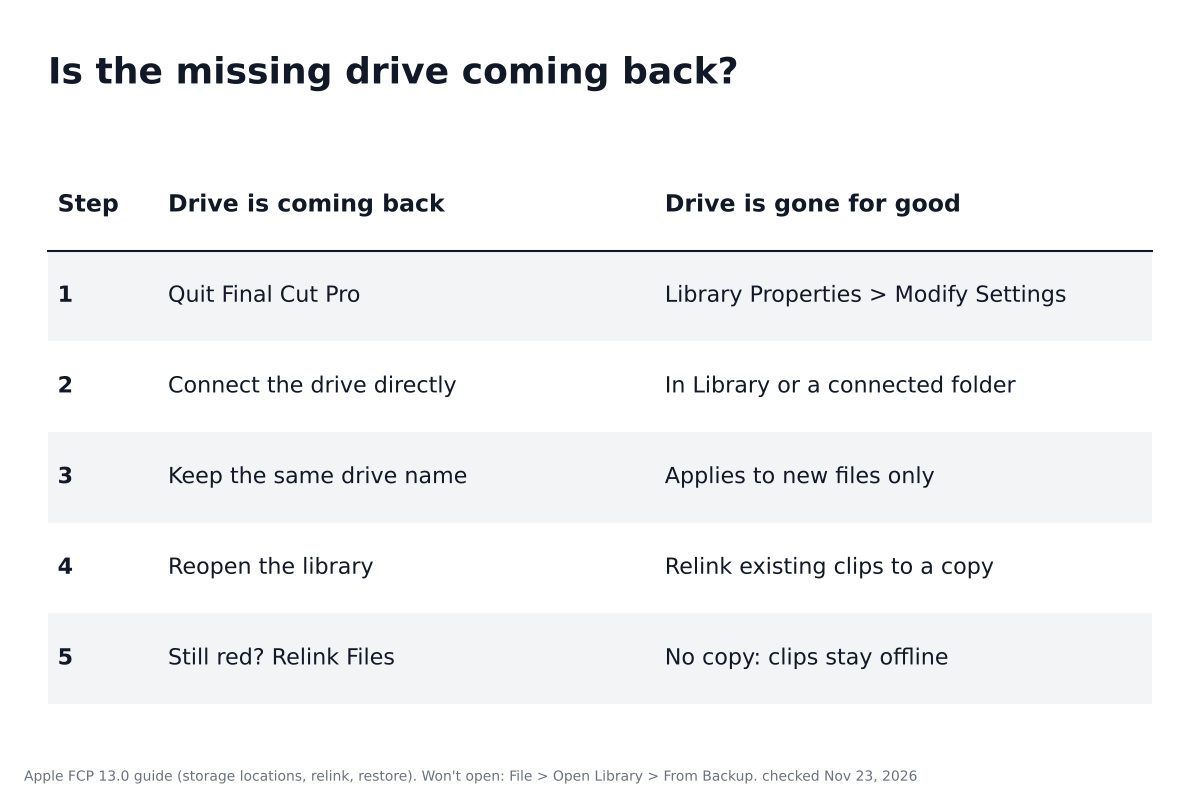
The drive is coming back
- Quit Final Cut Pro.
- Connect the drive directly to the Mac, not through a hub, and wait for it to appear in the Finder.
- Confirm it has the exact name it had when the location was set. Rename it back if needed.
- Reopen the library. The alert should not return.
If it opens but some clips are still red, run File > Relink Files > Original Media on the library and point it at the drive.
The drive or folder is gone for good
- Open the library and choose File > Library Properties.
- Click Modify Settings.
- For each location that points at the missing drive, choose In Library or a folder on a drive you’ll keep connected. For Backups you can also choose Do Not Save, though that turns backups off.
- Click OK. If you changed Cache, Final Cut Pro asks whether to move existing render files.
Now the part most people miss. Apple says new storage locations apply only to future imports, Motion content, cache files and backups. Existing source media stays where it was. So clips that lived on the lost drive are still linked to it.
If you have the footage elsewhere, run File > Relink Files > Original Media and point it at the copy. Relink Files can’t be undone, so duplicate the project first if you’re unsure the copy is identical. If you don’t have the footage, the library still opens and the edit is intact, but those clips stay offline.
It still won’t open
Restart the Mac first. Apple lists that as the first step for library alerts such as “already in use” and “damaged”. Then work through Apple’s general checklist: back up, check the storage device format, check Privacy & Security permissions for Files and Folders, and test with a new library.
If Final Cut Pro then reports the library as damaged, open a recent backup with File > Open Library > From Backup; the order of recovery steps is in Final Cut Pro library damaged. If it says the library is already in use, see Final Cut Pro library already in use.
“Storage device is almost full”: the related warning
This one is about free space, not a missing path. The drive holding the library, or one of its storage locations, is running out of room, and Final Cut Pro writes a lot of render and cache files as you edit.
Apple’s fix list for a library that needs more space :
- Find the library’s volume in Library Properties.
- In the Finder, choose Go > Computer, select that volume, and use File > Get Info to see available space.
- Delete what Final Cut Pro can rebuild: File > Delete Generated Library Files removes render, optimized and proxy files.
- If that’s not enough, move the library to a larger external drive formatted as APFS.
Two rules for the new drive. It can’t be a Time Machine backup drive. And drives sold as ExFAT or FAT32 might not perform as expected, so reformat before use.
To move it cleanly, use File > Copy to Library > New Library, which can bring media stored in external locations along with it. A full breakdown of what takes the space, and what’s safe to delete, is in Final Cut Pro library too big.
Don’t let the startup disk fill up either. Apple says to back up your Mac before moving a library off it.
Keep the alert from coming back
I edit my own YouTube videos alone in Final Cut Pro, and with one editor the storage locations are easy to forget once they’re set. This short check prevents most repeats:
- Open Library Properties on every new library and confirm all four locations point at a drive that travels with it.
- Use In Library for Media, Cache and Motion Content unless you have a reason not to; one drive means one thing to unplug.
- Keep Backups on a drive that’s always connected, or on the startup disk if it has room.
- Never rename an editing drive while a library points to it.
- Close the library before you eject the drive.
- Format editing drives as APFS, and keep them off Time Machine duty.
- Keep libraries out of iCloud-synced and third-party cloud folders.
More Final Cut Pro guides are under tool stack.
Open your library now, press Control-Command-J, and check that every storage location points at a drive that is connected and named the way it was when you set it.
Frequently asked questions
What does "The storage location for one or more libraries is no longer available" mean?
Final Cut Pro can't reach a folder that one of your open libraries is set to use for media, Motion content, cache or backups. Usually the drive holding that folder was unplugged, went to sleep, or was renamed. Final Cut Pro closes the library so nothing is written to a half-missing setup. Open File > Library Properties to see which location points at the missing drive.
Will I lose my edit when Final Cut Pro closes the library?
Usually not. Your projects and events live in the library's database, not in the storage locations. If the library won't reopen or looks wrong, choose File > Open Library > From Backup and pick a recent backup. Backups hold only the database, so your media must still be reachable afterward.
How do I change the storage location in Final Cut Pro?
Select the library in the Libraries sidebar, choose File > Library Properties (Control-Command-J), click Modify Settings, and pick a folder or In Library from the Media, Motion Content, Cache and Backups menus. The change applies only to files created after it. Existing media stays where it is, so relink or consolidate it.
What does Final Cut Pro 'storage device is almost full' mean?
The drive holding the library or one of its storage locations is running low on free space. Check which drive it is in Library Properties, see its free space with Get Info in the Finder, then delete render, optimized and proxy files or move the library to a larger APFS drive.
Why does Final Cut Pro say it cannot save changes to Untitled?
In community reports, that message often appears together with the storage location alert. It points to the same problem: a library or one of its locations sits on a drive Final Cut Pro can't write to right now. Fix the storage location first, then reopen the library.
Sources
- Apple — Set storage locations in Final Cut Pro for Mac (13.0)
- Apple — Open and close libraries in Final Cut Pro for Mac
- Apple — Relink clips to media files in Final Cut Pro for Mac (13.0)
- Apple — Restore a library in Final Cut Pro for Mac
- Apple — Manage render files in Final Cut Pro for Mac (13.0)
- Apple — Organize files during import into Final Cut Pro for Mac
- Apple — Copy or move a library in Final Cut Pro for Mac
- Apple — If you need more storage for a Final Cut Pro library
- Apple — If Final Cut Pro isn't working
- Apple — Format storage devices for Final Cut Pro, Motion and Compressor
- Apple — Use shared storage with Final Cut Pro
- Apple — Move a Final Cut Pro library
- Apple — Set sleep and wake settings for your Mac
- Apple — Final Cut Pro release notes
- Creative COW — Storage location for one or more libraries is no longer available? (community thread)
This article is general information based on the author's experience. It is not licensed financial, legal, or tax advice. See the editorial policy.