Final Cut Pro Library Already in Use? What It Means and the Fix
Final Cut Pro says the library is already in use or permission denied? Read the Mac name in the alert, then try the fixes in order: restart, space, APFS, ownership.

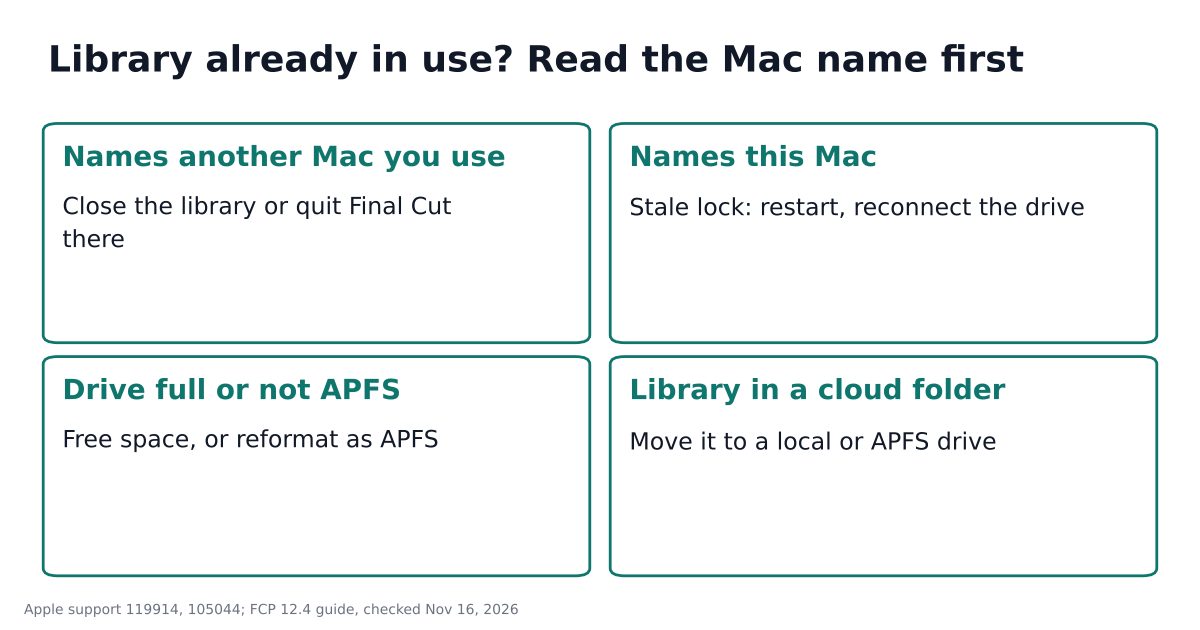
“Library already in use” means Final Cut Pro thinks another session has the library open: a second Mac, or a stale record left after a crash or a drive that was pulled out. Apple lists this alert, with or without “Permission denied”, next to two storage problems: low free space and external drives not formatted as APFS. Restart your Mac first, as Apple says. Then read which Mac the alert names.
That name tells you which fix to try. The rest of this page maps each alert to its cause and gives the fixes in the order a solo editor should try them.
What the “already in use” alert is telling you
Apple’s storage article quotes three versions of the message:
- “The operation couldn’t be completed. Permission denied.” followed by the library name, “is already in use by”, a user account and a Mac name ending in .local
- “The document [library] is already in use by [user] on [Mac].local.”
- “The document [library] could not be opened. Permission denied.” with the same in-use line
All three end with the same pair: a user account and a computer. The computer part is a local hostname. macOS builds it from the computer’s name, adds .local and swaps spaces for hyphens, so a Mac named “Studio Mini” shows up as Studio-Mini.local.
You can check your own in System Settings > General > Sharing; the local hostname sits at the bottom of that window.
Why it names your own Mac
This is the version most people hit, and it confuses everyone. If the alert names the Mac you’re sitting at, no other computer holds the library. Final Cut Pro is reading an “open” record that never got cleared.
The usual way that happens is an unclean exit. Final Cut Pro crashed or was force-quit, the Mac lost power, or the external drive was unplugged while the library was still open. Apple’s guide says to close a library before disconnecting the drive it lives on, and the in-use record is one of the things a sudden disconnect leaves behind. If Final Cut Pro has been crashing too, sort that out next; why Final Cut Pro keeps crashing covers it.
I edit my own YouTube videos alone in Final Cut, on one Mac. For a setup like that, “another user” is almost never a real person. It’s the same Mac, the same account, and a library that wasn’t closed cleanly or a drive that is full or wrongly formatted. Start with restart, space and format. Leave permission changes for later.
If the alert names a Mac you don’t recognize, it’s often the computer that last opened the library: an old laptop, or a friend’s Mac you edited on. That record travels with the library.
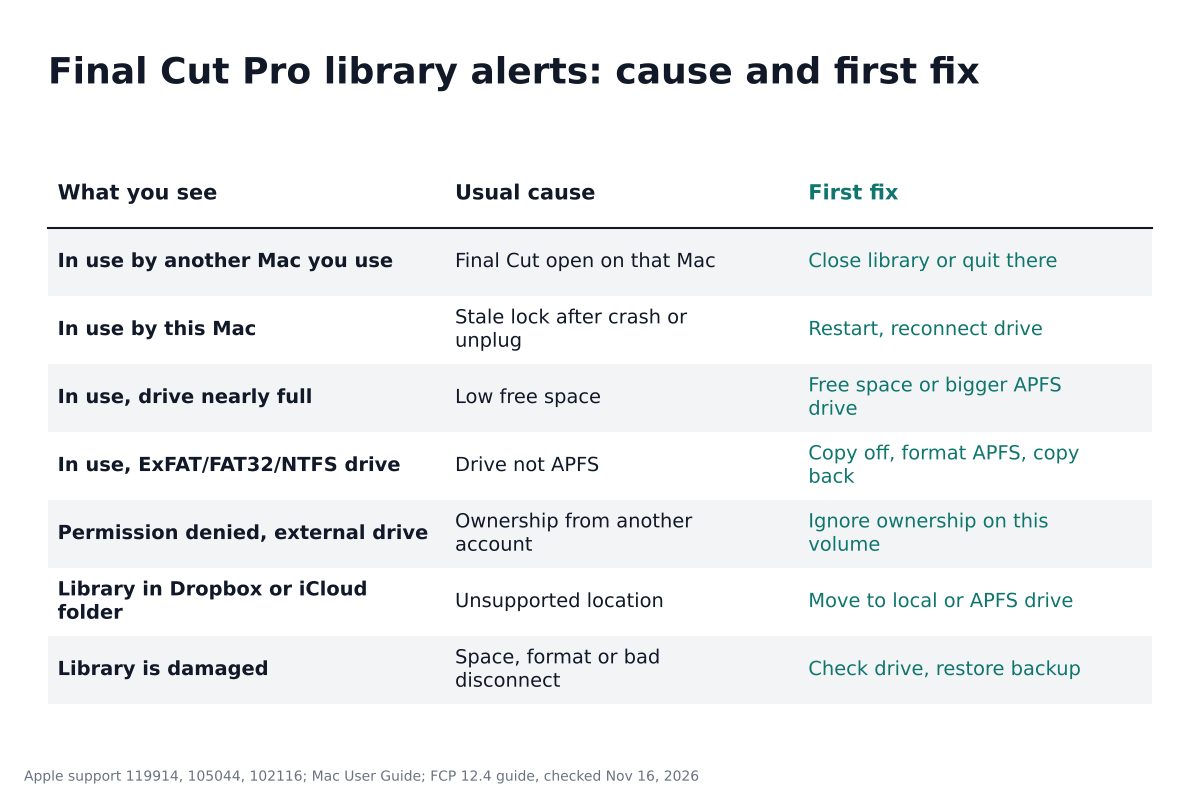
Alert, cause and fix at a glance
Built from Apple’s Final Cut Pro 12.4 guide, Apple support articles 119914, 105044 and 102116, and the Mac User Guide. Collected November 16, 2026.
| What you see | What is usually holding the library | First fix |
|---|---|---|
| “already in use by” names another Mac you use | Final Cut Pro is open on that Mac | Close the library or quit Final Cut Pro there, then reopen |
| “already in use by” names this Mac | Stale open record after a crash, force quit or unplugged drive | Restart this Mac, reconnect the drive, reopen |
| “already in use” on a drive that is nearly full | Volume low on free space | Free space or move the library to a bigger APFS drive |
| “already in use” on an ExFAT, FAT32 or NTFS drive | Drive not formatted as APFS | Copy libraries off, format as APFS, copy back |
| “Permission denied” on an external drive | Disk ownership belongs to another account | Get Info > Sharing & Permissions > Ignore ownership on this volume |
| Alert on a library in Dropbox, iCloud Desktop & Documents or another cloud folder | Unsupported location | Move the library to a local or external APFS drive |
| “The Library … is damaged” | Low space, wrong format or a bad disconnect | Restart, check the drive, restore from backup |
The causes, one by one
Final Cut Pro is open on another Mac
If you edit on a desktop and a laptop, and the alert names the other one, believe it. Go to that Mac, select the library in the Libraries sidebar and choose File > Close Library, or quit Final Cut Pro. Then open the library again on the Mac you want to use.
A stale lock after a crash or an unplugged drive
This is the own-Mac case above. A restart clears most of them, which is why Apple puts it first.
The drive is full or not APFS
Apple says these alerts can mean the library’s volume is running out of space, or the library sits on an external drive that isn’t formatted as APFS. Drives sold for Windows often ship as ExFAT or FAT32, and Apple warns they “might not perform as expected” with Final Cut Pro. If yours is one of them, Apple’s fix is to copy the libraries off, format the drive as APFS and copy them back. If space is the issue, why a Final Cut Pro library gets so big shows what to delete first.
Ownership on an external drive
External drives remember which account owns their files. Plug the drive into a different Mac, or a new user account, and macOS can refuse writes. Final Cut Pro then reports “Permission denied”. The Mac User Guide’s fix is the “Ignore ownership on this volume” checkbox in the disk’s Get Info window; with it on, the Mac treats every file on that disk as owned by the current user.
Cloud folders, Time Machine drives and network shares
Apple tells you not to store libraries with third-party cloud storage services, on the Desktop or in Documents when Desktop & Documents is synced to iCloud, or on a Time Machine backup drive. Dropbox and Google Drive folders count as third-party cloud storage. Network volumes are different: Apple supports libraries on a SAN, NFS or SMB volume, as long as the SMB share comes from a macOS server or a Linux server that meets Apple’s Samba requirements.
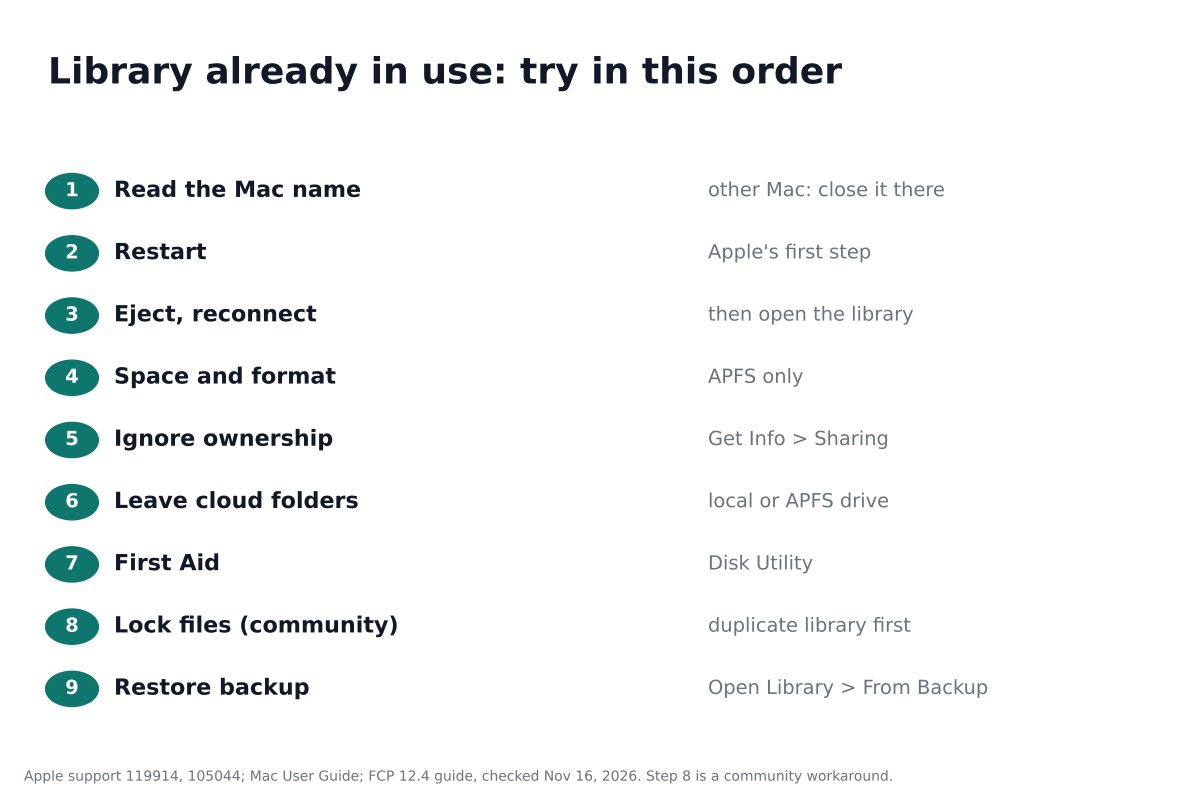
Try these fixes in this order
Checklist, least invasive first. Stop at the step that lets the library open.
- Check the Mac name in the alert. Another Mac you own: close the library or quit Final Cut Pro there. This Mac: go to step 2.
- Restart your Mac. Apple says to do this before any other step when you see these alerts.
- Eject and reconnect the drive. Eject it in the Finder, plug it back in, then double-click the library.
- Check free space and format. In the Finder choose Go > Computer, select the library’s volume and press Command-I; the General section shows available space. Confirm the format in Disk Utility. Not APFS: copy the libraries off, format as APFS, copy back.
- Turn on Ignore ownership. Select the drive, choose File > Get Info, expand Sharing & Permissions, click the padlock and enter your admin password, then select “Ignore ownership on this volume”.
- Move the library out of cloud folders. Quit Final Cut Pro and drag the library to a local or external APFS drive.
- Run First Aid on the drive. In Disk Utility choose View > Show All Devices, select each volume, then its container and the device, and run First Aid. If Disk Utility says the drive is about to fail, copy what you can and replace it.
- Community workaround: remove the lock files. Apple doesn’t document this. Apple Community users report it works: quit Final Cut Pro, duplicate the library first, Control-click the library and choose Show Package Contents, press Command-Shift-Period to show hidden files, and move files with “lock” in their names to the Trash. Then reopen.
- Restore from a backup. Final Cut Pro keeps backups in the Final Cut Pro Backups folder inside Movies by default. Choose File > Open Library > From Backup and pick a date.
If the alert changes to “The Library … is damaged”, stop and read how to fix a damaged Final Cut Pro library before you try more steps on the original.
Can two Macs share one library?
Not at the same time. The in-use alert is how Final Cut Pro keeps a second session from opening a library that’s already open, and it’s working as intended when it names a Mac that really has the library open.
What a solo editor can do is take turns. Keep the library on an external APFS drive, close it on the first Mac, eject, and open it on the second. Apple’s move checklist also says to consolidate media and install your third-party plug-ins and fonts on the other Mac, because they don’t travel with the library. Skip that and you’ll swap this alert for red clips; media offline in Final Cut Pro covers the relink.
Don’t use Dropbox or iCloud as the hand-off. Apple puts third-party cloud storage on its list of places not to keep libraries.
How to keep it from coming back
Close the library, or quit Final Cut Pro, before you unplug the drive. Eject in the Finder every time.
Format video drives as APFS once, when they’re new. Turn on Ignore ownership if you move the drive between Macs or accounts. Keep enough free space on the library’s volume, and keep libraries out of synced Desktop & Documents folders and Dropbox.
Before your next edit, select the library in the Libraries sidebar and look at the volume name in the Library Properties inspector. Then press Command-I on that drive in the Finder and make sure it has room for today’s footage.
Frequently asked questions
Where is my Final Cut Pro library?
Unless you chose another place when you created it, Final Cut Pro saves libraries in your Movies folder. For a library that is open, Control-click it in the Libraries sidebar and choose Reveal in Finder to see which drive and folder it is on.
Why does Final Cut Pro say my library is already in use?
Final Cut Pro believes another session has the library open. That can be a second Mac, or a stale record left after a crash or an unplugged drive. Apple's support article lists this exact alert alongside low free space and external drives not formatted as APFS, and says to restart your Mac before trying anything else.
Why does the alert name my own Mac?
The alert names a user account and a Mac's local hostname, which is the computer name with .local added and spaces turned into hyphens. If that is your own Mac, no other computer holds the library. Restart, reconnect the drive, and check its free space and format. A name you don't recognize can be an old Mac that last opened the library.
Can I keep a Final Cut Pro library in Dropbox or iCloud Drive?
No. Apple's troubleshooting article says not to store libraries with third-party cloud storage services, or on the Desktop or in Documents when Desktop & Documents is turned on in iCloud. Keep the library on a local or external APFS drive. Apple does support SAN, NFS and SMB volumes that meet its requirements.
Should I turn on Ignore ownership on this volume?
For a video drive that only you use, it is a reasonable step when Final Cut Pro reports Permission denied. Apple's Mac User Guide says the Mac then treats every file on the disk as owned by the current user. The option isn't available on a drive used for Time Machine backups, and you can't keep a library on one anyway.
Is it safe to delete the lock files inside a library?
Apple doesn't document it. Apple Community users report clearing the alert by quitting Final Cut Pro, showing the library's package contents and hidden files, and moving the lock files to the Trash. Treat that as a community workaround: duplicate the library first, and only try it after a restart and the drive checks fail.
Sources
- Apple — If you need more storage for a Final Cut Pro library (119914)
- Apple — If Final Cut Pro isn't working (105044)
- Apple — Open and close libraries in Final Cut Pro for Mac (12.4)
- Apple — If you don't have permission to use files on a Mac disk (Mac User Guide)
- Apple — Change your computer's name or local hostname on Mac
- Apple — Create a new library in Final Cut Pro for Mac (12.4)
- Apple — Use shared storage with Final Cut Pro
- Apple — Format storage devices for Final Cut Pro, Motion and Compressor (102116)
- Apple — Move a Final Cut Pro library (119610)
- Apple — Restore a library in Final Cut Pro for Mac (12.4)
- Apple — Repair a storage device in Disk Utility on Mac
- Apple Community — Permission Denied for Final Cut Pro Library on External Drive (community lock-file workaround, Jan 2025)
This article is general information based on the author's experience. It is not licensed financial, legal, or tax advice. See the editorial policy.