Final Cut Pro Keeps Crashing? Fix It by When It Crashes
Final Cut Pro keeps crashing? Match the moment it fails (launch, library, editing, export, freeze) to Apple's fix, then work through Apple's test order.

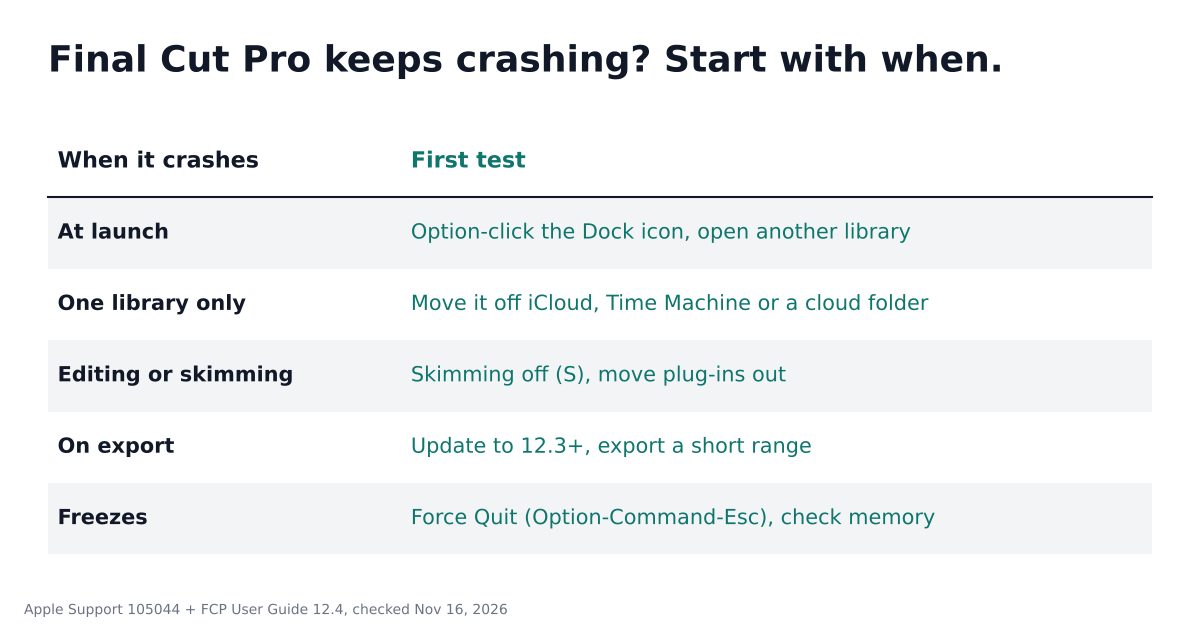
Final Cut Pro usually keeps crashing because of a third-party plug-in or effect, a library or clip it reopens, damaged settings, or a version mismatch with macOS. Work out when it crashes (at launch, as a library opens, while editing, on export, or as a freeze), then test in Apple’s order: restart, update, remove plug-ins, new user account, new library, reset settings.
I edit my own YouTube videos alone in Final Cut, so a crash mid-edit is my evening gone, not a ticket for someone else. Every step below comes from Apple’s documentation. Where a step is my reasoning and not Apple’s, it says so.
Find your crash moment first
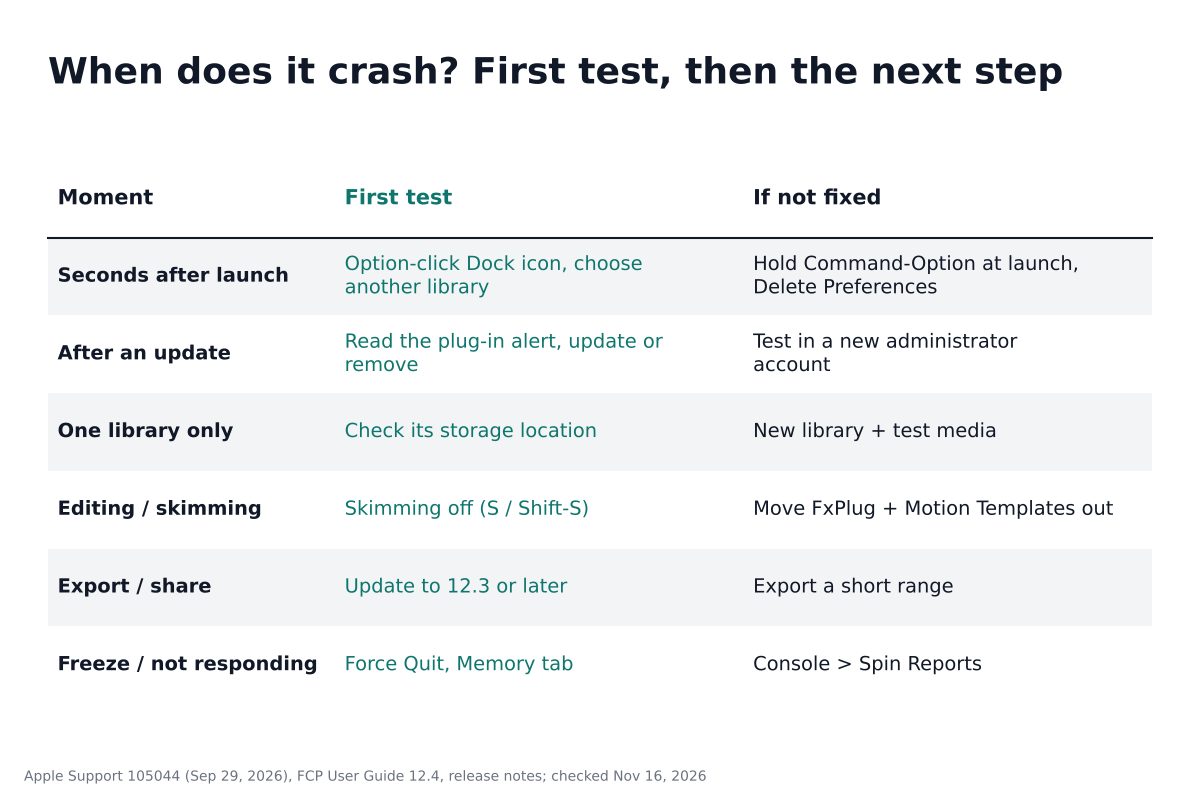
The moment of the crash narrows the suspects before you touch anything. This table maps each one to the cheapest first test and the Apple document behind it.
| When it crashes | First test | If that does not fix it | Apple source |
|---|---|---|---|
| Seconds after launch, every time | Option-click the Dock icon and open a different library | Reset settings: hold Command-Option while opening | User Guide 12.4; support article 105044 |
| Launch, right after an app or macOS update | Read the plug-in compatibility alert, update or remove those plug-ins | Test in a new administrator account | Plug-in compatibility article; Mac User Guide |
| Only when one library opens | Check where the library is stored | New library and project with test media | Support article 105044 |
| While editing or skimming one project | Turn skimming off (S) and work on | Move third-party effects and templates out | User Guide 12.4; plug-in compatibility article |
| During export or share | Update to 12.3 or later if exporting several projects | Export a short range to find the clip | Release notes |
| Freezes, spinning cursor, “not responding” | Force Quit, then check memory pressure | Read Spin Reports in Console | Mac User Guide; Activity Monitor and Console guides |
Source: Apple Support article 105044 (September 29, 2026), Final Cut Pro User Guide 12.4, Apple release notes and macOS guides, checked November 16, 2026.
Try these in Apple’s order
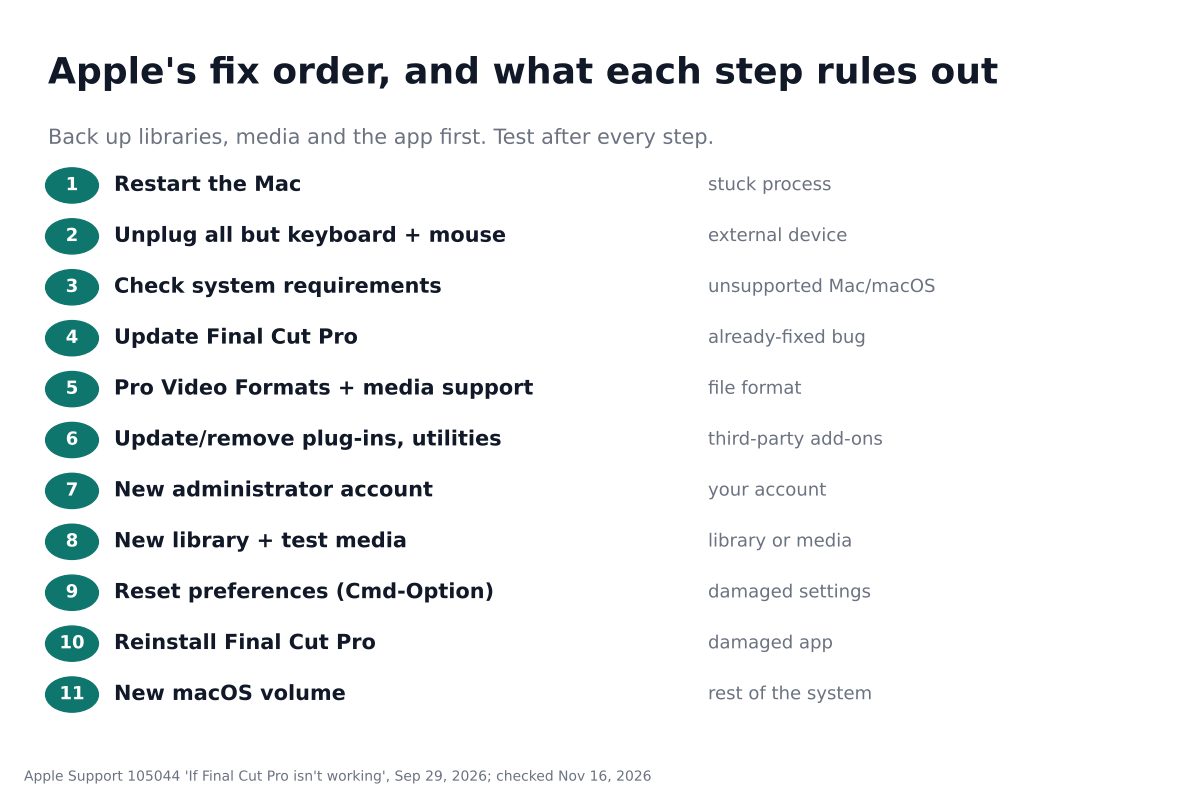
Apple asks you to test Final Cut Pro after each step. This checklist condenses Apple’s 13 steps into 11 (it drops the pointer to the user guide’s error-message list and merges the two media checks), keeps Apple’s order, and adds what each step rules out.
Before step 1, back up your libraries, your media and the Final Cut Pro app itself, and confirm the storage device has room and is formatted correctly.
- Restart the Mac (rules out a stuck process).
- Disconnect everything except keyboard and mouse, then start up again (rules out an external device). Intel Macs may also need an NVRAM reset.
- Check the system requirements on Apple’s spec page (rules out an unsupported Mac or macOS).
- Update Final Cut Pro from the App Store, after finishing active projects and backing up (rules out a bug Apple already fixed).
- Confirm Pro Video Formats is installed and that your media, cameras and storage are supported (rules out the format).
- Update or remove third-party plug-ins, utilities and security software (rules out add-ons).
- Test in a new administrator user account (rules out your account’s settings).
- Test a new library and project with test media (rules out your library and media).
- Reset Final Cut Pro preferences (rules out damaged settings).
- Remove and reinstall Final Cut Pro; Apple says libraries and media are not removed.
- Test on a new macOS volume with the same macOS version (rules out the rest of the system).
If you reach the end, Apple’s next step is to contact Apple Support.
My one deviation as a solo editor: for a crash at launch, I would try the Option-click library test from the next section before step 7. It takes ten seconds and does not change anything. That is my ordering, not Apple’s.
Crashes on startup
A crash seconds after launch usually means Final Cut Pro is opening something that breaks it straight away: the last library, a plug-in it loads, or its own settings. Test them in that order.
Open a different library
To pick which library opens, Option-click the Final Cut Pro icon in the Dock, select a library in the list and click Choose. Command-click to select more than one.
If a different library opens and the app stays up, the library you skipped is your suspect. Go to the library section below. If the only library you have is the one that crashes, move on to the settings reset.
Reset settings with Command-Option
Quit Final Cut Pro, then hold Command and Option while you open it. Apple’s troubleshooting article names the button in the dialog Delete Preferences, and says libraries and media are not affected; you have to reapply custom settings afterward.
There is a useful detail in the 12.4 user guide. After a reset, Final Cut Pro puts a file named VideoAppDiagnostics-FinalCut on the Desktop with a record of your previous settings. Keep it. I would open it before rebuilding my export and playback settings by memory.
Watch for the plug-in alert
Final Cut Pro 10.3 and later checks third-party plug-ins when it opens and lists any incompatible ones, with version and manufacturer. If that list appears after an update, do not dismiss it. Those plug-ins are your first suspects for a launch crash.
Crashes when a library opens
If other libraries open fine and one does not, start with where it lives. Apple’s article says not to store libraries on Time Machine drives, in iCloud-synced Desktop and Documents folders, or in third-party cloud storage. A library on any of those should be moved to a local or external drive first.
Then run Apple’s isolation test. Create a new library, make a new project with test media, and see whether the crash happens there. If it does not, Apple says the cause may be the original media.
The Mac User Guide gives the same advice for any app: open another file, because the original may have a problem. In Final Cut Pro terms, that file is the library. If yours has grown huge with render and proxy files, the library size guide shows what is safe to delete.
Crashes while editing or skimming
Crashes that hit mid-edit tend to come from something in the timeline, often a third-party effect, title or transition. Two tests isolate it.
First, a quick test of my own, not an Apple instruction: turn skimming off with View > Skimming or the S key, and audio skimming with Shift-S. If the crashes stop, the problem follows the playhead as it passes over a clip, which points at that clip or what is applied to it.
Second, take third-party add-ons out. If a plug-in has no uninstaller, Apple says to close Final Cut Pro and move its files somewhere else, such as the Desktop. The folders Apple lists:
- /Library/Plug-Ins/FxPlug/
- /Library/Application Support/Final Cut Pro System Support/Plugins/
- ~/Library/Plug-Ins/FxPlug/
- ~/Movies/Motion Templates.localized/ (Effects, Generators, Titles and Transitions folders)
To reach the ~/Library folder, choose Go in the Finder, hold Option, and choose Library. Move everything out, relaunch, and put items back a few at a time until the crash returns.
Two Apple fixes apply here. Final Cut Pro 12.2 fixed a quit when adjusting timeline zoom with Beat Detection enabled. Final Cut Pro 11.2 fixed a quit when RED RAW clips were selected in the timeline while the RED RAW Settings window was open. If either matches your edit, update before testing anything else.
Crashes on export
If the app quits as you share, check your version first. Final Cut Pro 12.3 fixed a quit when exporting more than one project with the Export File preset.
If you are current and one project still takes the app down at the same point, the cause is usually a clip near that point. Export a short range around it to find the clip, as the export stuck guide explains. If the crash only happens with captions in the share, the captions export guide covers that route.
Freezing, spinning cursor, “not responding”
A freeze is not a crash, but it ends the same way. Press Option, Command and Esc together, select Final Cut Pro, and click Force Quit. Apple warns that you may lose unsaved changes.
Before you relaunch, open Activity Monitor and select the Memory tab. Apple’s guide reads the memory pressure graph this way: green means RAM is used efficiently, yellow means the Mac might eventually need more, and red means it needs more. If pressure is yellow or red, find the app using a lot of memory and quit it if you can.
Freezes leave a different trail from crashes. Console lists Spin Reports, with a .spin extension, separately from Crash Reports.
Apple has fixed freezes before: 10.8 fixed Final Cut Pro stopping responding when rendering with another app active, and 10.8.1 fixed a hang with three-finger trackpad gestures. If rendering is the slow part rather than the freeze, see why rendering is slow.
Check versions before anything drastic
Reinstalling or building a new macOS volume is a lot of work for a bug Apple may already have fixed. Here are the crash, quit and freeze fixes in Apple’s release notes since 10.8.
| Version | Released | Fix Apple lists |
|---|---|---|
| 12.4 | September 29, 2026 | Quit when importing a project from Final Cut Pro for iPad; unexpected quit when closing a project |
| 12.3 | June 30, 2026 | Quit when exporting more than one project with the Export File preset |
| 12.2 | April 9, 2026 | Quit when adjusting timeline zoom with Beat Detection enabled |
| 11.2 | September 19, 2025 | Quit with RED RAW clips selected while RED RAW Settings is open; stability of ProRes RAW Settings sliders |
| 11.1.1 | May 22, 2025 | Reliability when adding video to drop zones in the inspector |
| 10.8.1 | August 13, 2024 | Stop responding with three-finger trackpad gestures |
| 10.8 | June 20, 2024 | Stop responding when rendering with another app active |
Source: Apple Final Cut Pro release notes, checked November 16, 2026.
The current requirements matter too. Final Cut Pro for Mac needs macOS 15.6 or later, 8GB of memory (16GB recommended), and 7.2GB of free disk space; Intel Macs also need a Metal-capable graphics card, and some features require Apple silicon. If your Mac sits on an older macOS, the newest fixes in the table are not available to you.
Read the crash report
When Final Cut Pro quits unexpectedly, macOS writes a report. Open Console from Applications > Utilities and select Crash Reports. Reports are listed by the app’s name, and Control-click > Reveal in Finder gives you the file to attach to a support request. Crash reports use the .ips extension.
You do not need to read the whole thing. My approach, as reasoning and not Apple guidance: search the report for any name that is not Apple’s. A plug-in developer’s name near the top of the crashed thread tells you which folder to empty first.
Next time it crashes, write down the moment it happened, then go straight to that row of the table and run only its first test.
Frequently asked questions
Why does Final Cut Pro keep crashing?
Apple's troubleshooting article points to a short list of suspects: third-party plug-ins or utilities that do not support your Final Cut Pro or macOS version, a library stored somewhere Apple does not support, damaged settings, something in your user account, or a problem clip or library. Note when it crashes, then test one suspect at a time in Apple's order.
Does resetting Final Cut Pro preferences delete my projects?
No. Apple says libraries, projects and media are not affected when you hold Command and Option while opening Final Cut Pro and delete preferences. You lose custom settings only. Final Cut Pro also leaves a file named VideoAppDiagnostics-FinalCut on the Desktop with a record of your previous settings, so you can set them back by hand.
How do I open Final Cut Pro without opening the library that crashes?
Option-click the Final Cut Pro icon in the Dock. Apple's 12.4 user guide says a list of libraries appears, where you select one and click Choose. Pick a different library. If it opens and stays open, the library you skipped is the main suspect.
Where are Final Cut Pro crash reports on a Mac?
Open Console from Applications > Utilities and select Crash Reports in the sidebar. Apple's developer documentation says reports are listed by the app's name, and you can Control-click one and choose Reveal in Finder to get the file. Crash reports use the .ips extension. Hangs show up separately under Spin Reports.
Why does Final Cut Pro keep crashing after an update?
Apple's Mac guide says a plug-in or enhancement installed before an app or macOS update may no longer be compatible. Since Final Cut Pro 10.3, the app checks third-party plug-ins at launch and lists any that are incompatible. Update or remove those, then check the release notes to see whether a later point release fixes your crash.
Sources
- Apple Support — If Final Cut Pro isn't working (US, published September 29, 2026)
- Apple Support — If Final Cut Pro isn't working (Australia edition, published October 1, 2026)
- Apple — Final Cut Pro technical specifications
- Apple Support — Final Cut Pro release notes
- Apple — Open and close libraries in Final Cut Pro for Mac (User Guide 12.4)
- Apple — Change settings in Final Cut Pro for Mac (User Guide 12.4)
- Apple Support — About Final Cut Pro and Motion plug-in compatibility
- Apple — If an app freezes or quits unexpectedly on Mac (Mac User Guide)
- Apple Support — How to force an app to quit on Mac
- Apple — View reports in Console on Mac
- Apple Developer — Acquiring crash reports and diagnostic logs
- Apple — Skim media in Final Cut Pro for Mac (User Guide 12.4)
- Apple — Check if your Mac needs more RAM in Activity Monitor
This article is general information based on the author's experience. It is not licensed financial, legal, or tax advice. See the editorial policy.