Final Cut Pro HDR to SDR: Fix Washed-Out iPhone Footage
Why iPhone HDR clips look blown out or washed out in a Rec. 709 Final Cut Pro project, the Color Conform setting that fixes it, and whether YouTube should get HDR.

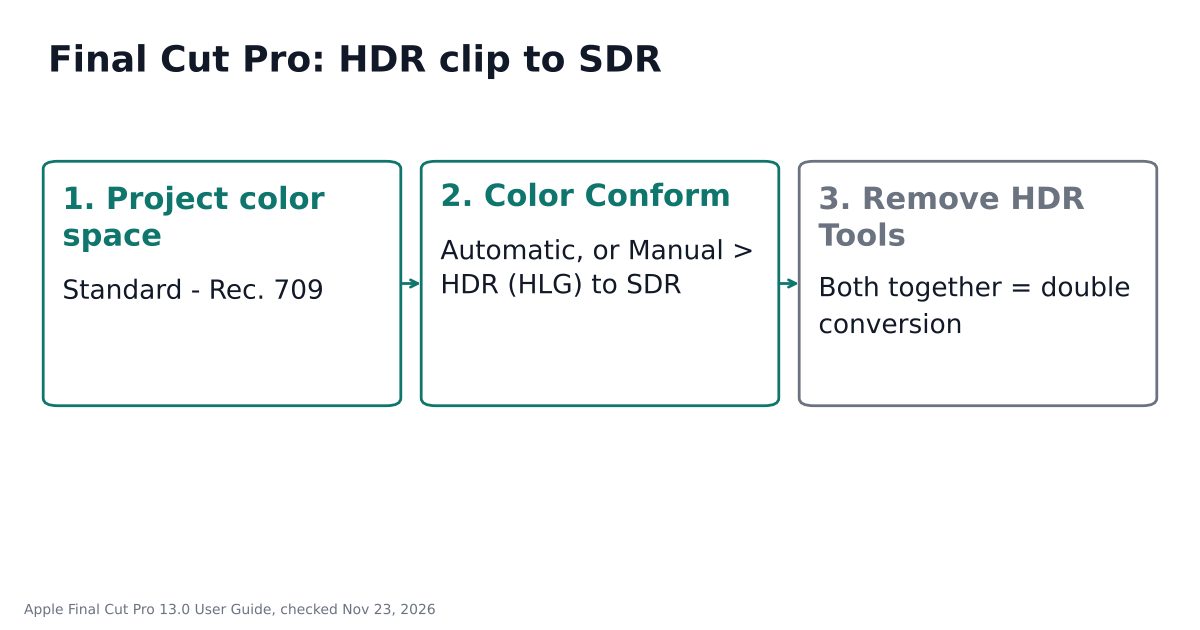
If your iPhone HDR clips look blown out or washed out in Final Cut Pro, set the project color space to Standard - Rec. 709 and keep Automatic Color Conform switched on; Final Cut Pro then converts each HDR clip to SDR by itself. When that does not happen, select the clip, open the Video inspector, set Color Conform to Manual and choose HDR (HLG) to SDR. Never add HDR Tools on top of it.
These steps match Final Cut Pro 13.0, released November 18, 2026, and the 12.x releases before it. The rest of this page covers how to tell which of five problems you actually have, how to confirm a clip is HDR, and whether YouTube should get an HDR or an SDR file.
The fast fix in six steps
- Choose Final Cut Pro > Settings, click General, and make sure Automatic Color Conform is selected. It is on by default.
- Open the project, press Command-J for Project Properties, click Modify, and check that Color Space reads Standard - Rec. 709.
- Select the HDR clip in the timeline and press Command-4 to open the inspector, then click Video.
- Find the Color Conform section. Type should say Automatic. If it says None, or the Color Conform checkbox is off, that clip is not being converted.
- Set Type to Manual, then set Conversion Type to HDR (HLG) to SDR for iPhone footage, or HDR (PQ) to SDR for PQ files from other cameras.
- Select the clip again and look for an HDR Tools effect lower in the Video inspector. If one is there, delete it; Apple says the two effects add together and a clip should get only one.
That covers most iPhone cases. If the picture still looks wrong, the table below narrows it down.
Why HDR looks blown out or washed out in a Rec. 709 project
An HDR clip carries brightness levels an SDR file cannot hold. If nothing converts it, a Rec. 709 timeline shows those levels as if they were SDR, and highlights clip. Convert it twice and it goes the other way, flat and grey.
Symptom-to-fix map, built from Apple’s Final Cut Pro 13.0 guide and YouTube Help (checked November 23, 2026):
| What you see | Most likely cause | Fix |
|---|---|---|
| Fine in the browser, blown out in the timeline | Color Conform set to None or turned off for that clip | Video inspector > Color Conform > Manual > HDR (HLG) to SDR |
| Grey, flat, too dark after you “fixed” it | Color Conform and HDR Tools both applied | Remove HDR Tools, keep Color Conform |
| Strange colors after changing clip metadata | Color Space Override set to a space the clip was not shot in | Info inspector > Settings view: put the override back to the clip’s original space |
| Fine in Final Cut Pro, too bright after export or on YouTube | Project was Wide Gamut HDR, so the file is HDR | Export from a Rec. 709 project, or accept YouTube’s own SDR version |
| Every HDR clip in an old project is wrong | Project made in 10.6.3 or earlier, where Color Conform defaults to None | Turn Color Conform on clip by clip, or rebuild the project |
| Viewer looks dim next to the iPhone screen | HDR highlights cannot be shown at full brightness in SDR | Normal; grade the SDR result with your usual color tools |
Sources: Apple automatic color management and Color Conform, Override a clip’s metadata, Export HDR files; YouTube Help HDR and encoding pages.
The last row is the one that fools people. Your iPhone and the Photos app show HDR highlights at full brightness. An SDR version is a different, narrower image, so it will always look calmer next to the original. That is not a bug to chase.
Check whether the clip is really HDR
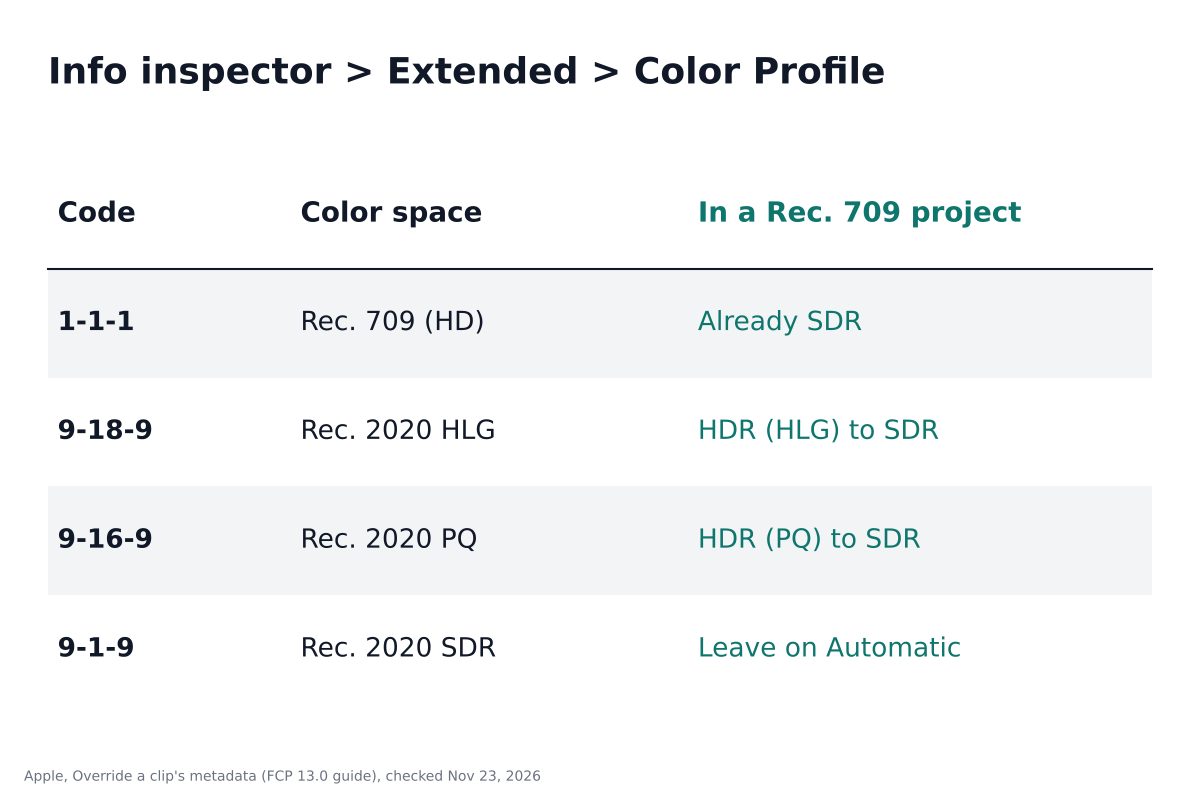
Before converting anything, confirm what the clip is. Select it, open the Info inspector, open the Metadata View menu in its bottom-left corner and choose Extended, then read the Color Profile field.
What the Color Profile code means, from Apple’s metadata override page:
| Color Profile code | Color space | What to do in a Rec. 709 project |
|---|---|---|
| 1-1-1 | Rec. 709 (HD) | Nothing, it is already SDR |
| 9-18-9 | Rec. 2020 HLG | Conform with HDR (HLG) to SDR |
| 9-16-9 | Rec. 2020 PQ | Conform with HDR (PQ) to SDR |
| 9-1-9 | Rec. 2020 SDR | Wide-gamut SDR; let Automatic handle it |
| 6-1-6 / 5-1-6 | NTSC SD / PAL SD | Old SD media, not an HDR issue |
Source: Apple, Override a clip’s metadata in Final Cut Pro for Mac (13.0 guide), checked November 23, 2026.
Apple calls iPhone HDR footage Dolby Vision HDR, and its own editing instructions for it use a Wide Gamut HDR - Rec. 2020 HLG project. So for iPhone clips the HLG conversion is the one to pick.
One warning about Color Space Override, which sits in the same inspector under the Settings view. It exists to repair missing or wrong tags. Using it to relabel a correct HLG clip as Rec. 709 does not convert anything; it tells Final Cut Pro to misread the file. If the code above is correct, leave the override alone.
Adding an HDR clip to an SDR project
You can mix the two. Since Final Cut Pro 10.6.6, the built-in Color Conform effect is applied to every imported clip, and any clip whose color space differs from the project’s is converted to the project’s color space. An HLG clip dropped into a Rec. 709 timeline becomes SDR without a click.
The project setting decides the output, not the order you add clips in. Apple’s wording is that the project color space controls render files, what you see on screen, and the exported file.
Two situations break the automatic path. Projects created in 10.6.3 or earlier start with Color Conform set to None, so older edits you reopen will show raw HDR. And if someone switched off Automatic Color Conform in Settings, new clips also arrive unconverted.
If you mostly shoot SDR and only a few phone clips are HDR, keep the library on Standard color processing and the project on Rec. 709. Standard sets the working space to Rec. 709 primaries; Wide Gamut HDR uses Rec. 2020 primaries and is only needed when you deliver HDR. Apple also suggests one library per project or deliverable to avoid color space crossover.
HDR Tools or Color Conform
Use Color Conform. Apple now calls HDR Tools a legacy effect kept for backward compatibility with older projects.
HDR Tools still has one job Color Conform cannot do: placement. It lives in the Effects browser under Color, and its Mode menu includes HLG to Rec. 709 SDR and PQ to Rec. 709 SDR, with Peak Brightness and Mix controls. Apple says it works best after your color corrections, and that you can set Color Conform to None and position HDR Tools after a specific effect when the order of operations matters.
For a talking-head video with a few iPhone B-roll clips, that level of control is not worth it. Turn on Color Conform, check the clip, move on.
Turn an HDR project into an SDR version
If you already edited in a Wide Gamut HDR project, you do not need to rebuild it. Final Cut Pro lets you change almost every setting of an existing project; frame rate is the exception once the timeline has clips.
The safer route keeps the HDR edit intact:
- Select the project in the browser and choose Edit > Duplicate Project As, which makes a copy with different project settings.
- Set the copy’s Color Space to Standard - Rec. 709. Color Conform then converts every HDR clip to the new project space.
- Play through the bright shots and correct any that now look flat.
- Share the copy. In the Share window, the Settings pane shows the color space, which Apple says comes from the project settings and the chosen video codec. It should read Rec. 709 before you click Next.
Changing a project’s color space changes the color space of its render files too, so expect Final Cut Pro to re-render the timeline. If that takes long, the fixes in Final Cut Pro rendering slow apply here.
HDR vs SDR for YouTube
I edit my YouTube videos alone in Final Cut Pro, so there is no colorist after me to catch a bad conversion; whatever leaves the Share window is what viewers get. For that kind of channel, SDR is the default worth keeping.
HDR or SDR upload, with values from YouTube Help and Apple’s guide (checked November 23, 2026):
| SDR upload (Rec. 709 project) | HDR upload (Wide Gamut HDR project) | |
|---|---|---|
| Color YouTube expects | BT.709; other spaces are mapped to it | Rec. 2020 primaries with PQ or HLG |
| Bit depth | No requirement listed | 10 or 12 bits |
| Codec from Final Cut Pro | H.264 or HEVC | A 10-bit codec such as ProRes, or HEVC 10-bit |
| YouTube-recommended codec and container | H.264 in MP4 | VP9 Profile 2, AV1, HEVC |
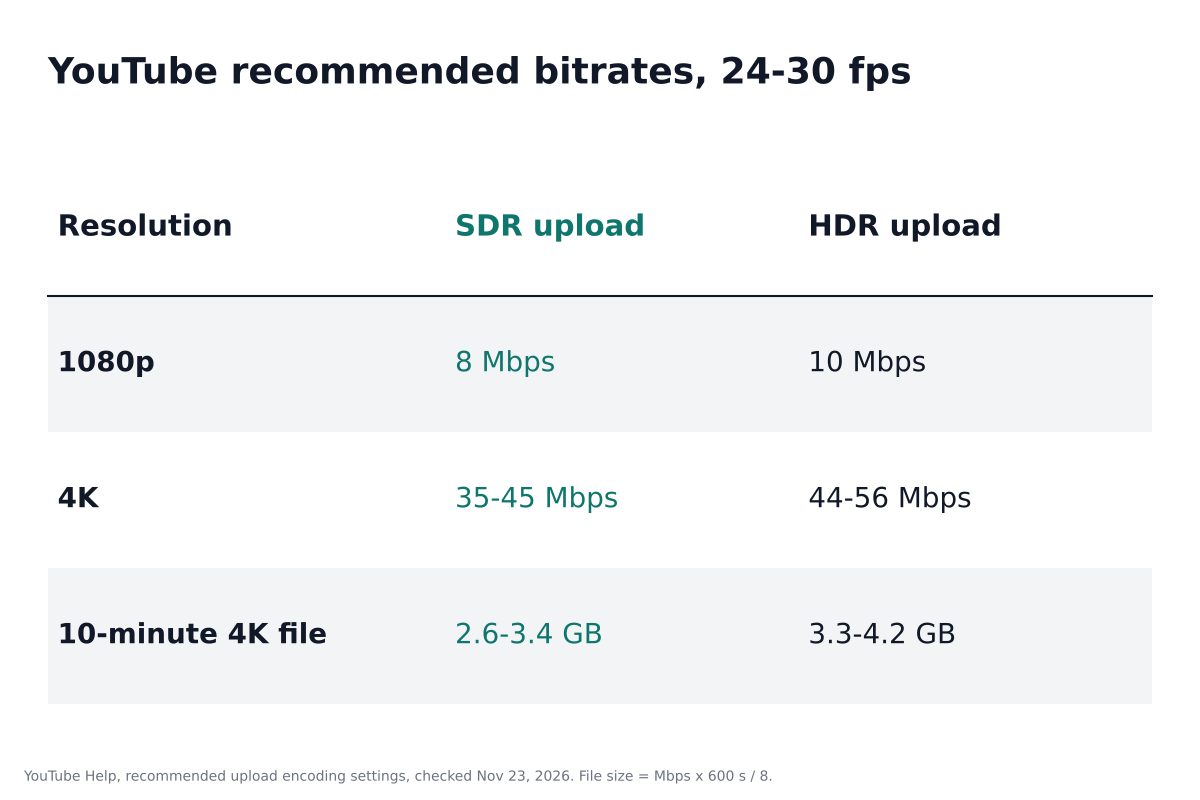
| Bitrate, 1080p at 24-30 fps | 8 Mbps | 10 Mbps |
| Bitrate, 4K at 24-30 fps | 35-45 Mbps | 44-56 Mbps |
| Viewers without HDR screens | See your file as graded | See YouTube’s automatic SDR conversion |
| YouTube web editor | Works | Not available for HDR uploads |
Sources: YouTube Help, Upload HDR videos and Recommended upload encoding settings; Apple, Export HDR files and Edit HDR video recorded on an iPhone.
A worked example with those bitrates: a 10-minute 4K upload at 24-30 fps comes to about 2.6 to 3.4 GB as SDR (35-45 Mbps × 600 seconds ÷ 8) and about 3.3 to 4.2 GB as HDR (44-56 Mbps). The HDR file is roughly a quarter bigger for the same edit.
The bigger cost is control. YouTube converts HDR to SDR for non-HDR viewers by itself, and the only lever you get is an optional.cube LUT for that conversion. Also, a Wide Gamut Rec. 2020 file that is not HDR gets converted to 8-bit BT.709, so there is no benefit in leaving an SDR edit in a wide-gamut space.
Pick HDR only when every clip is HDR, you can watch the grade on an HDR display, and you will not need the web editor afterward. For HDR, Apple’s route is a Wide Gamut HDR library, a Rec. 2020 HLG or PQ project, and a 10-bit export; the full Share settings are in the Final Cut Pro export settings for YouTube guide. For an SDR file you want as.mp4, the MP4 export guide has the Format choice, and vertical clips follow the Shorts settings.
What the viewer shows on an SDR or HDR Mac screen
The viewer’s View menu, top right, has Show HDR as Tone Mapped. It compresses bright content so HDR fits your display, and it is on by default in most cases when you view HDR video. It is a display setting: it does not touch an external monitor on A/V Output, and the exported file follows the project color space.
That is why an HDR export can look brighter outside Final Cut Pro, on a screen that shows HDR, than it did in the tone-mapped viewer. Judge an SDR deliverable in a Rec. 709 project and the question does not come up.
Stop it at the source
If you never deliver HDR, stop recording it. On the iPhone, open Settings > Camera > Record Video and switch HDR Video off. New clips arrive as SDR and need no conversion.
Open your project’s Properties now, confirm Color Space says Standard - Rec. 709, and set any HDR clip still showing None in Color Conform to HDR (HLG) to SDR before you export.
Frequently asked questions
How do I convert HDR to SDR in Final Cut Pro?
Put the clip in a project whose color space is Standard - Rec. 709 and leave Automatic Color Conform on; Final Cut Pro converts it for you. To force it, select the clip, open the Video inspector, set Color Conform's Type to Manual and pick HDR (HLG) to SDR for iPhone footage or HDR (PQ) to SDR for PQ files. Do not add HDR Tools on top, because the two effects stack.
Should I upload HDR or SDR to YouTube from Final Cut Pro?
SDR, unless every clip in the edit is HDR and you can judge the grade on an HDR screen. YouTube accepts 10- or 12-bit Rec. 2020 PQ or HLG files and creates an SDR version for viewers without HDR displays, but you do not control that conversion beyond an optional LUT. A Rec. 709 export looks the same for every viewer and can still be trimmed in YouTube's web editor.
How do I turn off HDR video recording on an iPhone?
Open Settings > Camera > Record Video and switch HDR Video off. New clips are then recorded as standard dynamic range and drop into a Rec. 709 Final Cut Pro project with no conversion at all. Clips you already shot stay HDR; convert those with Color Conform.
Is iPhone HDR video HLG or Dolby Vision?
Apple describes it as Dolby Vision HDR, and Apple's own Final Cut Pro instructions for that footage use a Wide Gamut HDR - Rec. 2020 HLG project. That is why the SDR conversion to pick in Color Conform is HDR (HLG) to SDR rather than the PQ option. Confirm a given clip in the Info inspector's Extended view: HLG shows the code 9-18-9.
Sources
- Apple — Use automatic color management and Color Conform in Final Cut Pro for Mac
- Apple — Use wide-gamut HDR color processing in Final Cut Pro for Mac
- Apple — View HDR video in the viewer in Final Cut Pro for Mac
- Apple — Override a clip's metadata in Final Cut Pro for Mac
- Apple — Export HDR files in Final Cut Pro for Mac
- Apple Support — Edit HDR video recorded on an iPhone or iPad
- Apple — Wide-gamut HDR tips in Final Cut Pro for Mac
- Apple — Project settings in Final Cut Pro for Mac
- Apple — Modify a project's settings in Final Cut Pro for Mac
- Apple — Duplicate projects and clips in Final Cut Pro for Mac
- Apple — Export File and Apple Devices destinations in Final Cut Pro for Mac
- Apple — Final Cut Pro release notes
- YouTube Help — Upload High Dynamic Range (HDR) videos
- YouTube Help — YouTube recommended upload encoding settings
This article is general information based on the author's experience. It is not licensed financial, legal, or tax advice. See the editorial policy.