Final Cut Pro Export as MP4: The Exact Setting in 12.4
Final Cut Pro gives you .mov unless you pick one menu. The exact Share settings for .mp4 in 12.4, why ProRes stays .mov, and file sizes per minute.

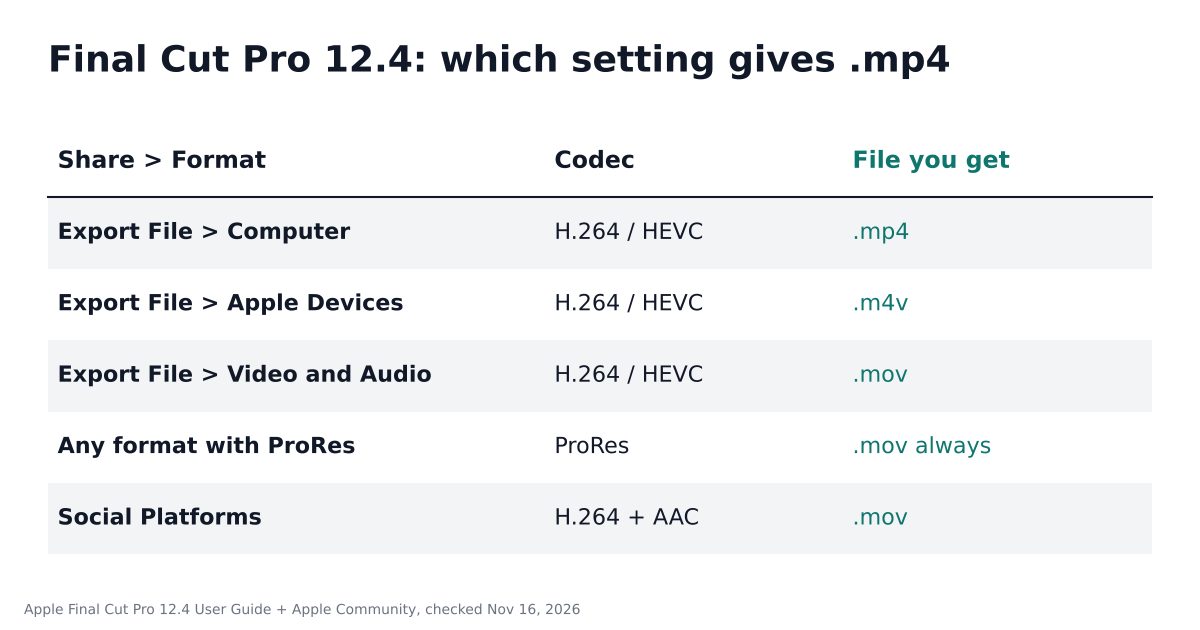
To export an MP4 from Final Cut Pro 12.4, choose File > Share > Export File (Command-E), open Settings, and set Format to Computer with H.264 or HEVC as the video codec. Before you click Next, read the output file type at the bottom of the Share window: it should say MPEG-4, and the file lands as .mp4. Any of the first three Format choices (Video and Audio, Video Only, Audio Only) gives you a QuickTime .mov instead, even with H.264.
That one menu is the whole trick. The rest of this page explains which Share route gives which extension, why ProRes can never be an MP4, how big each file gets per minute, and what to do when Computer still is not offered.
The exact steps for an .mp4
These steps follow Apple’s Final Cut Pro for Mac user guide for version 12.4 (September 29, 2026); Final Cut Pro 13.0 followed on November 18, 2026.
- Select the project in the browser, or open it and set a range with I and O if you only want part of it.
- If the project uses proxy media, set the viewer’s View menu to Optimized/Original so the export is built from full-quality media.
- Press Command-E, or choose File > Share > Export File.
- Click Settings. Open the Format menu and choose Computer.
- Pick H.264 or HEVC in the Video codec menu, then set the resolution.
- Look at the summary line at the bottom of the window. Apple lists the output file type there, next to frame size, duration and file size.
- Click Next, name the file, and save.
Step 6 is the one people skip. It shows the file type before the export starts, so you never have to wait 10 minutes to discover you made another .mov.
Which Share choice gives .mp4, .mov or .m4v
Apple’s guide does not print one list that maps every menu to an extension, so this table pulls it together from five Apple documents and YouTube’s format list, collected on November 16, 2026. The two publishing-format rows marked “community” come from Apple Community answers and the Share window’s own summary line, not from a sentence in Apple’s guide.
| Share route | Format | Video codec | File you get | Best use |
|---|---|---|---|---|
| Export File | Computer | H.264 or HEVC | .mp4 (MPEG-4) — community | Sending to a client or a phone, upload forms that ask for MP4, YouTube |
| Export File | Apple Devices | H.264 or HEVC | .m4v — community | Playing on iPhone, iPad, Mac or Apple TV |
| Export File | Web Hosting | H.264 or HEVC | Not stated by Apple; read the output file type line | YouTube or Vimeo uploads |
| Export File | Video and Audio | H.264 or HEVC | .mov (QuickTime) | YouTube upload, which accepts .mov |
| Export File | Video and Audio | Apple ProRes (any flavor) | .mov, always | Archive master, re-encoding later |
| Social Platforms | Fixed | H.264 with AAC audio | .mov | Quick upload you finish in YouTube Studio |
| Send to Compressor | MPEG-4 preset | H.264 or HEVC | .mp4 | MP4 with control over bitrate |
Source: Apple Final Cut Pro 12.4 User Guide (Export File destinations, Supported export formats, Export final mastering files, Social Platforms), Compressor User Guide (MPEG-4), Apple ProRes white paper, YouTube Help supported formats; Apple Community threads 255463402 and 256219130. Collected Nov 16, 2026.
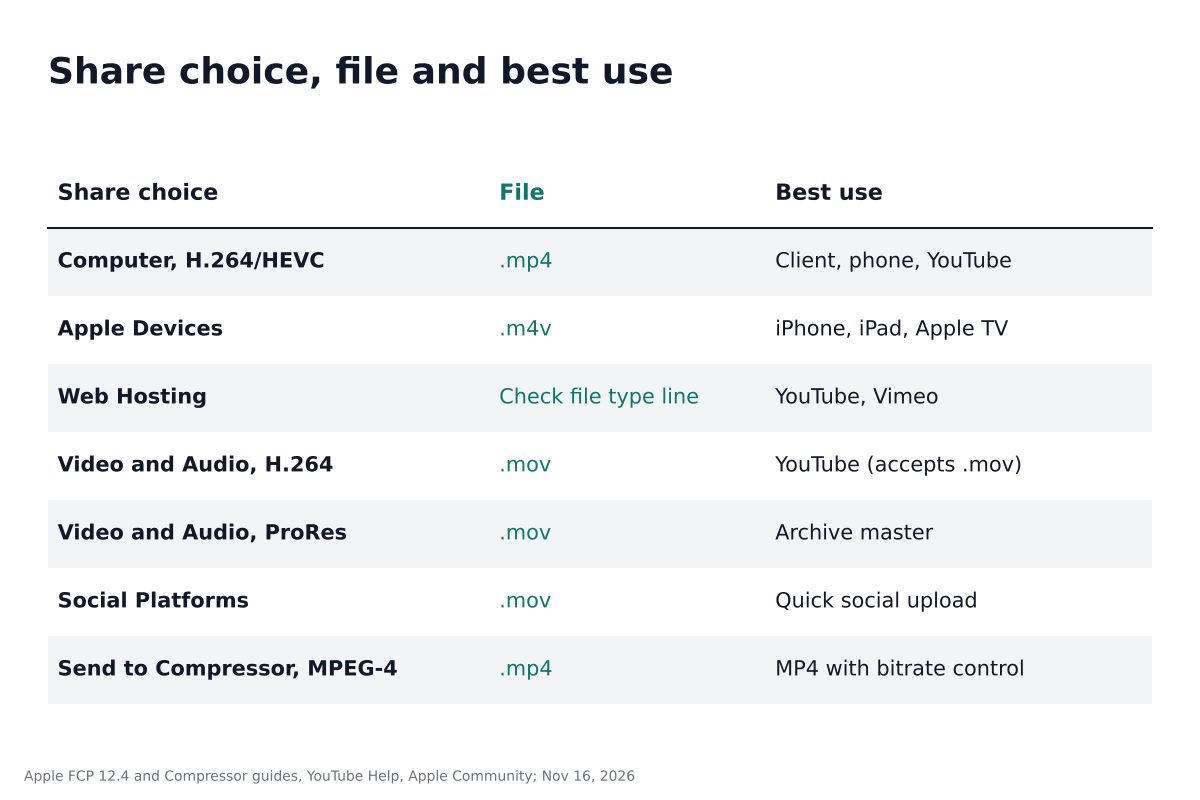
If you only remember one row, remember the first. Computer is the publishing format meant for playback on Mac and PC, and it is the one that produces a file a Windows laptop or an Android phone will open without a second thought.
Why “Video and Audio” with H.264 still gives a .mov
The codec and the container are two separate choices. H.264 is how the picture is compressed; .mov and .mp4 are the wrappers that hold it.
Apple’s supported-formats page says every format available in the Export File destination is available for the MOV container, and the mastering-file page says a project shared this way is exported as a QuickTime movie. So when you leave Format on Video and Audio and switch the codec to H.264, Final Cut Pro does exactly what it says: an H.264 stream inside a QuickTime .mov.
That file is not broken. It is the same picture quality you would get from Computer, just in a different wrapper. If it is headed to YouTube, upload it as it is.
There is a second reason to prefer Computer when you do not need a master. Apple’s guide says you can change the export resolution only for publishing formats. A mastering format always exports at the project’s frame size, so a 1080p file from a 4K timeline needs Computer, Apple Devices or Web Hosting anyway.
Why ProRes always gives a .mov
Apple ProRes is stored in QuickTime .mov files, or in MXF if you choose that wrapper. Apple’s ProRes white paper names those two containers and no others. There is no MP4 version of ProRes for Final Cut Pro to write.
That is why choosing any ProRes flavor locks the extension to .mov. It is also why ProRes never appears in the Computer format’s codec menu: Apple says the codec choices follow from the format you pick and the project’s media.
Keep ProRes for what it is good at. It is an editing and archive codec, and the next section shows how much disk it uses per minute.
The Social Platforms route gives a .mov too
This is the one that catches YouTubers. The destination Apple used to call YouTube & Facebook is now called Social Platforms, and Apple’s 12.4 guide states that it transcodes your project to a MOV file with H.264 video and AAC audio. It saves that file for you to upload yourself; it does not post anything.
So if you picked the YouTube-sounding option expecting an MP4, the .mov is not a mistake. YouTube lists .MOV among its supported upload formats, so you can upload it unchanged. If the file is going anywhere else that insists on MP4, go back to Export File and choose Computer.
For the bitrate, resolution and frame-rate side of a YouTube upload, the Final Cut Pro export settings for YouTube table covers each resolution; this page stays on the .mp4 question.
How big each file gets per minute
File size is the practical reason most people want an MP4. A client’s inbox, a phone’s storage and an upload over hotel Wi-Fi all care about megabytes, not codec names.
The table below is arithmetic, not a measurement: megabytes per minute = bitrate in Mbps × 60 ÷ 8. The H.264 rows use YouTube’s recommended upload bitrates. The ProRes rows use the target data rates in Apple’s ProRes white paper for 1920 × 1080 at 29.97 fps and 3840 × 2160 at 30p. Apple does not publish the bitrate Final Cut Pro’s Computer format uses, so your Share window’s file-size estimate is the number to trust for a specific project.
| File | Bitrate | Per minute (arithmetic) | 10-minute video | Best use |
|---|---|---|---|---|
| H.264 .mp4, 1080p at 24–30 fps | 8 Mbps | 60 MB | 600 MB | Client, phone, YouTube |
| H.264 .mp4, 1080p at 48–60 fps | 12 Mbps | 90 MB | 900 MB | Client, phone, YouTube |
| H.264 .mp4, 4K at 24–30 fps | 35–45 Mbps | 263–338 MB | 2.6–3.4 GB | YouTube 4K upload |
| ProRes 422 Proxy .mov, 1080p | 45 Mbps | 338 MB | 3.4 GB | Rough cut review |
| ProRes 422 .mov, 1080p | 147 Mbps | 1,103 MB | 11 GB | Archive master |
| ProRes 422 HQ .mov, 1080p | 220 Mbps | 1,650 MB | 16.5 GB | Archive master, grading |
| ProRes 422 .mov, 4K | 589 Mbps | 4,418 MB | 44 GB | 4K archive master |
Source: YouTube Help, Recommended upload encoding settings; Apple ProRes white paper (April 2022). Audio excluded: YouTube’s recommended 384 kbps stereo AAC adds about 2.9 MB per minute. Collected Nov 16, 2026.
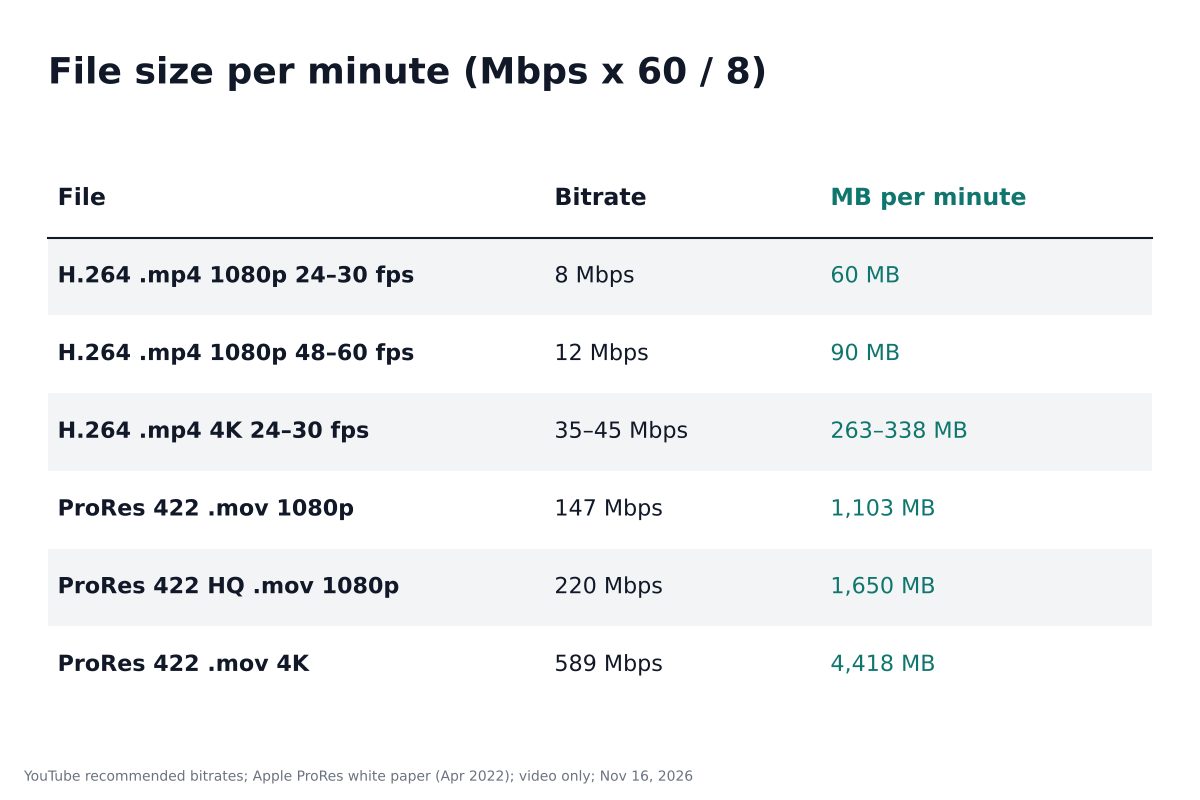
Read the jump between the first and fifth rows. A 1080p ProRes 422 master is about 18 times the size of an 8 Mbps H.264 file of the same video. Send the MP4 to people, and keep the ProRes file on your own drive.
When it still won’t give you an .mp4
Work through these in order. Each one is a different cause.
You are in the wrong Format. Computer is a publishing format, listed after the three mastering formats. If you only ever opened the codec menu, you were changing the codec inside a .mov.
The codec menu looks different from a tutorial. Apple says the available codec choices depend on the source clip or project media. If H.264 is missing, check the project’s properties and the source media before blaming the export.
You need settings Final Cut Pro does not expose. Choose File > Send to Compressor, click Add Outputs, pick an MPEG-4 preset and click Start Batch. Apple’s Compressor guide says MPEG-4 output is written with the .mp4 extension and offers H.264 (the default) or HEVC, with control over audio bitrate. Compressor costs $49.99 as a one-time purchase on the Mac App Store, and it is also included in Apple Creator Studio ($12.99 a month or $129 a year), as of November 2026. You can also turn a Compressor preset into a Final Cut Pro destination with the Compressor Presets destination.
You are tempted to rename the file. Renaming .mov to .mp4 does not convert anything. The codec, the bitrate and the size stay exactly as they were. An H.264 .mov with a new name often opens, which is why forum answers recommend it, but it is still a QuickTime file, and a ProRes .mov renamed to .mp4 is simply a mislabeled ProRes file. Older forum threads (written for Final Cut Pro 11.x and earlier) also suggest that MP4 export is missing entirely; in 12.4, Apple’s guide still lists Computer as a publishing format, so re-export rather than rename.
The export itself fails or hangs. That is a different problem from the extension, with its own fixes in Final Cut Pro export stuck or failing. And if the .mp4 plays with no sound, start at the Share window’s Format and Roles settings in Final Cut Pro no audio.
Make the MP4 a one-click destination
Rebuilding the same Settings pane before every export is how the Format menu slips back to Video and Audio. A saved destination removes the step.
Choose Final Cut Pro > Settings, click Destinations, Control-click Export File and choose Duplicate. Double-click the copy and rename it, for example “MP4 1080p”. Set its Format to Computer and its codec to H.264. Then Control-click it and choose Make Default, which points Command-E at it.
I edit my own YouTube videos alone in Final Cut. The setup I would give anyone working the same way is one default MP4 destination for files that leave the Mac, and a separate ProRes destination used only when you deliberately want a master. Two named buttons are harder to mix up than one Format menu.
Open Final Cut Pro > Settings > Destinations now, duplicate Export File into “MP4 1080p” with Format set to Computer, and make it the default. Your next Command-E will produce an .mp4.
Frequently asked questions
Can I just rename a .mov from Final Cut Pro to .mp4?
Renaming changes the label, not the file. The codec, bitrate and size stay exactly the same. An H.264 .mov renamed to .mp4 often opens anyway, but a site that actually checks the container can still reject it, and a ProRes .mov renamed to .mp4 is a ProRes file with a wrong name. Re-export with Format set to Computer, or encode with Compressor's MPEG-4 preset.
Does YouTube need an MP4 from Final Cut Pro?
No. YouTube lists both .MOV and .MP4 as supported upload formats. Its recommended settings name MP4 as the container with H.264 video, but an H.264 .mov from Final Cut Pro uploads and processes fine. Pick .mp4 when the file is going to a person, a phone or a site that insists on it.
What is the difference between .m4v and .mp4 from Final Cut Pro?
Both come from Final Cut Pro's publishing formats. The Apple Devices format produces .m4v, a close relative of MP4 that Apple's players handle well; the Computer format produces .mp4, which is the safer choice for Windows PCs, Android phones and upload forms. If someone asks for an MP4, choose Computer rather than renaming an .m4v.
Should I pick H.264 or HEVC when exporting MP4 from Final Cut Pro?
H.264 when you do not know what will play the file, because it is the codec YouTube recommends and the one older devices decode. HEVC when the file stays in a modern Apple or recent-device workflow: Apple describes it as giving smaller files than H.264 at the same quality, with optional HDR support.
Sources
- Apple — Export File and Apple Devices destinations in Final Cut Pro for Mac
- Apple — Supported export formats in Final Cut Pro for Mac
- Apple — Export final mastering files in Final Cut Pro for Mac
- Apple — Share on the web (Social Platforms) in Final Cut Pro for Mac
- Apple — Intro to sharing projects in Final Cut Pro for Mac
- Apple — Share from Final Cut Pro for Mac using Compressor
- Apple — Create share destinations in Final Cut Pro for Mac
- Apple — Final Cut Pro release notes
- Apple — Compressor User Guide: MPEG-4 settings
- Apple — Compressor on the Mac App Store
- Apple — Compressor product page
- Apple — Apple ProRes white paper (April 2022)
- YouTube Help — Recommended upload encoding settings
- YouTube Help — Supported YouTube file formats
- Apple Community — Apple MPEG-4 film versus MPEG-4 film (Computer vs Apple Devices)
- Apple Community — Final Cut Pro 11.1.1 on Sonoma: how to export mp4
This article is general information based on the author's experience. It is not licensed financial, legal, or tax advice. See the editorial policy.