Final Cut Pro Not Playing Audio? Fix It by Symptom
Final Cut Pro playing no sound? Find your symptom, then the exact 12.4 menu to check: Mac output, roles, solo, disabled clips, audio channels and export roles.

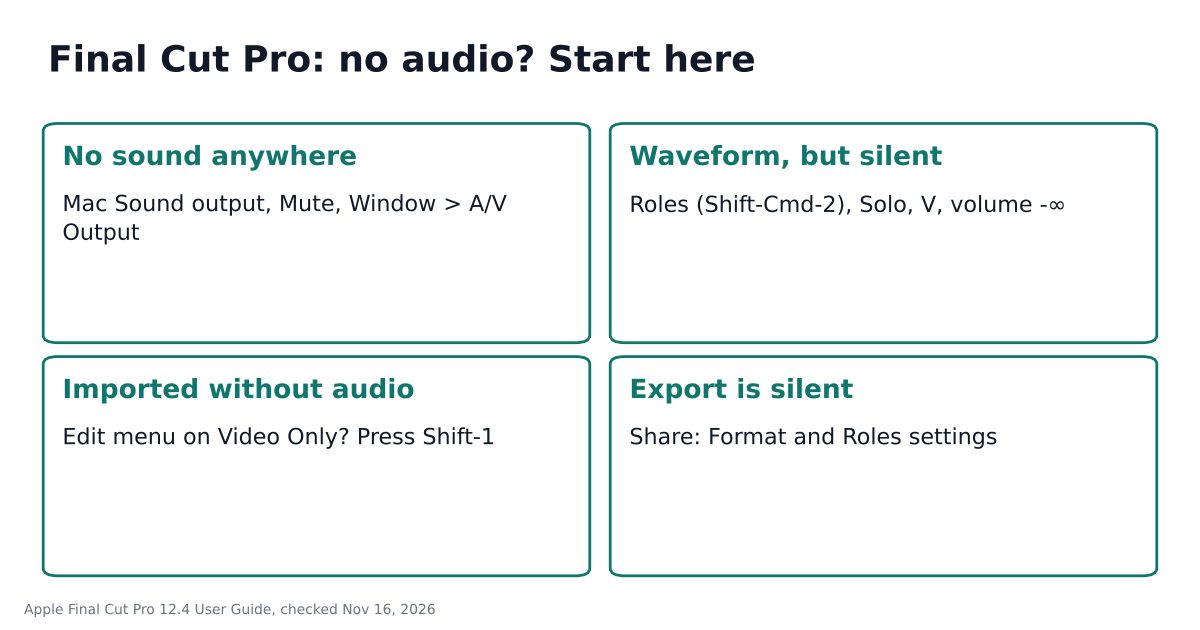
When Final Cut Pro plays no audio, start outside the app: check the Mac’s output device and Mute box in System Settings > Sound. If other apps play sound, the cause is inside Final Cut Pro, and it is usually a turned-off role, Solo on another clip, a disabled clip, or volume at -∞. Exports without audio come from the Share window’s Format or Roles settings.
Where the silence happens tells you which group to check. Menu names below are from Apple’s guide for Final Cut Pro 12.4 (13.0 came out November 18, 2026).
Find your symptom first
Symptom, check and fix, built from Apple’s Final Cut Pro 12.4 user guide and the macOS Sound settings page:
| Symptom | Check | Fix |
|---|---|---|
| No sound from any clip, any project | System Settings > Sound: output device, Output volume, Mute | Pick the speakers or headphones you use, clear Mute |
| No sound, but an external monitor is connected | Window > A/V Output is on | Choose Window > A/V Output again to turn it off, or listen on that device |
| Silent while skimming, fine on Space bar | View > Audio Skimming (Shift-S) | Turn audio skimming on |
| Mono clips silent through an audio interface | Audio MIDI Setup > Configure Speakers | Set Configuration to Stereo, click Done |
| Waveform is gray, clip is silent | Timeline index > Roles (Shift-Command-2) | Select the checkbox next to the role |
| Only one clip plays, the rest look dimmed | Solo button, top right of the timeline | Press Option-S or click Solo again |
| Clip is dimmed and silent | Clip > Disable was used | Select it, press V |
| Waveform flat or tiny | Audio inspector Volume field | Modify > Adjust Volume > Reset (0dB) |
| One channel or mic missing | Audio inspector > Audio Configuration checkboxes | Select the checkbox next to the waveform |
| Clip arrived in the timeline with no audio | Edit pop-up menu set to Video Only | Press Shift-1 for All, add the clip again |
| Export plays with no sound | Share > Settings > Format; Share > Roles | Use Video and Audio, or a publishing format; turn the role on |
Source: Apple Final Cut Pro User Guide for Mac 12.4 and Mac User Guide, checked November 16, 2026.
The 60-second checklist
Run this before you re-import anything or rebuild a project. It goes fastest check first.
- Play a song in Music or a video in Safari. Silent too? Fix System Settings > Sound.
- Open the Window menu and look at A/V Output. If it is on, sound may be going to another screen.
- Press Shift-Command-2, click Roles, and confirm every audio role is checked.
- Look at the Solo button in the top right of the timeline. Lit means other clips are muted.
- Select the silent clip and press V once. If it brightens, it was disabled.
- Press Command-4, click Audio, and read the Volume field.
- In the same inspector, check the boxes under Audio Configuration.
- Show the meters (Window > Show in Workspace > Audio Meters) and play. Moving meters with no sound usually point back to output routing.
Step 8 is the split. Moving meters mean Final Cut Pro is producing audio and something after it is not passing it on. Still meters mean the problem is in the project.
No sound anywhere in Final Cut Pro
Check the Mac first. Apple’s Sound settings page has the output device list, an Output volume slider and a Mute checkbox, and any of the three can silence every app at once.
If Music plays and Final Cut Pro does not, look at A/V Output. That setting lives in Final Cut Pro > Settings > Playback, and once you turn it on with Window > A/V Output, picture and sound go to the chosen external display or video interface. A monitor with no speakers then plays nothing.
The Playback pane has no separate audio output menu in 12.4. Final Cut Pro uses the Mac’s output unless A/V Output is on.
Audio skimming is the other false alarm. Turning it off with View > Audio Skimming (Shift-S) only silences the sound you hear while dragging the skimmer. Press the Space bar and playback should still be audible.
If you monitor through an audio interface and only mono or dual mono clips are silent, Apple’s fix is in Audio MIDI Setup: select the device, click Configure Speakers, set Configuration to Stereo, click Done.
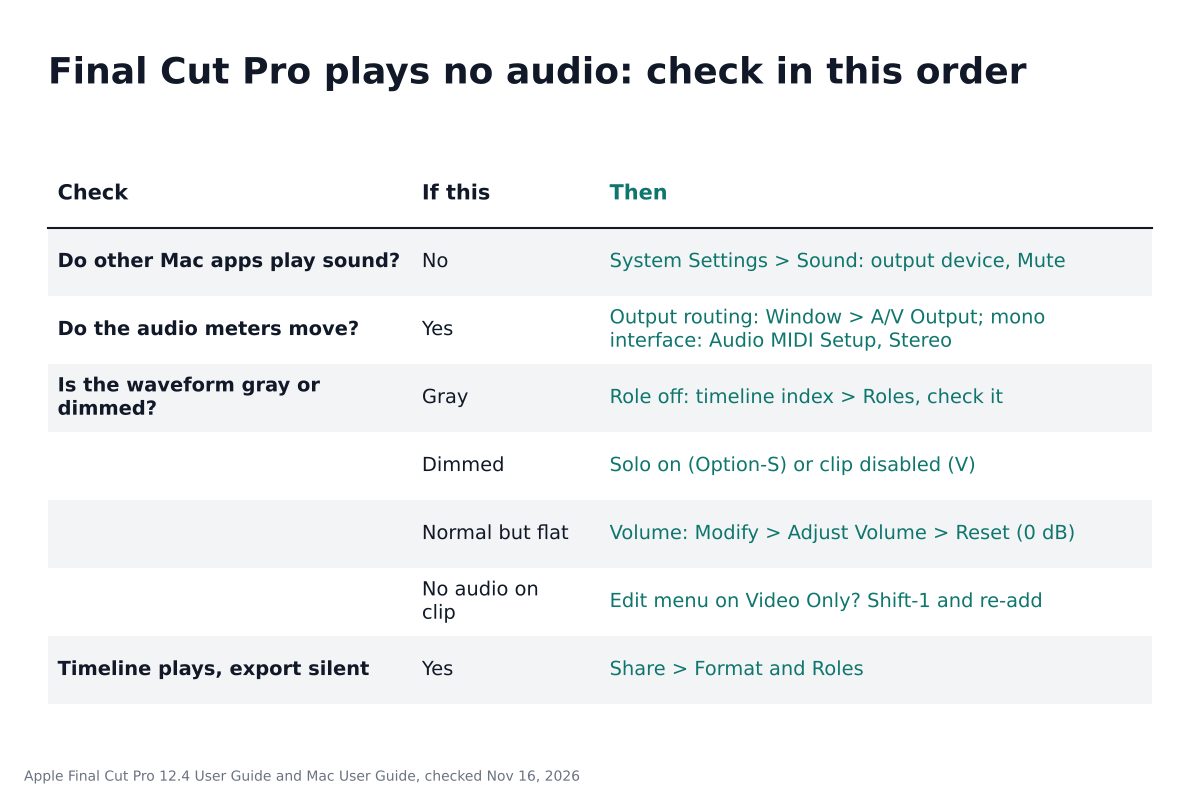
Waveform shows but the clip is silent
A visible waveform means the file has audio. It does not mean Final Cut Pro is allowed to play it.
Roles come first. Open the timeline index with Shift-Command-2 or View > Timeline Index > Roles, and look for a cleared checkbox. Apple says clips with inactive roles do not play, and inactive audio roles show a gray waveform. A gray waveform is the clue.
Solo is next. Clip > Solo (Option-S) plays only the selected clips and temporarily silences every other one, which is easy to leave on after checking a single voice track. The soloed clip stays highlighted and the rest dim.
Disabled clips also dim. Clip > Disable, or V, makes a clip invisible and silent and keeps it out of every export. Press V again on the selected clip to enable it.
Volume can hide in plain sight. Modify > Adjust Volume > Silence (-∞) drops a clip to minus infinity, and the waveform shrinks with the level. Choose Modify > Adjust Volume > Reset (0dB), or type 0 in the Volume field of the Audio inspector.
Then open Audio Configuration in the Audio inspector. A cleared checkbox next to a waveform disables that component, and it disappears from the clip in the timeline. This is where a second mic or a camera’s extra channel goes missing. Clip > Expand Audio Components (Control-Option-S) shows each channel so you can see which one is off.
Be careful with the Channels pop-up menu here. Apple says changing the channel configuration resets component edits, including effects, disabled ranges, keyframes and role assignments. Change it only when the channel layout itself is wrong, such as a stereo pair that should be two separate mics.
Clip imported or added without audio
First rule out the edit mode. The Edit pop-up menu in the top-left corner of the timeline has All (Shift-1), Video Only (Shift-2) and Audio Only (Shift-3). With Video Only active, every clip you add brings just its picture. Press Shift-1, delete the silent copy, and add it again.
Multicam clips have their own switch. In the angle viewer, the right switch mode button cuts audio only and the middle one cuts video only, and green highlighting marks the active audio angle. If you cut in video-only mode, the sound never switches with the picture, so it stays on whichever angle was active for audio.
If the clip is also silent in the browser, look at the source. Open it in QuickTime Player. No sound there means the camera or screen recorder never wrote an audio track, and no Final Cut Pro setting will create one.
Check the format last. Final Cut Pro 12.4 lists AAC, AIFF, BWF, CAF, MP3, MP4, RF64 and WAV as supported audio formats, and other formats need a third-party media extension on macOS Sequoia or later. Converting an odd file to WAV is a reasonable test. For files that will not import at all, see the Final Cut Pro not importing media fixes.
Exported file has no audio
When the timeline plays and the exported file is silent, the cause is almost always in the Share window, not the media.
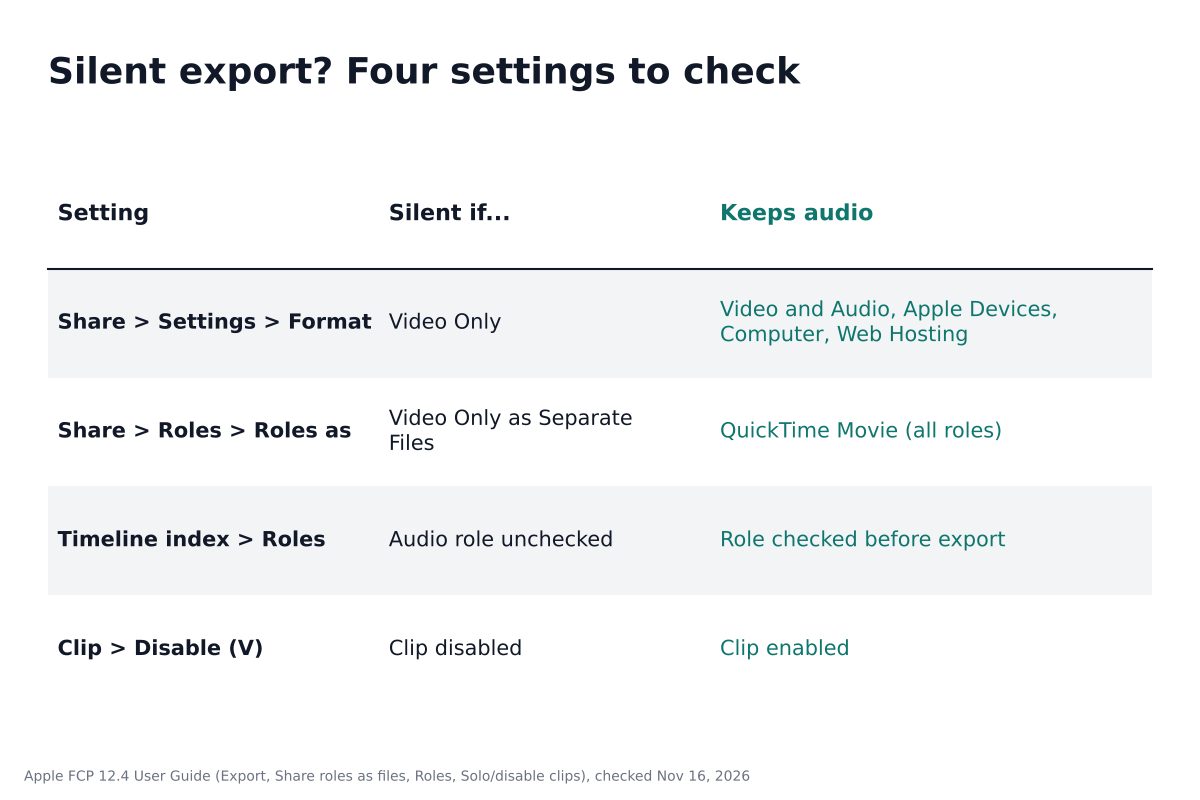
- Format. In File > Share > Export File, click Settings. Format offers Video and Audio, Video Only and Audio Only, plus Apple Devices, Computer and Web Hosting. Video Only means a file with no sound.
- Roles as. In the Roles pane, Video Only as Separate Files writes video roles only. QuickTime Movie exports every role in one file.
- Roles turned off. Apple says roles you turn off in the timeline index are not included in shared files. For multitrack QuickTime or MXF from Export File, you can add them back in the Roles pane.
- Disabled clips. They do not appear in any output.
I edit my own YouTube videos alone in Final Cut, so nobody else hears the file before it goes up. Scrubbing through the exported file with sound on, before upload, is the check that catches a role left off from a review pass.
For the rest of the Share settings, the Final Cut Pro export settings for YouTube guide covers format and codec choices, and missing subtitles are a separate Roles problem covered in captions not exporting.
When every setting looks right
Some audio problems survive the checklist. Audio that drops out in sections, or plays late, is a different fault, and the audio out of sync guide deals with drift.
For silence that persists, Apple’s general troubleshooting order applies:
- Restart the Mac.
- Copy the project into a new library with test media, and see if the problem follows.
- Reset preferences: note your custom settings, quit, hold Command and Option while opening Final Cut Pro, click Delete Preferences.
- Test in a second administrator account on the Mac.
Apple says resetting preferences does not touch libraries, projects or media. Reinstalling the app does not either.
If you cannot hear anything right now, press Shift-Command-2, click Roles, and look for a gray waveform or an unchecked audio role.
Frequently asked questions
Why does my Final Cut Pro clip show a waveform but play no sound?
A waveform only proves the file has audio data. Playback can still be blocked by a role that is switched off in the timeline index (its waveform turns gray), by Solo being on for a different clip, by the clip being disabled with V, or by its volume set to Silence (-∞). Check those four in that order before touching the media.
Why does my Final Cut Pro export have no sound when the timeline plays fine?
Look at the Share window. If Format is set to Video Only, or the Roles pane is set to Video Only as Separate Files, the file is built without audio. Apple also says roles you turned off in the timeline index are left out of shared files, and disabled clips never appear in any output. Turn the role back on and export again.
Why did my clip drop its audio when I dragged it into the timeline?
The timeline's Edit pop-up menu is probably set to Video Only (Shift-2). In that mode Final Cut Pro adds only the picture from whatever you drag or edit in. Press Shift-1 to go back to All, delete the silent clip, and add it again. The audio was never lost from the source file.
Why can't I hear mono audio through my audio interface in Final Cut Pro?
Some third-party interfaces need their speaker layout set before mono or dual mono plays correctly. Apple's fix is in Audio MIDI Setup: select the output device, click Configure Speakers, choose Stereo from the Configuration pop-up menu, then click Done.
Does resetting Final Cut Pro settings delete my projects?
No. Apple says resetting preferences does not affect libraries, projects or media. Write down your custom settings first, quit, hold Command and Option while opening Final Cut Pro, and click Delete Preferences. Then reapply the settings you need.
Sources
- Apple — Turn roles on or off in Final Cut Pro for Mac
- Apple — Add only a clip's video or audio in Final Cut Pro for Mac
- Apple — Playback settings in Final Cut Pro for Mac
- Apple — Play media on an external display in Final Cut Pro for Mac
- Apple — Skim media in Final Cut Pro for Mac
- Apple — Solo and mute audio clips in Final Cut Pro for Mac
- Apple — Solo or disable clips in Final Cut Pro for Mac
- Apple — Audio channels and components in Final Cut Pro for Mac
- Apple — Configure audio channels in Final Cut Pro for Mac
- Apple — Monitor mono or dual mono audio in Final Cut Pro for Mac
- Apple — Adjust volume in Final Cut Pro for Mac
- Apple — Ways to view audio clips in Final Cut Pro for Mac
- Apple — View and change audio levels in Final Cut Pro for Mac
- Apple — Export File and Apple Devices destinations in Final Cut Pro for Mac
- Apple — Share roles as files in Final Cut Pro for Mac
- Apple — Cut and switch camera angles in Final Cut Pro for Mac (12.4)
- Apple — Supported media formats in Final Cut Pro for Mac (12.4)
- Apple — If Final Cut Pro isn't working
- Apple — Change Sound settings on Mac
- Apple — Final Cut Pro release notes
This article is general information based on the author's experience. It is not licensed financial, legal, or tax advice. See the editorial policy.