Final Cut Pro Audio Out of Sync? Offset, Drift or Export
Final Cut Pro audio out of sync with video? Measure offset vs drift, then fix it with Apple's 12.4 commands. Symptom table and a drift calculator in frames.

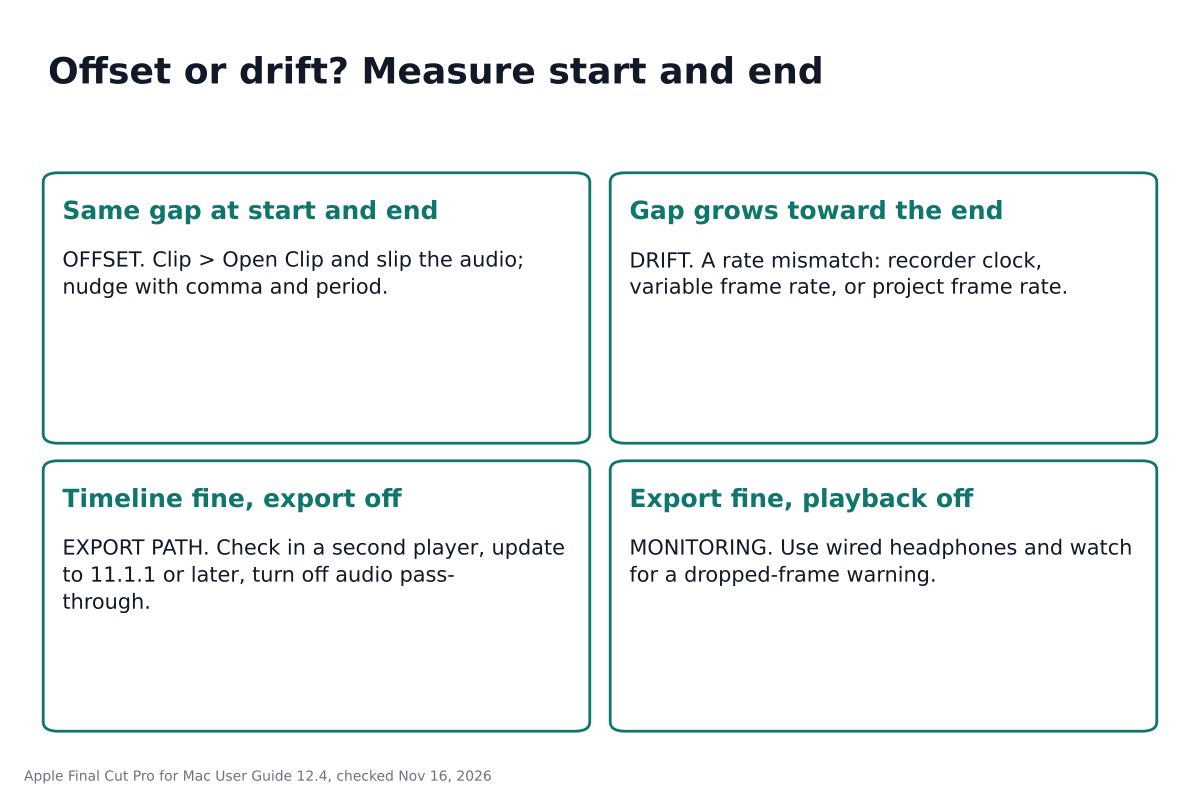
If Final Cut Pro audio is out of sync with video by the same amount everywhere, it is an offset: open the clip and slide the audio. If the gap grows from the start of the clip to the end, it is drift, caused by a rate mismatch. If the timeline is fine and only the export is off, check the export path. If only playback lags, check how you are listening.
So measure before you fix. Check the gap near the start of the clip and again near the end; those two numbers tell you which problem you have.
I edit my own YouTube videos alone in Final Cut, so a sync problem is mine to find. The steps below are built from Apple’s Final Cut Pro 12.4 user guide and release notes, with the arithmetic shown where Apple gives no number.
First, measure it: offset or drift?
Pick a sharp sound near the start of the clip: a clap, a plosive, a cup set on a desk. Then pick another one near the end. At both points, compare the spike in the waveform with the frame where it happens on screen.
Two tools in Final Cut Pro make this easier. Clip Skimming (View > Clip Skimming, Option-Command-S) limits audio skimming to one clip, so you hear the connected recorder track without the camera track on top; audio skimming (Shift-S) has to be on first. And Option-Left Arrow and Option-Right Arrow step the playhead by one subframe, which Apple defines as 1/80 of a frame.
Count the frames between sound and picture at each point. Then read the result:
- Same gap at the start and the end: a constant offset.
- Small gap at the start, bigger gap at the end: drift.
- No gap in the timeline, gap in the exported file: an export or player problem.
- No gap in the export, gap while you play the timeline: a playback or monitoring problem.
Symptom, cause and fix table
Each fix below is an Apple-documented command in Final Cut Pro 12.4 or Compressor 5.4. Where a row links cause and symptom by reasoning rather than an Apple statement, it says so.
| What you see | Likely cause | Fix in Final Cut Pro |
|---|---|---|
| Same gap at start and end of a synced clip | Sync point picked slightly wrong | Clip > Open Clip, drag the connected audio, close the clip |
| Synced clip lines up at the clip starts only | No sync points found, so Apple aligns starting points | Redo Clip > Synchronize Clips with Use audio for synchronization on |
| Camera and recorder off by about a second | Sync by Content Created date (accurate to about one second) | Turn on Use audio for synchronization, or slip by hand |
| Gap grows steadily over a long recorder take | Recorder and camera clocks run at slightly different speeds (reasoning) | Retime the audio clip to the video’s duration, or blade and re-slip at intervals |
| Gap grows on a phone or screen recording | Variable frame rate source (reasoning; Apple docs do not cover VFR) | Convert to a fixed frame rate in Compressor, then re-sync |
| Drift on clips at a different rate from the project | Frame rate conform between clip and project | Check the clip’s Rate Conform in the Video inspector; update to 11.1 or later for the 25 into 23.98 fps fix |
| Fine in the timeline, off in the export | Player handling, segmentation, or Compressor audio pass-through | Test a second player, update to 11.1.1+, turn off audio pass-through when retiming |
| Off only during timeline playback | Dropped frames or wireless monitoring delay (reasoning) | Turn on the dropped-frame warning; test with wired headphones |
| Audio slips after Detach Audio on a J-cut | Bug Apple fixed in 11.1 | Update Final Cut Pro |
Source: Apple Final Cut Pro for Mac User Guide 12.4, Final Cut Pro release notes and Compressor User Guide 5.4, checked November 16, 2026.
How fast audio drifts: the arithmetic
Drift calculator. Apple does not publish drift figures, so this section is arithmetic, not measured data. The formula is short:
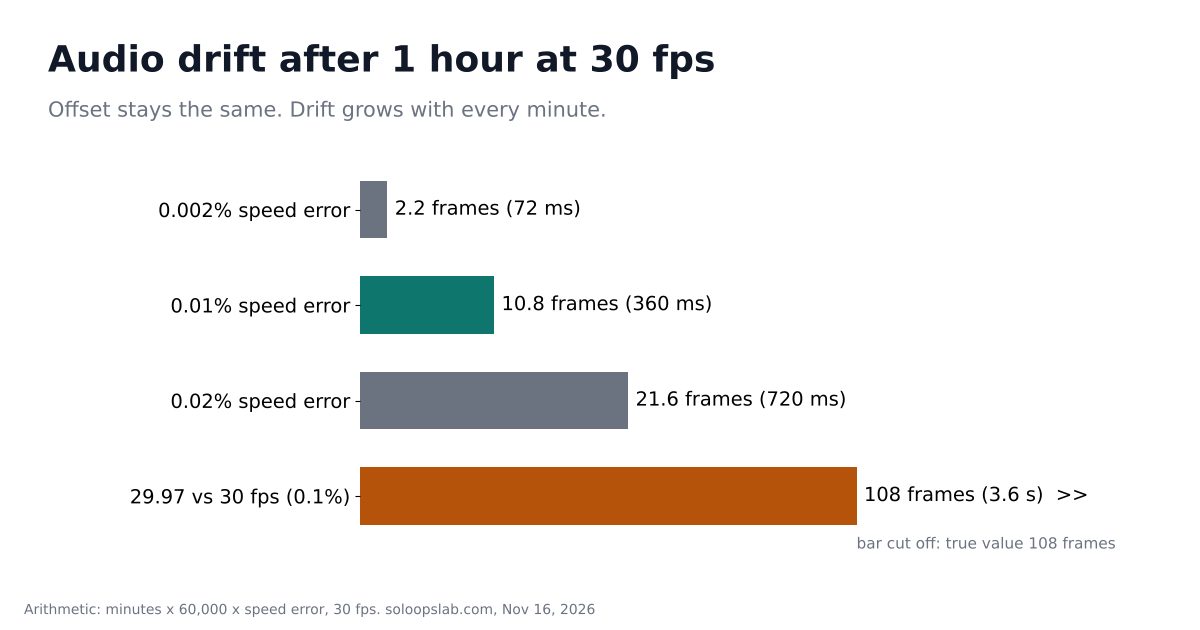
Drift in milliseconds = minutes × 60,000 × speed error. Frames of drift = drift in ms ÷ frame length, and one frame at 30 fps lasts 33.3 ms.
A speed error is how far one device runs from the other. A recorder clock that is off by 0.01% (one part in 10,000) is the middle example below. The last row is the classic frame-rate case: 29.97 fps is 30 × 1000/1001, so a clip played at the wrong one of the two runs about 0.1% fast or slow.
| Speed error (example) | After 10 min | After 30 min | After 60 min |
|---|---|---|---|
| 0.002% | 12 ms (0.4 frames) | 36 ms (1.1 frames) | 72 ms (2.2 frames) |
| 0.01% | 60 ms (1.8 frames) | 180 ms (5.4 frames) | 360 ms (10.8 frames) |
| 0.02% | 120 ms (3.6 frames) | 360 ms (10.8 frames) | 720 ms (21.6 frames) |
| 0.1% (29.97 vs 30 fps) | 599 ms (18 frames) | 1,798 ms (54 frames) | 3,596 ms (108 frames) |
Arithmetic at 30 fps, computed for this post. Frame counts rounded to one decimal.
How much is too much? The broadcast benchmark, ITU-R BT.1359, puts the detectability threshold at 45 ms when sound arrives early and 125 ms when sound arrives late. Viewers notice early sound sooner than late sound.
Run the 0.01% case against those lines. Sound running early crosses 45 ms after 7.5 minutes; sound running late crosses 125 ms after about 21 minutes. That is why a 10-minute talking-head video can look fine while the last third of a 40-minute recording does not.
The 0.1% case is different in kind. It crosses 45 ms in about 45 seconds, so if you see a large slip within the first minute or two, look at frame rates before you blame a recorder.
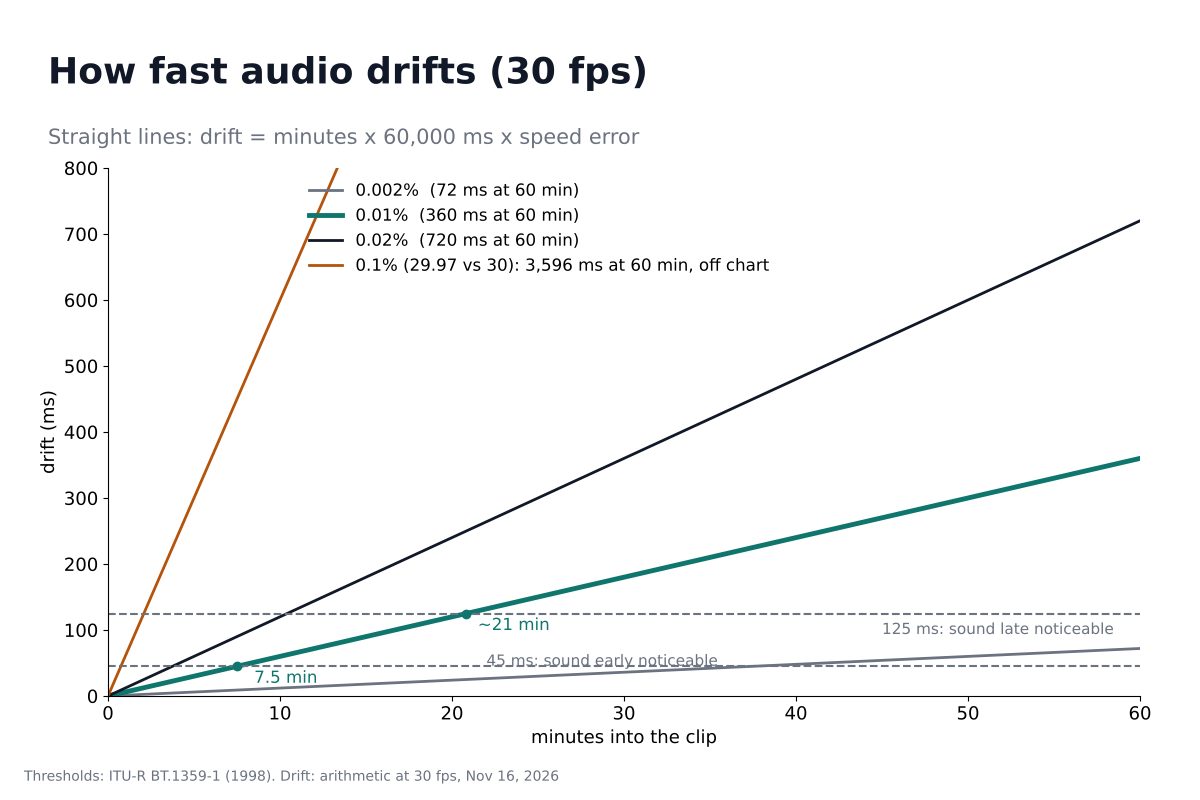
You can also run the formula backward. Say a 40-minute recorder take ends 240 ms late against the camera. 240 ÷ (40 × 60,000) = 0.0001, a 0.01% error, and the table predicts a crossing of the 125 ms line around minute 21. That is where to start checking.
Fix a constant offset
A constant offset is the easy case. If the clip came from Synchronize Clips, select it, choose Clip > Open Clip, and drag the connected audio left or right to slip the sync. Click the arrow at the top left of the timeline to save and close.
For frame-accurate moves, select the audio and press Comma or Period to nudge it one unit left or right, or Shift-Comma and Shift-Period for 10 units. Option-Comma and Option-Period nudge a selected audio edit point by one subframe and create a split edit. A subframe is 1/80 of a frame.
Turn on Clip Skimming while you do this, so you hear only the track you are moving.
If the offset came from a weak sync in the first place, redo it. Select the camera clip and the recorder clip in the browser, choose Clip > Synchronize Clips (Option-Command-G), and select Use audio for synchronization. Apple warns this can take a long time on some recordings and that Final Cut Pro may be unavailable for editing while it runs. Select Disable audio components on AV clips if you want the camera’s scratch audio turned off in the result.
Two details matter here. Apple’s sync uses markers, timecode, file creation date and audio content, and if it finds no sync points it simply aligns the clips at their starting points. And the Content Created method is accurate to about one second, which is not close enough for lips.
Fix drift that grows over the clip
Apple describes Synchronize Clips as finding sync points and aligning clips. Nothing in it changes either clip’s speed, so drift survives a perfect sync and has to be fixed separately.
Separate recorder (clock drift)
The cleanest fix for one long take is to make the audio exactly as long as the video it belongs to. Line up the start with the steps above. Then select the audio clip, click the Retime pop-up menu below the viewer, and choose Custom. In the Custom Speed window, select Duration and enter the video clip’s duration. Final Cut Pro preserves pitch on retimed clips by default.
This works only when the drift is steady, which clock drift normally is. Check your sync at the middle of the clip after the retime. If the middle is still off, the drift is not linear and the second method is safer.
That method is to blade and re-slip. Cut the audio at intervals and slide each piece back into sync. The interval comes from the arithmetic: at a 0.01% error, drift grows by 6 ms a minute, so cutting every 5 minutes keeps each piece within 30 ms, under the 45 ms line. Pick the cut points in pauses so the cuts are not heard.
Also confirm the project’s audio sample rate in its settings. Apple says to choose it based on your source material and final destination. A mismatch here is the cause older guides blame first.
Phone and screen recordings (variable frame rate)
Phone video and screen recordings are the common source of drift on a solo YouTube setup. One iPhone 14 Pro Max owner reported back-camera clips reading 59.89, 59.94 and 59.95 fps rather than a steady 60. Apple’s Final Cut Pro guide does not discuss variable frame rate at all, so the fix below is reasoning built on documented tools.
Give Final Cut Pro a file with one fixed rate. In Compressor, set the frame rate in the Video inspector to the number you want instead of leaving it on Automatic, which Apple says matches the source rate if possible. Compressor changes audio speed along with video when it retimes, which keeps them in sync. Import the new file, re-sync it, and check the end of the clip.
Creating optimized media (File > Transcode Media > Create optimized media) gives you an Apple ProRes 422 copy. That helps playback, but Apple does not say it fixes the frame rate, so do not count on it for drift.
Clip frame rate vs project frame rate
When a clip’s frame rate differs from the project’s, Final Cut Pro conforms it with a frame-sampling method, and a Rate Conform section appears in the clip’s Video inspector. If the section is missing, the clip already matches the project.
The project’s frame rate is set by the first video clip you add, and Apple’s project settings page says you cannot change it unless the timeline is completely empty. So set the project rate deliberately before you drop the first phone clip in. A 29.97 project fed 30 fps clips, or the reverse, is the 0.1% row in the table.
Automatic Speed in the Retime menu is for high-frame-rate footage: it plays every source frame at the project rate, so a 120 fps clip in a 30 fps project becomes slow motion. It is not a sync fix. Apple fixed audio going out of sync when 25 fps clips are added to a 23.98 fps timeline in Final Cut Pro 11.1, so update before you chase that one.
In sync in the timeline, out of sync after export
If the timeline is right and the exported file is wrong, find out which piece is lying. Play the file in a second player. Then import the export back into Final Cut Pro and compare its waveform with the picture. If it is in sync inside Final Cut Pro, the player is the problem, not your project.
If the file itself is off, check three things:
- Version. Final Cut Pro 11.1.1 fixed inconsistent frame rates when sharing with Allow export segmentation. On anything older, clear that checkbox or update.
- Compressor settings. When you retime in Compressor, audio speed changes with video, except when a QuickTime Movie preset uses Enable audio pass-through, which Apple says can leave audio out of sync.
- Frame rate in the export. Leave the share settings at the project’s rate unless you have a reason to change it; Final Cut Pro export settings for YouTube lists the settings that keep uploads clean.
If frames themselves play out of order in an export, that is a different, older bug. Apple’s fix was to update to Final Cut Pro 10.6.4, delete all render files, and choose Modify > Render All.
Out of sync only during playback
If the export plays in sync and only the timeline lags, the project may be fine.
Start with how you listen. Wireless headphones and speakers add their own delay, so test with wired headphones or the Mac’s speakers before changing anything in the project. Final Cut Pro’s Playback settings have no audio offset control; the A/V Output menu only chooses an external audio/video device or monitor.
Then check whether the Mac is keeping up. Turn on “If a frame drops, stop playback and warn” in Playback settings. If it fires, switch to proxy or optimized media; the proxy vs optimized media guide covers which one to pick. If playback is fine but renders crawl, that is a separate problem covered in why Final Cut Pro rendering is slow.
No sound at all is a different problem again; Final Cut Pro no audio covers that one.
Sync fixes in Final Cut Pro release notes
Before rebuilding a project, check whether Apple already fixed your case. Version 12.4 came out September 29, 2026, and Final Cut Pro 13.0 followed on November 18, 2026.
| Version | Sync-related fix Apple lists |
|---|---|
| 11.1.1 | Inconsistent frame rates when sharing with Allow export segmentation |
| 11.1 | Audio out of sync when adding 25 fps clips to a 23.98 fps timeline |
| 11.1 | Sound slipping out of sync when detaching audio from a clip with a J-cut and a through edit |
| 10.6.4 | Video frames out of order in a project or export |
| 10.5 | Audio sync drifting when retiming clips |
Source: Apple Final Cut Pro release notes and Apple Support article 101867, checked November 16, 2026.
Next time sound and picture disagree, mark one sharp sound near the start and one near the end, count the frames at each, and use those two numbers to pick the row in the table above.
Frequently asked questions
Why does my audio drift out of sync over time in Final Cut Pro?
A gap that grows from the start of a clip to the end means the audio and video are running at slightly different speeds. The usual sources are a separate recorder whose clock is a little off, a phone or screen recording with a variable frame rate, or a clip whose frame rate differs from the project's. A 0.01% speed difference adds up to 360 ms, about 11 frames at 30 fps, after an hour.
Why is my Final Cut Pro export out of sync when the timeline looks fine?
First check whether the file or the player is the problem. Play the export in a second player, then import it back into Final Cut Pro and compare. If you sent the job through Compressor with a QuickTime preset, Apple says audio pass-through plus retiming can put audio out of sync. Also update to 11.1.1 or later, which fixed inconsistent frame rates with Allow export segmentation.
Why didn't Synchronize Clips line up my audio?
Apple's sync uses markers, timecode, file creation date and audio content, and if it finds no sync points it lines the clips up at their starts. Select both clips in the browser, not the timeline, and turn on Use audio for synchronization. Content Created dates are only accurate to about one second, so a camera with no usable scratch audio often lands visibly off.
Why is audio delayed only when I play back in Final Cut Pro?
If the export plays in sync and only timeline playback lags, suspect monitoring or playback performance. Test with wired headphones or the Mac's speakers instead of wireless headphones. Then turn on the Playback setting that stops playback and warns when a frame drops, and try proxy or optimized media if it does.
How do I move audio by less than one frame in Final Cut Pro?
Apple's keyboard shortcuts list Option-Comma and Option-Period to nudge a selected audio edit point left or right by one subframe, which creates a split edit. A subframe is 1/80 of a frame. Option-Left Arrow and Option-Right Arrow move the playhead one subframe, and you can show subframes in the timecode display from the General pane of Final Cut Pro settings.
Sources
- Apple — Sync audio and video in Final Cut Pro for Mac (12.4)
- Apple — Change clip speed in Final Cut Pro for Mac (12.4)
- Apple — Conform frame sizes and rates in Final Cut Pro for Mac (12.4)
- Apple — Project settings in Final Cut Pro for Mac (12.4)
- Apple — Skim media in Final Cut Pro for Mac (12.4)
- Apple — Navigate by subframes in Final Cut Pro for Mac (12.4)
- Apple — Keyboard shortcuts in Final Cut Pro for Mac (12.4)
- Apple — Playback settings in Final Cut Pro for Mac (12.4)
- Apple — Create optimized and proxy files in Final Cut Pro for Mac (12.4)
- Apple Support — Final Cut Pro release notes
- Apple Support — If video frames in your Final Cut Pro project are in the wrong order
- Apple — Modify frame rate and duration in Compressor (5.4)
- ITU-R BT.1359-1 — Relative timing of sound and vision for broadcasting (1998)
- Apple Community — iPhone 14 Pro Max video variable frame rates (user report)
This article is general information based on the author's experience. It is not licensed financial, legal, or tax advice. See the editorial policy.