Final Cut Pro Proxy vs Optimized Media: Which One to Use
Final Cut Pro proxy vs optimized media: a decision table, Apple's ProRes storage figures for 4K, Proxy Preferred vs Proxy Only, and the setting to fix before export.

Use optimized media when you need full-resolution Apple ProRes 422 files for heavy effects and color work, and proxy media when playback stutters and you need small files that cut smoothly. Proxies are ProRes 422 Proxy or HEVC at a size you choose. If your camera or phone footage already plays smoothly, make neither. Before you export, set the viewer back to Optimized/Original.
That covers the choice for most YouTube edits. The tables below add Apple’s own storage numbers and the playback rules people get wrong.
Proxy vs optimized: the decision table
Each row is a situation a solo editor hits. The settings come from Apple’s Final Cut Pro for Mac user guide and the release notes for Final Cut Pro 12.3.
| Your situation | Generate | Codec and size | Media Playback while editing |
|---|---|---|---|
| Phone or camera H.264/HEVC that plays smoothly | Nothing | Native files | Optimized/Original |
| Footage plays fine, but stacked effects or grading make it stutter | Optimized | Apple ProRes 422, full resolution | Optimized/Original |
| 4K or larger stutters on a laptop | Proxy | ProRes 422 Proxy at 50% | Proxy Preferred |
| Disk is nearly full and playback stutters | Proxy | HEVC at 50% or 25% | Proxy Preferred |
| Editing away from the drive that holds the originals | Proxy-only library | ProRes 422 Proxy or HEVC | Proxy Only |
| Final export | Nothing new | Uses optimized if present, else originals | Optimized/Original |
The pattern is simple. Optimized media is for finishing quality, and proxy media is for speed and space. They are not two grades of the same thing.
Final Cut Pro also lets you generate both for the same clip. That rarely pays off for a one-person channel, because the optimized files are the ones that eat the disk.
What native, optimized and proxy media are
Native media is the file your camera recorded. Final Cut Pro always keeps it, whatever you transcode, so optimized and proxy files can be deleted and rebuilt at any time.
Optimized media is a full-resolution transcode to Apple ProRes 422. Apple says it improves editing performance, render speed and color quality when you composite. If your source already edits smoothly, Final Cut Pro dims the Create optimized media checkbox.
Proxy media is a lighter stand-in. Final Cut Pro offers two codecs, Apple ProRes 422 Proxy or HEVC, and the Frame Size menu lists Same as Source (100%), 50%, 25% and 12.5%, plus fixed sizes of 3840 x 2160, 1920 x 1080 and 960 x 540.
One change matters if you learned proxies from an older tutorial. In Final Cut Pro 12.3, released June 30, 2026, Apple moved proxy generation from H.264 to HEVC, citing better compression efficiency and HDR support. Any guide that tells you to pick “H.264 proxies” predates that release.
ProRes 422 Proxy is not a toy format. Apple’s ProRes white paper describes it as built for offline workflows that need low data rates but full-resolution video, with quality meant for first-generation viewing and editing.
How much disk space each option takes
Apple publishes target data rates for every ProRes codec in its ProRes white paper. ProRes is a variable bit rate codec, so real files land close to these targets rather than exactly on them. Apple does not publish an equivalent figure for HEVC proxies.
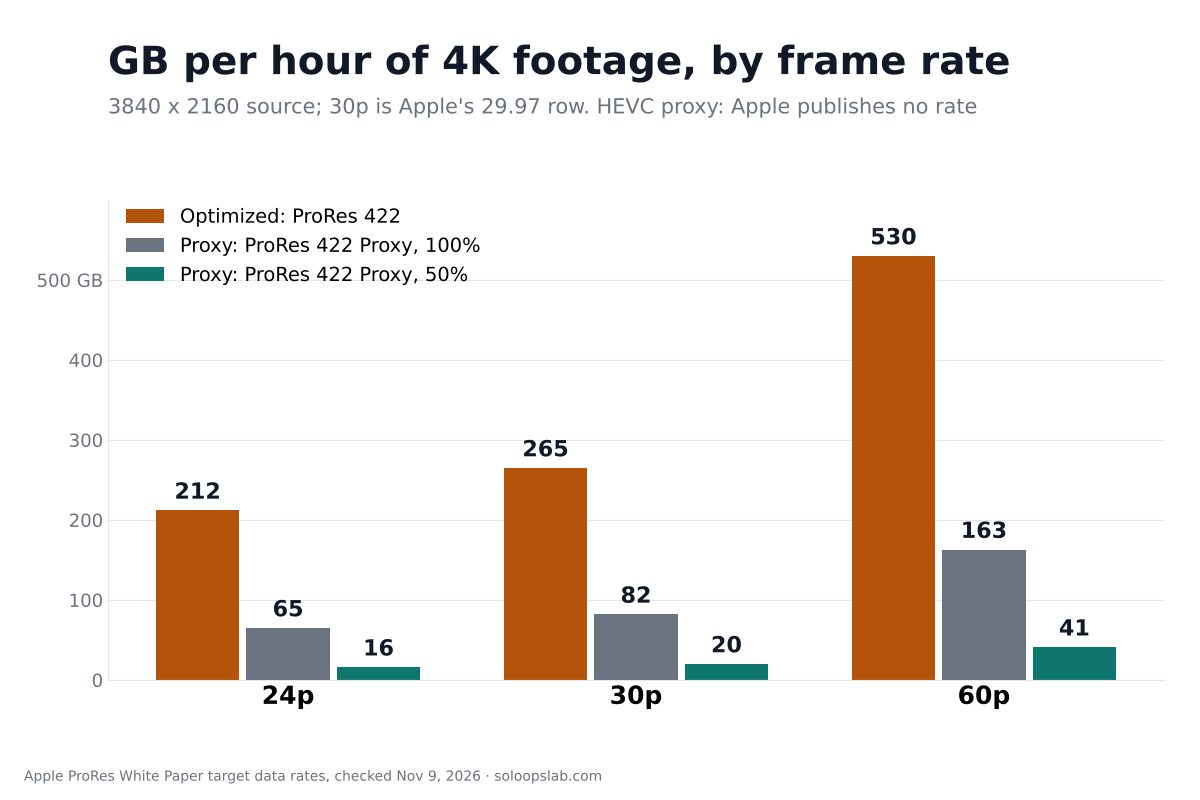
Storage per hour of 3840 x 2160 (UHD 4K) footage, from the appendix of the Apple ProRes White Paper:
| Format Final Cut Pro writes | 24p | 30p | 60p |
|---|---|---|---|
| Optimized: ProRes 422, 3840 x 2160 | 212 GB/hr (471 Mb/s) | 265 GB/hr (589 Mb/s) | 530 GB/hr (1,178 Mb/s) |
| Proxy: ProRes 422 Proxy, 100% (3840 x 2160) | 65 GB/hr (145 Mb/s) | 82 GB/hr (182 Mb/s) | 163 GB/hr (363 Mb/s) |
| Proxy: ProRes 422 Proxy, 50% (1920 x 1080) | 16 GB/hr (36 Mb/s) | 20 GB/hr (45 Mb/s) | 41 GB/hr (91 Mb/s) |
| Proxy: HEVC, any size | Not published by Apple | Not published | Not published |
Source: Apple ProRes White Paper (April 2017), target data rates appendix; checked November 9, 2026. The 30p column is Apple’s 29.97 row.
The white paper has no 960 x 540 row, which is the 25% size for UHD. Its smallest nearby entry, 1280 x 720 ProRes 422 Proxy, is 10 GB per hour at 30p, so a 25% proxy of 4K sits below that.
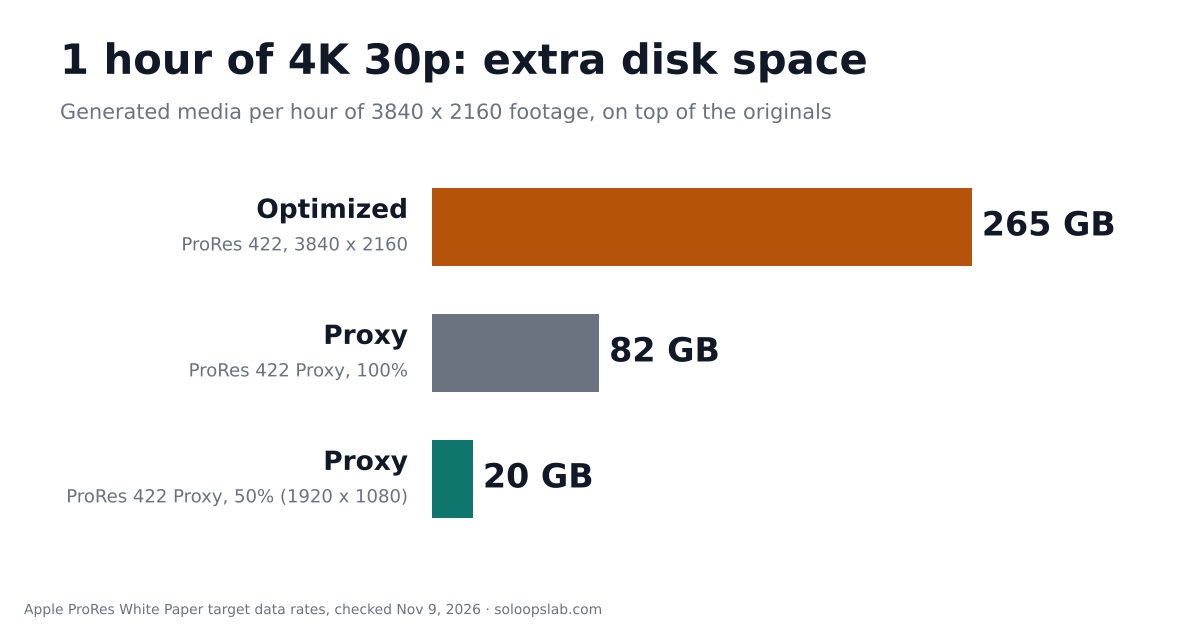
Here is the worked example. Say you shoot one hour of 4K at 30p for a video. Final Cut Pro keeps those camera files no matter what. Ticking Create optimized media adds about 265 GB on top. A 50% ProRes proxy adds about 20 GB instead.
That is more than 13 times the disk space for the optimized copy. If you tick both boxes, plan for roughly 285 GB of generated media per hour of footage, before render files.
If you shoot 60p, double those figures. The 60p optimized row is 530 GB per hour.
Proxy Preferred vs Proxy Only
Both live in the View pop-up menu at the top right of the viewer, under Media Playback, next to a third choice, Optimized/Original.
- Optimized/Original plays the optimized file when one exists and the original when it doesn’t.
- Proxy Preferred plays the proxy when one exists and falls back to optimized or original media when it doesn’t.
- Proxy Only plays proxies and nothing else. A clip without a proxy shows a Missing Proxy File alert in the viewer.
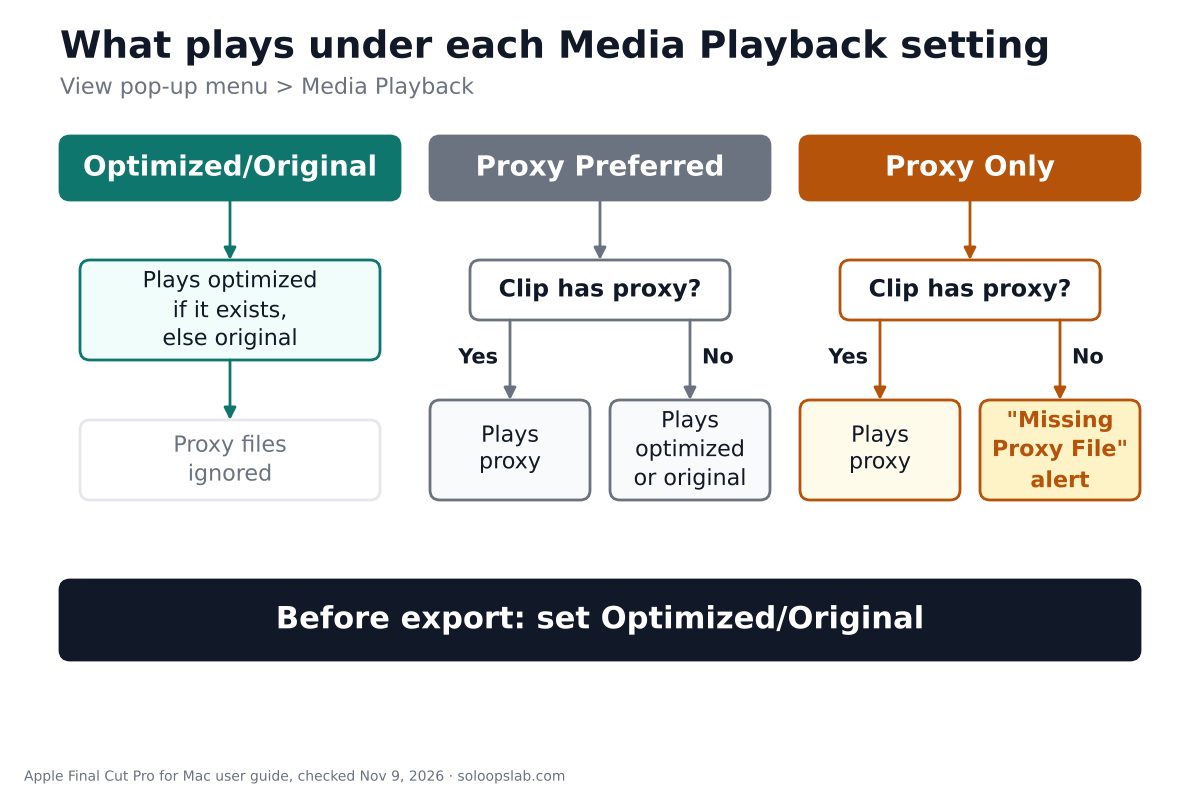
Use Proxy Preferred for everyday editing. You can transcode only the heavy clips, such as the 4K B-roll, and leave screen recordings and stills alone without seeing red alerts.
Save Proxy Only for a proxy-only library, where the originals are not connected at all. Apple’s steps for building one end with exactly that choice in the viewer.
The Quality section of the same menu is a separate control. Better Performance shows frames at reduced resolution, and Better Quality shows full-resolution frames. Try Better Performance before you generate anything; on some timelines that alone is enough.
To check what a clip has, select it and open the Info inspector. It shows whether optimized or proxy files exist.
How to create proxy or optimized media
There are four ways in, and you never have to decide at import.
- In the Media Import window, tick Create optimized media, Create proxy media, or both, and choose the proxy codec and frame size.
- After import, select clips or projects in the browser and choose File > Transcode Media. You can also Control-click an event in the Libraries sidebar.
- Select a clip, open the Info inspector, scroll down and click Transcode Media.
- For drag-and-drop imports from the Finder, set the defaults in Final Cut Pro > Settings > Import.
Transcoding runs in the background. The Background Tasks window shows progress. You can keep cutting while it works.
Switch back to Optimized/Original before you export
I edit my own channel’s videos alone in Final Cut on a Mac. There is no assistant editor to notice that the viewer is still set to Proxy Preferred when I press Command-E. So the one check I would put in front of every Share is the View menu: Media Playback must read Optimized/Original.
Apple’s sharing steps say the same thing. If a project is set to proxy playback, choose Optimized/Original before sharing, and Final Cut Pro will build the file from optimized media where it exists and from the original media otherwise. Since Final Cut Pro 10.4, an alert also appears when you share with playback set to proxy. Read it rather than clicking through.
The export settings themselves are a separate job. For the Share window fields that match YouTube’s upload spec, see Final Cut Pro export settings for YouTube.
Where the files are stored and how to delete them
By default, Final Cut Pro stores media and cache files inside the library. To see or change that, select the library in the Libraries sidebar and choose File > Library Properties (Control-Command-J), then click Modify Settings.
Two of the pop-up menus matter here. Media holds imported files plus proxy and optimized files. Cache holds render files, analysis files, thumbnails and audio waveforms. Point Media at a fast external drive if your internal disk is small. The change applies to future imports, not to files already there.
The Library Properties inspector also lists totals for original, optimized and proxy media. Check it before you buy a drive. Generated media is often the part you can drop.
To delete proxy or optimized files, use Final Cut Pro, not the Finder. Choose File > Delete Generated [item] Files for a clip, event or library, then tick Delete Optimized Media, Delete Proxy Media or both. Render files are cleared the same way with Delete Render Files. The originals are never touched, so anything you delete can be regenerated.
Copying a project to another library skips proxy, optimized and render files by default, because Final Cut Pro can rebuild them. You can choose to include proxy or optimized media in the copy.
If you are still deciding between editors, the way each one handles heavy footage is part of Final Cut Pro vs DaVinci Resolve for YouTube. More Final Cut guides sit under tool stack.
Open your current library’s Library Properties now (the library size guide covers every other part), read the optimized and proxy totals, and delete the optimized media for any finished project you do not plan to touch again.
Frequently asked questions
Where is Final Cut Pro proxy media stored?
By default, inside the library file, next to your imported media. You can move it: select the library, choose File > Library Properties, click Modify Settings and pick a folder in the Media pop-up menu. That Media location holds proxy and optimized files. The separate Cache location holds render files, analysis files, thumbnails and waveforms.
What does Proxy Preferred mean in Final Cut Pro?
It plays the proxy file for every clip that has one, and falls back to optimized or original media for clips that don't. Proxy Only plays proxies and nothing else, so a clip without a proxy shows a Missing Proxy File alert in the viewer. Proxy Preferred is the safer pick when only some clips have been transcoded.
Does Final Cut Pro export with proxy media?
It can if you leave the viewer on a proxy setting, which is why Apple tells you to switch Media Playback to Optimized/Original before sharing. With that setting, Final Cut Pro builds the export from optimized media where it exists and from the original files otherwise. Since version 10.4 it also shows an alert when you share in proxy mode.
Should I create optimized media for H.264 or HEVC footage?
Usually not at import. Final Cut Pro keeps the originals either way, and you can transcode any clip later with File > Transcode Media. Import native, cut for a few minutes, and only create optimized media if playback stutters with heavy effects or color work. If storage is the problem, make proxies instead, because they are far smaller.
What proxy settings should I use in Final Cut Pro?
For 4K footage, ProRes 422 Proxy at 50% (1920 x 1080) is a sensible default: Apple's white paper puts it at about 20 GB per hour at 30p. Pick HEVC instead when disk space matters more than decoding load. Final Cut Pro 12.3 switched its compressed proxy option from H.264 to HEVC.
Sources
- Apple ProRes White Paper (April 2017), target data rates appendix
- Apple — Create optimized and proxy files in Final Cut Pro for Mac
- Apple — Control playback quality in Final Cut Pro for Mac
- Apple — Import settings in Final Cut Pro for Mac
- Apple — Final Cut Pro release notes
- Apple — Set storage locations in Final Cut Pro for Mac
- Apple — Delete render files in Final Cut Pro for Mac
- Apple — What are libraries in Final Cut Pro for Mac?
- Apple — Create a proxy-only project in Final Cut Pro for Mac
- Apple — Share to Apple devices in Final Cut Pro for Mac
This article is general information based on the author's experience. It is not licensed financial, legal, or tax advice. See the editorial policy.