Final Cut Pro Audio Popping or Clicking? Find the Cause
Clicks at cuts, crackle on playback or pops in the export: how to tell which one you have in Final Cut Pro 13, and the Apple-documented fix for each.

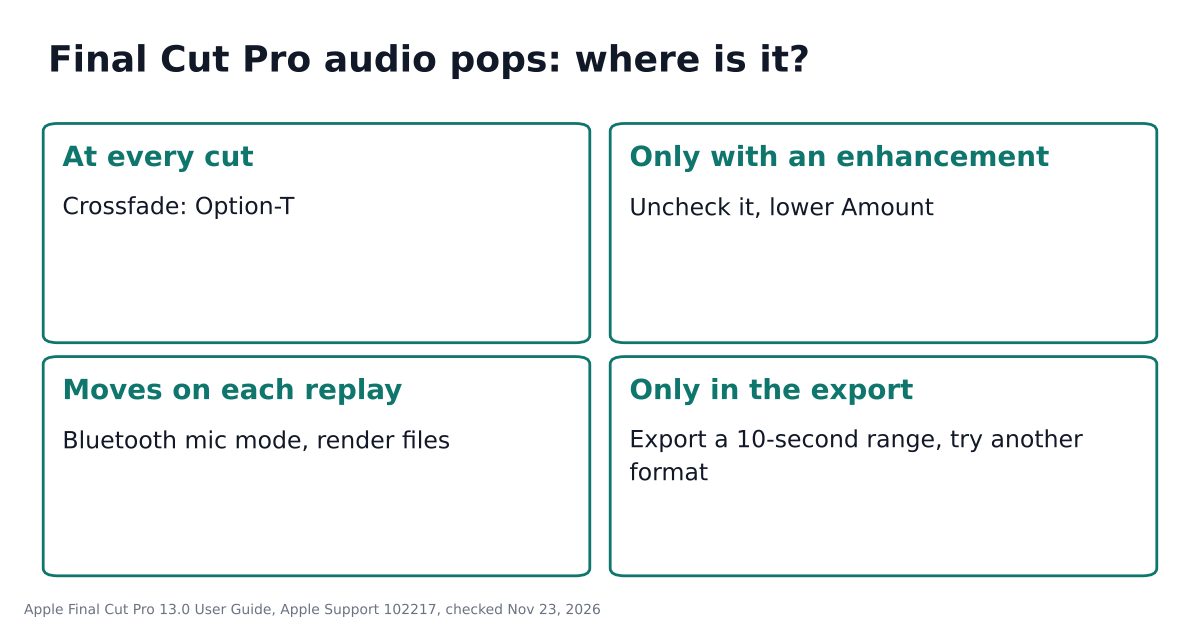
Most Final Cut Pro audio pops happen at edit points: the cut lands mid-waveform, and the fix is a short fade or a crossfade (select the clips, press Option-T). Pops that move around or vanish on replay are playback problems, often Bluetooth or render files. Pops that disappear when you turn off Voice Isolation or Noise Removal are processing artifacts. A 10-second test export tells you which one you have.
Menu names below are from Apple’s guide for Final Cut Pro 13.0, released November 18, 2026.
Find where the pop happens
Where you hear the pop points to the cause. Built from Apple’s Final Cut Pro guide and support articles:
| Where the pop happens | Likely cause | First fix |
|---|---|---|
| At every cut, same spot every time | Cut lands mid-waveform | Modify > Adjust Audio Fades > Crossfade (Option-T) |
| At the very start or end of a clip | No fade into silence | Modify > Adjust Audio Fades > Apply Fades |
| Only at multicam angle switches | Noise Removal or Hum Removal on the angle audio | Set the audio angle, detach the audio (user-reported fix) |
| Only with an enhancement checked | Voice Isolation, Noise Removal processing | Uncheck it in the Audio inspector, lower Amount |
| On loud words, waveform turns red | Level above 0 dB | Lower clip volume until meters stay out of red |
| Random, moves on each replay | Playback: Bluetooth mic mode, render files | Reselect headphones; delete render files |
| Throughout an OBS or screen recording | Sample rate or variable frame rate in the source | Record at 48 kHz and a constant frame rate (user reports) |
| In QuickTime too, same timestamp | Damaged or clipped source | Cut around it with a short fade, or replace the take |
| Only in the exported file | Export path, codec, recent update | Test a range export; check release notes |
Source: Apple Final Cut Pro User Guide for Mac 13.0 and 12.4 pages, Apple Support articles 102217 and 105044, checked November 23, 2026. Rows marked user-reported come from Apple Community threads.
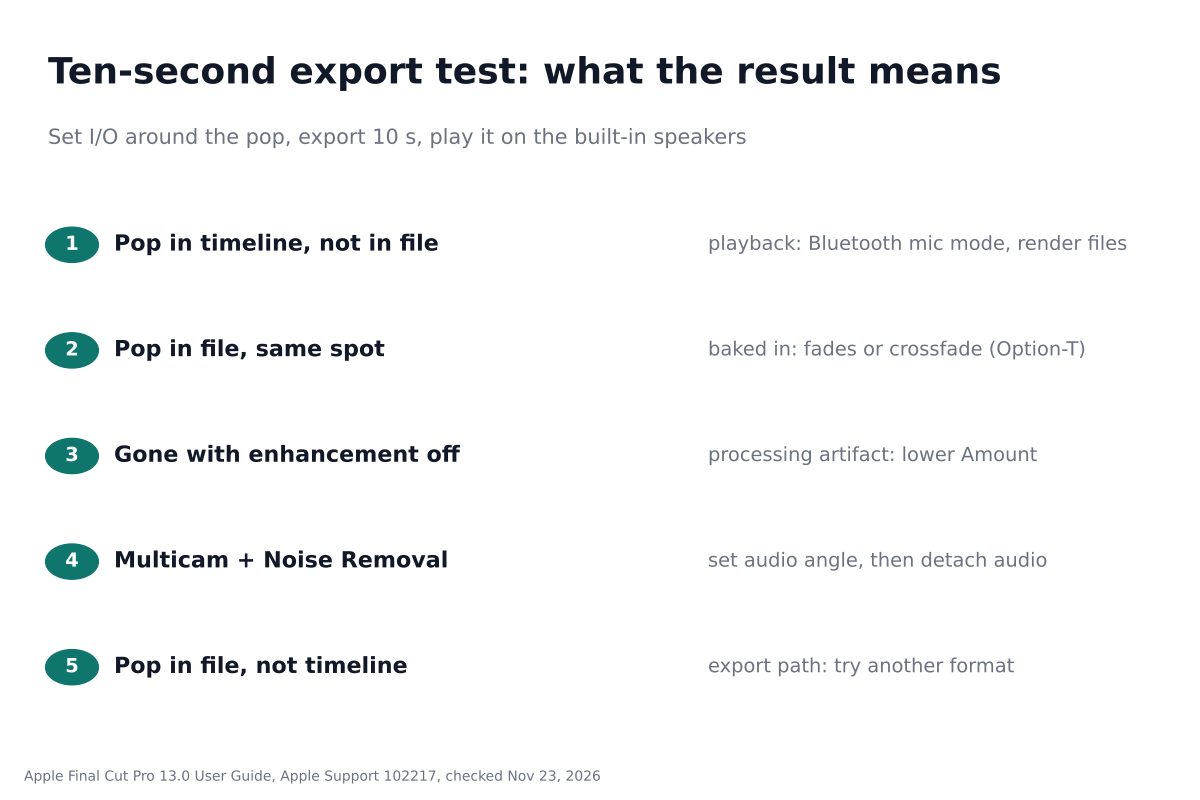
Playback-only or in the file? The 10-second export test
Before you change anything, find out whether the pop is in your edit or only in what you hear. This checklist takes about a minute:
- Park the playhead just before the pop. Press I, move about 10 seconds forward, press O. Apple says a range selection is required to share only part of a project; a clip selection is not enough.
- Choose File > Share > Export File, keep Video and Audio as the format, and export.
- Disconnect Bluetooth headphones. Play the file in QuickTime Player on the Mac’s built-in speakers or wired headphones.
- Play the same 10 seconds in the timeline on the same speakers.
- If an enhancement is on, uncheck it, export the range again, and compare.
Read the result like this:
- Pop in the file at the same spot every time: it is baked in. Fix the cut, the level or the effect.
- Pop gone from the file but present in the timeline: playback. Skip to the playback section.
- Pop only appears in the file with the enhancement on: processing artifact.
- Pop in the file but not in the timeline: export path.
I edit my own YouTube videos alone in Final Cut Pro, so there is no second listener before upload. A short range export played on the Mac’s own speakers is the first step worth taking when a click shows up, because it settles in one minute whether the edit needs work.
Pops at every cut: fades and crossfades
A click at a cut is the most common case, and it is almost never a bug.
For two clips that touch, select both and choose Modify > Adjust Audio Fades > Crossfade, or press Option-T. Final Cut Pro builds the crossfade at the edit point from the clips’ media handles, the extra media past each clip’s edges. If a clip has too little handle for the default length, it offers to overlap media in your project to make room.
For a clip that starts or ends against silence, choose Modify > Adjust Audio Fades > Apply Fades. That adds a fade at both ends and leaves existing fades alone. Fade In and Fade Out do one end each.
The default fade is half a second. That is long for a talking-head jump cut, where you want the click gone without hearing a dip. Change it in Final Cut Pro > Settings > Editing, which has separate Audio Fade and Crossfade sliders in seconds. Apple suggests setting the length before crossfading a lot of clips.
To set one fade by hand, point at the clip and drag the fade handle in the top corner of the waveform. Control-click the handle to pick a shape: Linear, S-curve, +3dB or -3dB. Apple’s default is +3dB and it recommends +3dB for crossfades.
Two details catch people. A video transition such as a cross dissolve crossfades the attached audio automatically, but if the audio is expanded or detached, no crossfade is applied. And fades you drag with handles override a crossfade created by a transition.
Why frame-accurate cuts click
Video editors cut on frames. Audio has far more samples than that, so a frame boundary lands at an arbitrary point in the waveform. If the sample before the cut and the sample after it are far apart, the speaker jumps, and you hear a click.
The arithmetic for a 48 kHz project:
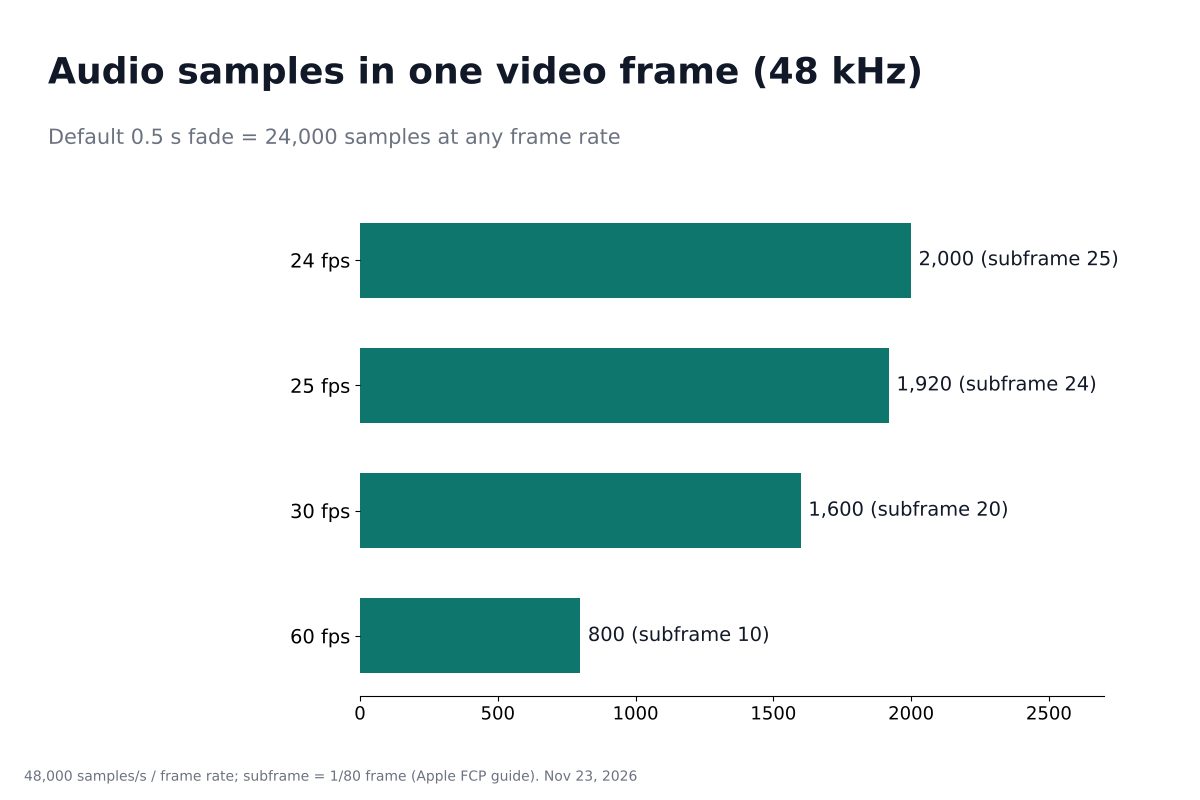
| Frame rate | Samples per frame | Samples per subframe (1/80 frame) | Default half-second fade |
|---|---|---|---|
| 24 fps | 2,000 | 25 | 12 frames, 24,000 samples |
| 25 fps | 1,920 | 24 | 12.5 frames, 24,000 samples |
| 30 fps | 1,600 | 20 | 15 frames, 24,000 samples |
| 60 fps | 800 | 10 | 30 frames, 24,000 samples |
Calculated from 48,000 samples per second, Apple’s subframe definition (1/80 of a frame) and the half-second default fade. November 23, 2026.
At 30 fps a single frame step moves the cut 1,600 samples. A 100 Hz tone completes one cycle every 480 samples at 48 kHz, so a frame step skips past more than three full cycles, and you cannot nudge to a zero crossing by frames.
Final Cut Pro can go finer. With View > Zoom to Samples on (Control-Z, on by default), you can zoom in until gray frame borders appear and keep going, and Option-Left or Option-Right Arrow moves one subframe. Apple limits sample-accurate trims and blade cuts to connected audio clips and compound clips that contain only audio. For audio still attached to video, a fade is the practical fix.
Pops that only appear with Voice Isolation or Noise Removal
If the click shows up only after you turned on an enhancement, the processing is the suspect, not the cut.
Audio Enhancements sit in the Audio inspector (Command-4) and apply per audio component, not to the whole clip. Voice Isolation and Noise Removal each have an Amount slider, and Hum Removal is set to 50 Hz or 60 Hz. Apple warns that Voice Isolation on several components playing at the same time may garble the audio, and that turning it off for one or more of them fixes it.
Test it directly. Uncheck the enhancement, replay the cut, then check it again. If the click follows the checkbox, lower the Amount and test again before you look for another cause.
Multicam is where this shows up most. One user thread from November 2024 reported a blip at every angle switch with Noise Removal or Hum Removal on. The fix that worked took two steps. Choose the angle that carries the sound as the one used for audio. Only then detach audio from the multicam clip sitting in the main timeline (not from the clip inside the angle editor).
Detach Audio is Clip > Detach Audio (Control-Shift-S), and it turns the audio into a connected clip under the video. Apple does not document this as a multicam fix, so treat it as a workaround and keep a duplicate of the project first.
Crackle on loud words: clipping, not a pop
Distortion on the loudest syllables sounds like crackle, but it is a level problem.
Apple’s meters turn from green to yellow as a level approaches peak, then red when it goes over, and clip waveforms turn red where a level exceeds 0 dB. Apple says the combined level of clips playing together should not pass 0 dB in the loudest sections. Lower the clip or the music bed until the red is gone.
If the waveform was already flat-topped in the recording, lowering volume in Final Cut Pro will not repair it. The damage is in the source.
Pops in OBS and screen recordings
Recordings from OBS and other screen recorders are a frequent source of steady crackle. Users point to two causes.
The first is sample rate. Apple says a project’s sample rate should match your source material and destination, and you can change it after the fact: select the project, press Command-J, click Modify. The only setting Apple says you can’t change once the timeline has clips is frame rate. If your recorder captures at 44.1 kHz and your camera at 48 kHz, set the recorder to 48 kHz for future sessions.
The second is variable frame rate. In a September 2024 Apple Community thread, a user with OBS recordings confirmed a variable frame rate, and remuxing reduced the pops without removing them. Creating optimized media is the usual suggestion, but Apple’s page says optimized media converts the video to Apple ProRes 422 and does not describe any change to the audio. Fix it at the recorder: constant frame rate, 48 kHz. Optimized and proxy files help in other ways, covered in proxy vs optimized media.
Pops that move around: playback, Bluetooth and render files
When the pop shows up in a different place each time, or not at all in the exported file, the edit is probably fine.
Bluetooth headphones are the first check. Apple says that when an app uses the headphones’ microphone, Bluetooth switches to a mode that reduces quality, and you might hear static or popping. Quit video call and chat apps, close the Sound pane in System Settings, then switch output to the built-in speakers and back to the headphones.
Render files are the second. Select the project in the browser, choose File > Delete Generated Project Files, select Delete Render Files, and click OK. Final Cut Pro rebuilds them. If background rendering is off in Settings > Playback, turn it on so the timeline renders while the Mac is idle.
If the clicks come with sound that drifts or plays late, that is a sync problem, covered in Final Cut Pro audio out of sync. If clips play no sound at all, see Final Cut Pro not playing audio.
Pops only in the exported file
If the timeline is clean on wired speakers and the 10-second export pops, the export path is the variable.
Try a second format from the same Share window. Export File offers Video and Audio, Video Only and Audio Only as mastering formats, plus Apple Devices, Computer and Web Hosting. A clean file in one format and a popping file in another narrows it to the codec or preset. The export settings for YouTube guide covers which format to pick for upload.
Users in an April 2025 Apple Community thread reported export-only popping in MXF files after updating Final Cut Pro and Compressor. That fits a version-specific bug, so check Apple’s release notes for a fix. Apple’s general troubleshooting order then applies: restart, update, note third-party audio plug-ins and confirm they support your versions, test in a new library with test media, reset preferences. Apple says resetting preferences does not affect libraries, projects or media.
Open the project with the click now, set an I and O range around it, and export those 10 seconds before you touch a single setting.
Frequently asked questions
Why does my audio pop at every cut in Final Cut Pro?
A cut lands on a video frame boundary, and that point is rarely where the waveform crosses zero. The sudden jump in level is the click. Select the clips and choose Modify > Adjust Audio Fades > Crossfade (Option-T) for adjacent clips, or Apply Fades for clip ends next to silence. Apple's default fade is half a second; shorten it in Editing settings for tight jump cuts.
Why does my audio crackle in Final Cut Pro but not in the exported file?
Then the crackle is a playback problem, not a problem with your edit. The usual causes are Bluetooth headphones switched into microphone mode, which Apple says can add static or popping, and stale render files. Quit apps using the headset mic, reselect the headphones in Sound settings, or delete the project's render files with File > Delete Generated Project Files.
Can Voice Isolation or Noise Removal cause clicks in Final Cut Pro?
Users report it, especially at multicam angle switches with Noise Removal or Hum Removal on. Apple also warns that Voice Isolation on several components playing at once can garble audio. Test by unchecking the enhancement in the Audio inspector and replaying the cut. If the click goes away, lower the Amount slider, or in multicam set the audio angle and detach the audio.
How do I crossfade audio in Final Cut Pro?
Select two or more adjacent clips in the timeline and press Option-T, or choose Modify > Adjust Audio Fades > Crossfade. Final Cut Pro uses the clips' media handles to overlap them at the edit point. Set the default length with the Crossfade slider in Final Cut Pro > Settings > Editing before you crossfade a whole timeline.
Sources
- Apple — Fade audio in or out in Final Cut Pro for Mac
- Apple — Crossfade audio in Final Cut Pro for Mac
- Apple — Editing settings in Final Cut Pro for Mac
- Apple — Enhance audio in Final Cut Pro for Mac
- Apple — View and change audio levels in Final Cut Pro for Mac
- Apple — Zoom in to audio waveforms in Final Cut Pro for Mac
- Apple — Final Cut Pro project settings
- Apple — Modify a project's settings in Final Cut Pro for Mac
- Apple — Delete Final Cut Pro generated files
- Apple — Ways to view audio clips in Final Cut Pro for Mac
- Apple — Create optimized and proxy files in Final Cut Pro for Mac
- Apple — Share to Apple devices in Final Cut Pro for Mac (range selection)
- Apple — Export File and Apple Devices destinations in Final Cut Pro for Mac
- Apple — If sound quality is reduced when using Bluetooth headphones with your Mac
- Apple — If Final Cut Pro isn't working
- Apple — Final Cut Pro release notes
- Apple — Playback settings in Final Cut Pro for Mac
- Apple Community — Multicam sound glitches at cuts when using audio enhancements (user thread)
- Apple Community — Final Cut Pro adding popping to audio (OBS, variable frame rate; user thread)
- Apple Community — Popping when exporting MXF files after updating (user thread)
This article is general information based on the author's experience. It is not licensed financial, legal, or tax advice. See the editorial policy.