Final Cut Pro Dropped Frames: What the Warning Means and Fixes
Final Cut Pro dropped frames during playback? Find which of the three warnings fired, why the export is not affected, and how fast your media drive must be.

The “dropped frames during playback” warning in Final Cut Pro means your Mac could not show every frame in real time while the timeline played. It does not damage the edit, and it does not reach the export, which is rendered at full quality. Fix it in this order: Better Performance, render, proxies, then check the media drive.
The rest of this page tells you which of the three warnings you got, how to confirm the export is clean, and how fast your drive actually has to be.
Which dropped-frames warning you got
Final Cut Pro has three separate dropped-frame checkboxes in Final Cut Pro > Settings > Playback (Command-Comma). The wording of the alert tells you which one fired, and that narrows the cause.
| Checkbox in Settings > Playback (label start) | What it reports | Most likely cause | First fix |
|---|---|---|---|
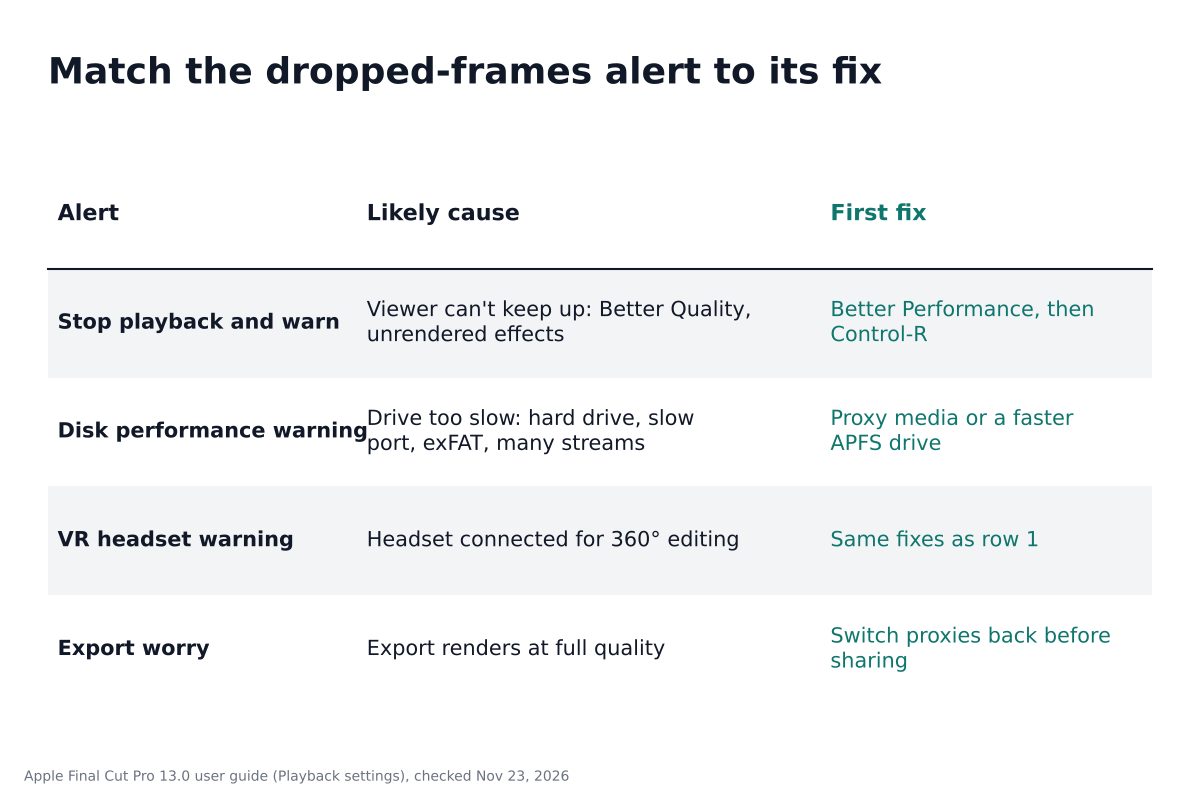
| If a frame drops, stop playback and warn | Playback stopped because a frame was not shown in time | Viewer at Better Quality on large frames, unrendered effects | View menu > Better Performance, then Control-R |
| If frames drop due to disk performance… | The drive could not deliver media fast enough | Hard drive, slow port or hub, exFAT/FAT32 drive, too many streams | Proxy media, or move media to a faster APFS drive |
| If frames drop on VR headset… | Frames dropped on a connected VR headset display | Only applies with a VR headset connected for 360° editing | Same fixes as the first row |
Source: Apple Final Cut Pro for Mac 13.0 user guide (Playback settings, Control playback quality) and Apple support article 102116; checked November 23, 2026.
The first box is the one that interrupts you. It stops playback the moment a frame drops. The disk-performance box waits until playback ends, then warns that disk performance caused the drop.
Does it affect the export?
No. Apple’s glossary says that when you publish or export a project, it is rendered to create the output files. The viewer skips frames to keep up with real time. An export is not tied to real time, so it can take as long as it needs on each frame.
Better Performance is a viewer setting. Apple describes it as showing video in the viewer at reduced resolution. Nothing in that menu changes the output.
There are two real exceptions.
First, proxies. If Media Playback is set to Proxy Preferred or Proxy Only, Apple says to switch back to Optimized/Original before sharing so the exported file has the highest quality. The export settings themselves are covered in Final Cut Pro export settings for YouTube.
Second, frames that are missing from the source file. A playback drop and a broken clip can look the same at full speed, so test it.
Pause on the stutter, then press Left Arrow and Right Arrow to step one frame at a time across it. If every frame appears when you step, the drop was playback only and the export will be clean. If a frame is black, frozen or duplicated even when you step, the clip itself has the problem, and no playback setting will fix it. Action-camera and phone footage are the usual suspects. If the sound also slides out of sync during playback only, see Final Cut Pro audio out of sync.
Fix order: free settings first
Work down this checklist and stop when playback is smooth. The first four cost nothing and take seconds. The later ones use disk space or time.
- Viewer View menu > Quality: choose Better Performance.
- Turn off skimming with S, or audio skimming with Shift-S, if the stutter happens while you move the pointer.
- Select the clip that stutters and press V to disable it for a moment. If playback is smooth without it, that clip or its effects are the cause.
- Open Window > Background Tasks (Command-9) and see whether a transcode, analysis or render is running.
- Render the heavy section: select the clips and press Control-R, or render everything with Control-Shift-R.
- Create proxy media and set Media Playback to Proxy Preferred.
- Move the media to a faster drive formatted as APFS.
If you get to step 7, the drive section below tells you whether a new drive will actually help.
Playback quality and skimming
Better Quality shows full-resolution frames, and Apple warns that it may decrease playback performance for high-quality, large-frame-size video. Better Performance reduces the resolution in the viewer to keep playback moving, even for very large files.
On a 4K timeline, edit with Better Performance and flip to Better Quality only when you need to judge focus or fine text. It is the cheapest fix on this page.
Skimming forces Final Cut Pro to decode frames wherever the pointer goes. Video skimming toggles with S and audio skimming with Shift-S, both also in the View menu.
Render the sections that stutter
Effects, transitions, generators and titles that Final Cut Pro cannot play in real time need render files. A light gray dotted line under the ruler marks the parts that still need rendering. Plain cuts of easy footage never get it.
Select the problem clips and press Control-R (Render Selection), or press Control-Shift-R (Render All). Render Selection works only on a clip selection, not a range. Masks, noise reduction and stacked third-party effects are the classic case: they stutter until rendered and play smoothly after.
Check whether background rendering is running at all. The release notes for 12.3 say background rendering is set to Off by default, while the 13.0 guide still describes it starting 0.3 seconds after you stop working. Look at the Background render checkbox in Settings > Playback rather than trusting either. Codec, start delay and render-file cleanup are covered in Final Cut Pro rendering slow.
Proxy and optimized media
Proxies are the fix when the footage itself is too heavy to decode or read. Final Cut Pro transcodes them to Apple ProRes 422 Proxy or HEVC, at frame sizes that include 100%, 50%, 25% and 12.5% of the original. Optimized media is ProRes 422, which Apple says gives better editing performance and faster renders.
Create either one during import, or Control-click clips in the browser and choose Transcode Media. Then set Media Playback in the View menu to Proxy Preferred. Since 12.3, new proxies use HEVC instead of H.264.
Which one to make, and what each costs in disk space, is in Final Cut Pro proxy vs optimized media. For dropped frames the short answer is proxies, because they shrink both the decoding work and the data the drive must deliver.
Is your drive fast enough?
The disk-performance warning is a math problem. Every clip playing at the playhead has to be read from the drive at its data rate, and clips stacked on top of each other add up.
Apple publishes target data rates for each ProRes flavor. Divided by 8 to get megabytes per second, here is what a single stream asks of your drive:
| Format, one stream | 1080p 30 | 1080p 60 | 4K UHD 30 | 4K UHD 60 |
|---|---|---|---|---|
| ProRes 422 Proxy | 5.6 MB/s | 11.4 MB/s | 22.8 MB/s | 45.4 MB/s |
| ProRes 422 LT | 12.8 MB/s | 25.5 MB/s | 51.3 MB/s | 102.6 MB/s |
| ProRes 422 | 18.4 MB/s | 36.6 MB/s | 73.6 MB/s | 147.3 MB/s |
| ProRes 422 HQ | 27.5 MB/s | 55.0 MB/s | 110.5 MB/s | 221.0 MB/s |
Source: Apple ProRes white paper (April 2022), target data rates appendix, converted from Mb/s at 29.97 and 59.94 fps; actual rates vary with image content; checked November 23, 2026.
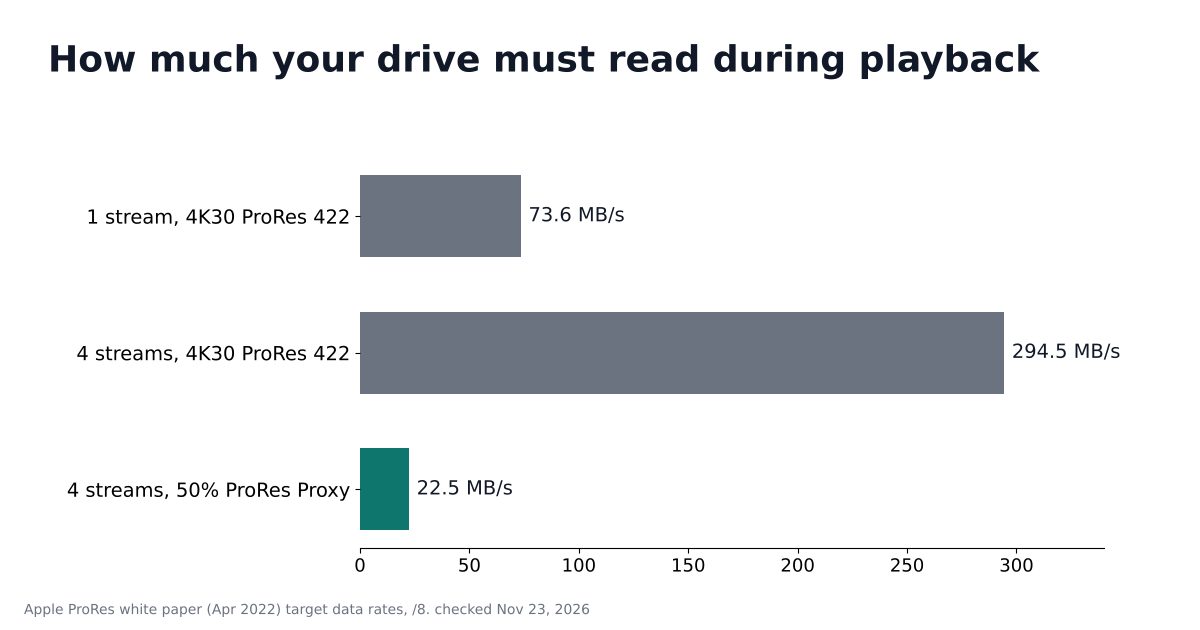
Worked example. A three-angle 4K 30p multicam clip, with Create optimized media for multicam clips turned on, plays as ProRes 422. That is 3 × 73.6 = 220.9 MB/s. Connect one 4K 30p ProRes 422 B-roll clip above it and the drive must sustain 294.5 MB/s through that section.
Now the same four streams as ProRes 422 Proxy at 50% frame size, which is 1920 × 1080. Apple’s 1080p 30 Proxy rate is 45 Mb/s, or 5.6 MB/s per stream, so four streams need about 22.5 MB/s. That is roughly a thirteenth of the load.
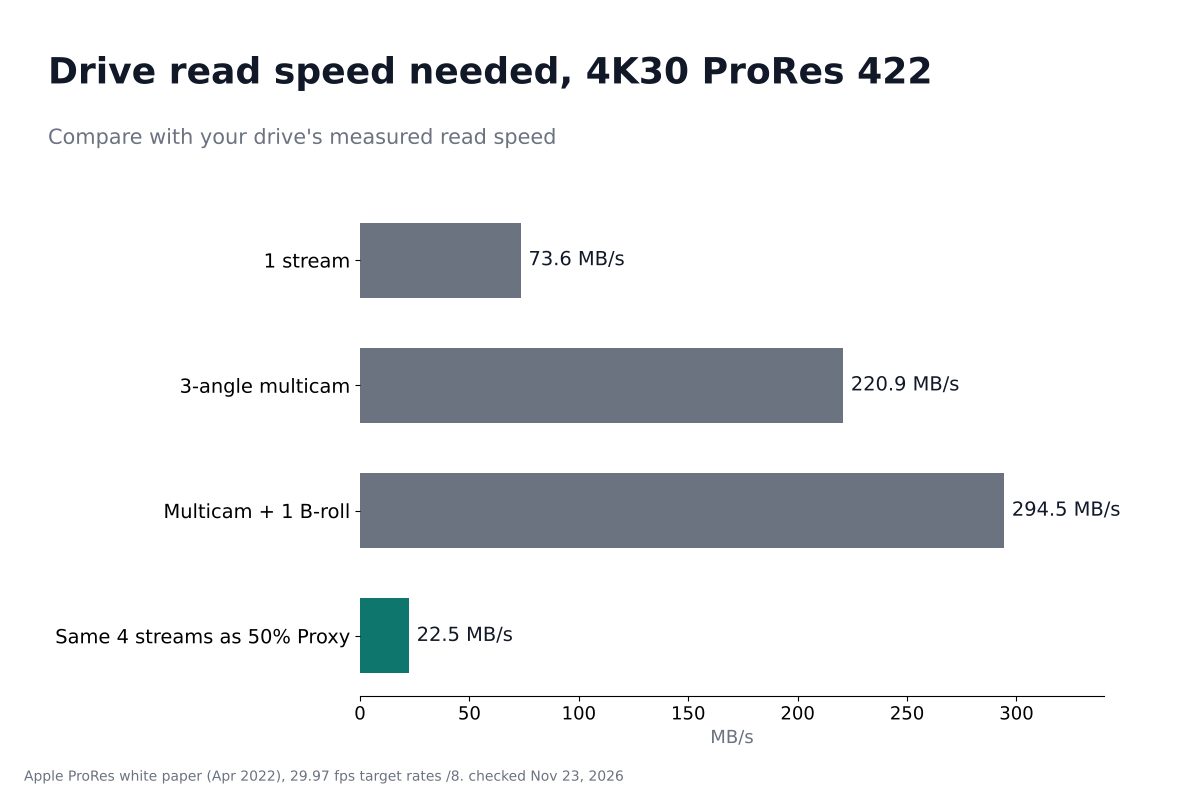
Compare those numbers with what your drive actually reads, measured with a disk speed test app while nothing else is copying. The port label is only a ceiling. USB-IF’s names such as USB 5Gbps and USB 10Gbps state the signaling rate, and 5 Gbps is 625 MB/s before any overhead. A spinning hard drive in a fast enclosure is still limited by the disk.
Format matters too. Apple recommends APFS for external drives used with Final Cut Pro and says drives sold as exFAT or FAT32 might not perform as expected. Leave real headroom: a drive that measures just above your total will still drop frames when it is nearly full or busy with a backup.
Background tasks competing with playback
Importing, transcoding, analysis, rendering, sharing and library backups all run as background tasks. Apple says they pause while you actively use Final Cut Pro and resume when you stop. Right after an import, though, a transcode can still be reading from the same drive you are trying to play from.
Press Command-9 and look. If a proxy transcode is at 40%, let it finish before judging playback. You can also pause a task from that window and resume it later.
Turn the warning off, or keep one on
Clearing a checkbox in Settings > Playback hides that alert. It does not stop frames from dropping in the viewer.
I edit my own YouTube videos alone in Final Cut Pro, and the alert that stops playback mid-review is the one worth silencing once you know your export is clean. The disk-performance warning is the useful one. It waits until playback ends, and it tells you the drive, not the Mac, is the limit, which changes what you should spend money on.
Before you clear anything, pause on the next stutter and step through it with the arrow keys. More Final Cut fixes are under tool stack.
Frequently asked questions
How do I turn off the dropped frames warning in Final Cut Pro?
Choose Final Cut Pro > Settings (Command-Comma), click Playback, and clear the checkbox named in the alert: "If a frame drops, stop playback and warn" or the one that begins "If frames drop due to disk performance" The third box covers VR headsets. Turning a box off only hides the alert. The frames still drop in the viewer, and the export is unaffected either way.
Do dropped frames during playback affect the export in Final Cut Pro?
No. Apple's glossary says a project is rendered to create the output file when you share or export it, so playback drops in the viewer are not written into the file. Two exceptions: switch Media Playback back to Optimized/Original if you edited with proxies, and frames that are missing in the source clip itself will still be missing after export.
Why is Final Cut Pro playback choppy on a new Apple silicon Mac?
A fast Mac still drops frames when the viewer is set to Better Quality on 4K, when a clip carries heavy effects or masks that are not rendered, or when the media sits on a slow or nearly full drive. Set the View menu to Better Performance, render the section with Control-R, and check the drive's read speed against the data rate of your footage.
What does "frames dropped due to disk performance" mean?
Final Cut Pro could not read the media from the drive fast enough to play every frame. Typical causes are a spinning hard drive, a slow USB hub or port, a drive formatted exFAT or FAT32, or several 4K streams playing at once. Proxy media cuts the data rate sharply, and Apple recommends APFS for external drives used with Final Cut Pro.
Sources
- Apple — Playback settings in Final Cut Pro for Mac (13.0)
- Apple — Control playback quality in Final Cut Pro for Mac (13.0)
- Apple — Background rendering in Final Cut Pro for Mac (13.0)
- Apple — Manage render files in Final Cut Pro for Mac (13.0)
- Apple — View background tasks in Final Cut Pro for Mac (13.0)
- Apple — Create optimized and proxy files in Final Cut Pro for Mac (13.0)
- Apple — Skim media in Final Cut Pro for Mac (13.0)
- Apple — Keyboard shortcuts in Final Cut Pro for Mac (13.0)
- Apple — Final Cut Pro release notes
- Apple — Format storage devices for Final Cut Pro, Motion, and Compressor
- Apple ProRes white paper (April 2022), target data rates appendix
- Apple — Final Cut Pro glossary entry: render
- USB-IF — USB Data Performance Language Usage Guidelines
This article is general information based on the author's experience. It is not licensed financial, legal, or tax advice. See the editorial policy.