Final Cut Pro vs DaVinci Resolve for a Solo YouTube Channel
Final Cut Pro or DaVinci Resolve for a one-person YouTube channel? Prices checked on Apple and Blackmagic pages, plus a which-one-if list for solo creators.

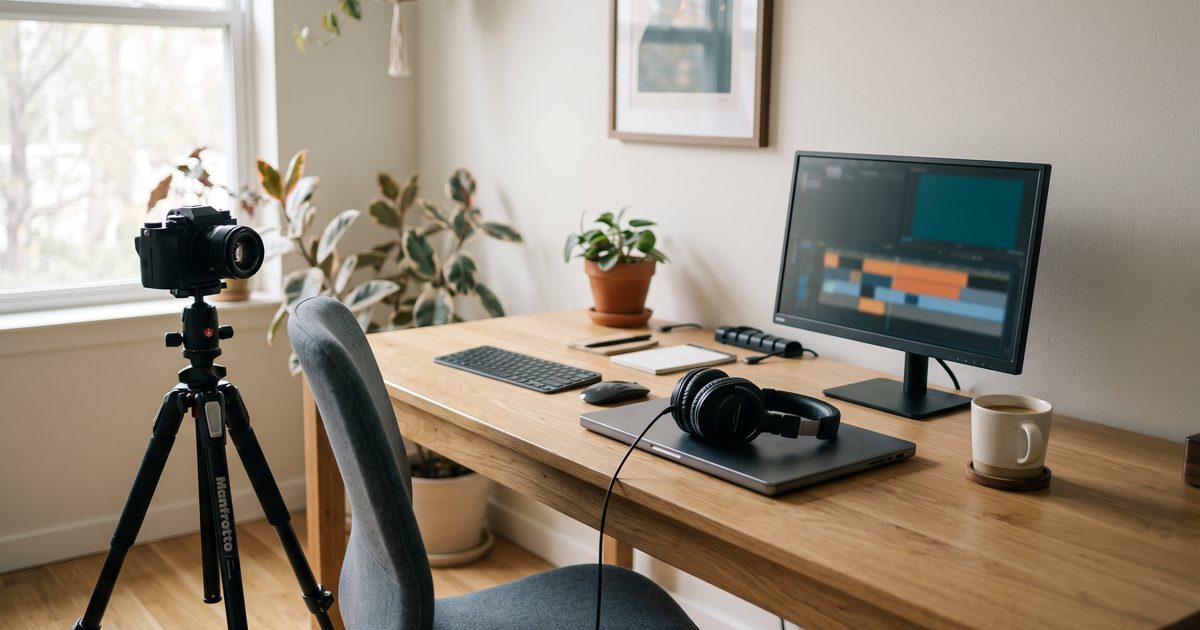
You edit your own YouTube videos, you have one machine, and you need to pick the app you will still be using two years from now. This page settles Final Cut Pro versus DaVinci Resolve for a one-person channel, with prices pulled from Apple’s and Blackmagic’s own pages on August 27, 2026, plus a decision list built around your situation rather than a feature scorecard. I cut my own channel’s videos in Final Cut, so the Final Cut half comes from my own hands; the Resolve half comes from Blackmagic’s documentation, and I say so where it matters.
The short answer for a one-person channel
If you are on a Mac and you publish on a schedule, buy Final Cut Pro. If you are on Windows or Linux, or you have no budget at all, install the free DaVinci Resolve and do not look back. If your channel’s look depends on serious color work, or you mix your own audio in detail, Resolve is the better long-term home even on a Mac.
That is the whole decision for most people. The rest is the evidence, plus the edge cases where the short answer is wrong.
What each app costs in 2026 (three paths, not two)

Most comparisons still frame this as “$299 one-time versus free”. In 2026 there are three ways to pay, and the third one changes the math for a new channel.
Final Cut Pro is $299.99 as a one-time purchase on the Mac App Store, as of August 2026. The current build is version 12.3, and Apple’s page says existing owners will keep getting updates.
Apple also sells Final Cut Pro inside Apple Creator Studio, a subscription at $12.99 per month or $129 per year, as of August 2026. The bundle includes Final Cut Pro, Logic Pro, Pixelmator Pro, Motion, Compressor, and MainStage. New subscribers get one month free, and buyers of a new Apple device get three months. Students and educators pay $2.99 a month or $29.99 a year.
DaVinci Resolve is free. DaVinci Resolve Studio is $295 as a one-time purchase, as of August 2026.
So which Final Cut path? At $129 a year the subscription passes the outright price after a little over two years; at $12.99 a month you pass $299.99 in month 24. If you already know you will be editing for years, buy it. If you are testing whether YouTube is for you, the free month is the cheapest way to find out, and it comes with Motion, which costs $49.99 on its own.
One more cost on the Resolve side: nothing. The free version installs on any of the three operating systems with no time limit. You only pay when a Studio-only feature blocks you.
The solo-YouTuber decision table
Values collected from apple.com and blackmagicdesign.com on August 27, 2026. Re-check before you buy; Apple in particular changed its pricing model this year.
| What a solo YouTuber cares about | Final Cut Pro | DaVinci Resolve (free) | DaVinci Resolve Studio |
|---|---|---|---|
| Runs on | Mac only (plus iPad with M1 or later) | Mac, Windows, Linux | Mac, Windows, Linux |
| Price (Aug 2026) | $299.99 one-time, or $12.99/mo / $129/yr in Apple Creator Studio | $0 | $295 one-time |
| Free trial | 1 month via Creator Studio for new subscribers; 3 months with a new Apple device | Not needed | Try the free version before paying |
| Resolution / frame-rate ceiling | Not tiered | 8-bit, up to 60fps, up to 3840 x 2160 | 10-bit, up to 120fps, beyond 4K |
| Timeline model | Magnetic timeline, single interface | Track-based; separate Cut, Edit, Color, Fairlight, Deliver pages | Same as free |
| Built-in captions | Automatic captions from spoken audio; embed or export sidecar files | Manual subtitle tracks; import/export SRT, VTT, TTML | Adds text based editing |
| AI noise reduction | Not tiered | Not included | Temporal and AI spatial noise reduction |
| Motion graphics | Motion, $49.99 separately or in the bundle; thousands of third-party templates | Fusion page built in | Fusion page built in |
| Direct upload to YouTube | Export presets for YouTube, Instagram, TikTok, Vimeo | Quick Export renders and uploads to YouTube, Vimeo, or Dropbox | Same |
| Minimum Mac | macOS 15.6 or later, 8 GB memory (16 GB recommended), 7.2 GB disk; some features need Apple silicon | Native Mac build; heavy pages are GPU-bound | Same |
Two rows decide most cases. The free Resolve ceiling of 8-bit, 60fps, UHD covers a normal 4K30 talking-head upload with room to spare. And Final Cut’s automatic captions come with the purchase, while on the Resolve side the transcription-driven text based editing sits on Blackmagic’s Studio list.
Mac-only vs cross-platform, and the minimum Mac that runs each
Final Cut Pro runs on macOS 15.6 or later, wants 8 GB of memory with 16 GB recommended, and needs 7.2 GB of disk. Apple notes that some features require Apple silicon. There is also an iPad version for M1 iPads or later, sold under the same purchase and subscription options.
DaVinci Resolve ships native builds for Mac, Windows, and Linux. That one fact ends the comparison for anyone on a PC: Apple sells Final Cut for Mac and iPad only.
If you have an older Intel Mac, check the macOS 15.6 line before you buy Final Cut. Resolve’s heavier pages, especially Color and Fusion, lean on the GPU, so on an 8 GB machine expect to work from proxies for 4K in either app.
Magnetic timeline vs tracks: the learning-curve question

This is the part where I can speak from my own editing. The magnetic timeline in Final Cut has one rule: clips on the primary storyline cannot overlap, and everything else attaches to them. Delete a clip and the gap closes. Drag B-roll and it rides along with the sentence it was attached to.
At first I fought it. I wanted to drop a clip on “track three” the way every other editor works. Once I let the storyline be the spine of the video, my cut time for a talking-head episode dropped, mostly because I stopped losing audio sync when I moved things around. That is the real payoff for a solo channel: fewer mistakes you discover after upload.
Resolve is a track-based editor, which is what Premiere and Avid users expect. Blackmagic splits the app into pages, with a Cut page aimed at fast assembly and an Edit page for detailed timeline work, then Color, Fairlight for audio, and Deliver for export. Based on the documentation, there is more to learn before your debut upload, but nothing in it fights a track-based habit.
The judgment: if you have never edited before and you are on a Mac, the magnetic timeline is the faster route to competent. If you already think in tracks, Resolve will feel normal on day one and Final Cut will feel wrong for a month.
Captions, proxies, export: the weekly-upload workflow
Feature winners matter less than the last mile of a weekly upload. Three steps decide it.
Captions. Final Cut Pro creates captions automatically by analyzing spoken audio, and you can embed them or export sidecar caption files. Apple also added Transcript Search, which finds spoken phrases inside your library. Resolve’s Edit page imports and exports timed text in TTML, SRT or VTT and lets you build and style subtitle tracks by hand; Blackmagic’s product page lists text based editing among the features Studio adds over free. If you caption every video and you want it automatic, Final Cut includes it and free Resolve is the manual route.
Proxies. Both apps support proxy or optimized media so a 4K timeline plays smoothly on a laptop. In Final Cut it is a transcode setting in the library; Blackmagic lists proxy editing as an Edit page feature. On 8 GB or 16 GB of memory, plan to use proxies in either app.
Export. Resolve’s Quick Export can render and upload the finished file straight to YouTube, Vimeo, or Dropbox once you sign in. Final Cut ships export presets for YouTube, Instagram, TikTok or Vimeo and writes H.264, HEVC, ProRes or MXF. In practice I export an H.264 or HEVC master to disk and upload through the browser so I can set the thumbnail and chapters in the same sitting; direct upload saves a click, not a step.
Color, audio, plugins: where Resolve is clearly ahead
Resolve started as a color grading tool and it still leads there: node-based grading, HDR tools, and in Studio, Dolby Vision and HDR10+ grading with professional HDR scopes. Fairlight is a full audio post environment inside the same app, and Fusion handles compositing and motion graphics without leaving the project. Resolve 21 added AI IntelliSearch for finding people and objects in analyzed media and IntelliScript for building a cut from a script.
Final Cut’s color tools (color wheels, curves, hue and saturation curves, LUTs) are enough for a YouTube look, and that is where I stop. I have never needed more than a LUT and a wheel adjustment for a talking-head video.
For motion graphics you either buy Motion or use templates, and Apple’s own page points to thousands of third-party plug-ins and templates. That ecosystem is a real advantage for a solo creator: there is a paid template for almost every lower third and callout a YouTube video needs, and dropping one in is faster than building it in Fusion.
Honest note: I have not run Resolve’s Color or Fairlight pages at production depth, so every Resolve claim in this section comes from Blackmagic’s pages, not my hands. If color is the heart of your channel, spend a weekend in free Resolve before you decide anything.
Which one if…
Written from the seat of someone who films, edits and uploads alone.
- You are on Windows or Linux: DaVinci Resolve, free version. There is no second choice.
- You are on a Mac and you publish weekly: Final Cut Pro. Getting a competent cut out on time matters more than the feature ceiling, and the magnetic timeline gets a beginner there fastest.
- You are on a Mac with no budget: free Resolve. Its ceiling (8-bit, 60fps, UHD) will not block a normal channel.
- You caption every upload and want it automatic: Final Cut Pro includes it; on Resolve, budget for Studio.
- Your channel lives on cinematic B-roll, log footage, and grading: Resolve. Buy Studio when 10-bit or the noise reduction blocks you, not before.
- You already edit in Premiere or another track-based app and cannot afford a relearn: Resolve. It will feel familiar in an afternoon.
- You plan to hand editing to a freelancer later: Resolve, because they can run it on any OS and the free version means no license problem on their end.
The pattern: Final Cut wins on time-to-competent for a Mac owner. Resolve wins on anything that involves other people, other operating systems, or heavy finishing.
Once the videos are going out on schedule, the next question is what pays for the gear; see the comparison of AdSense, Mediavine, and Raptive and the rest of the tool stack.
Install the one your machine runs today and cut this week’s video in it. If you are on a Mac and still torn, start the one-month Apple Creator Studio trial, edit two videos, and decide before it renews.
Frequently asked questions
Is the free version of DaVinci Resolve good enough for YouTube?
For most channels, yes. Blackmagic's page says the free version handles 8-bit footage up to 60fps at up to 3840 x 2160, which covers a normal 4K30 or 4K60 upload. You pay for Studio when you need 10-bit, higher frame rates, the AI noise reduction, or text based editing.
Is Final Cut Pro still a one-time purchase in 2026?
Yes. As of August 2026 the Mac App Store lists Final Cut Pro at $299.99 outright. Apple also sells it inside the Apple Creator Studio subscription at $12.99 a month or $129 a year, which bundles Logic Pro, Motion, Compressor, and Pixelmator Pro.
Which is easier to learn for a beginner YouTuber?
Final Cut Pro, if you are on a Mac. It has one interface and the magnetic timeline stops most sync mistakes. Resolve splits work across separate pages (Cut, Edit, Color, Fairlight, Deliver), which is powerful but means more to learn before your debut upload.
Can I edit in Final Cut Pro and only color grade in DaVinci Resolve?
You can, by exporting a finished ProRes file or an FCPXML and bringing it into Resolve. For a solo channel it doubles the number of apps you maintain, so do it only if color is a real part of your channel's look.
Does DaVinci Resolve run well on a Mac?
Blackmagic ships native Mac, Windows, and Linux versions. On a modern Apple silicon Mac it runs fine for editing; heavier color and Fusion work is more GPU-dependent than Final Cut Pro, so it benefits from a Mac with more graphics cores and memory.
Sources
- Apple — Final Cut Pro (pricing, Creator Studio, captions)
- Apple — Final Cut Pro technical specifications
- Mac App Store — Final Cut Pro
- Apple — Apple Creator Studio
- Mac App Store — Motion
- Blackmagic Design — DaVinci Resolve 21
- Blackmagic Design — DaVinci Resolve Studio
- Blackmagic Design — DaVinci Resolve Edit page
- Blackmagic Design — What's new in DaVinci Resolve 21
This article is general information based on the author's experience. It is not licensed financial, legal, or tax advice. See the editorial policy.