Best AI Transcription Tools for Solo Creators, Compared (2026)
Seven AI transcription tools for YouTubers and podcasters: free tiers, real cost per audio hour, SRT export and AI-training policies, checked October 2026.

This post contains affiliate links. If you sign up through them, Solo Ops Lab may earn a commission at no extra cost to you. It does not change what we recommend; see the editorial policy.
You record alone, you need a transcript or a caption file for every upload, and most “best transcription tool” lists are written for sales teams with meeting bots, a few of them by the transcription vendors themselves. This page compares seven tools on the three things a solo YouTuber or podcaster actually pays for: a caption file you can use, the real monthly cost at your volume, and what the company does with your audio. Every price, limit and policy below was read off the vendor’s own page on October 5, 2026.
Disclosure: the Descript link on this page is an affiliate link. It does not change where Descript lands in the table or the cost math.
The short answer
Pick by what you are actually trying to finish:
- Captions for videos that already live on YouTube: YouTube’s automatic captions, corrected in YouTube Studio. Free, no file juggling.
- A free SRT file for a one-voice video, before upload: Riverside’s free transcriber. No account needed.
- Editing talking-head video by deleting words in the transcript: Descript on a paid plan.
- Interviews and calls plus the occasional SRT, cheaply: Otter Pro on annual billing.
- Large monthly volume, or a human-checked transcript now and then: Rev.
- A paid tool that says it never trains on your files: Sonix.
- Comfortable in a terminal and want everything offline: OpenAI’s Whisper.
That covers most solo setups. The rest of the page is the evidence, including the numbers vendors bury in footnotes.
What to ignore in most transcription roundups
Most lists rank these tools on features a one-person channel never touches. Meeting bots that join Zoom calls, CRM sync to Salesforce, admin seats, HIPAA paperwork: useful for a sales floor, irrelevant to a Tuesday upload.
Headline accuracy figures deserve the same skepticism. The numbers in most roundups trace back to vendor marketing.
What does decide the choice for a creator is duller. Can you get an SRT out, and on which plan? Does the free tier accept uploaded files, and how many? What does an hour of audio cost at your real volume? And does your audio, or your guest’s, end up in someone’s training set? The table and the cost math below answer exactly those four questions.
Seven tools in one table (checked October 5, 2026)
Each cell comes from the vendor’s own pricing page, help center or policy. “Not published” means I could not find the answer on an official page today, not that the feature is missing.
| Tool | Free tier | Cheapest paid plan (as of October 2026) | Languages | Speaker labels | Caption export | Edit video by editing text | Trains AI on your files? |
|---|---|---|---|---|---|---|---|
| Descript | 60 media minutes a month, 720p export, watermark | Hobbyist: $16/mo billed annually or $24 month to month, 10 media hours | 25 on the pricing page; its transcription page says 30+ | Yes | SRT and VTT | Yes | May use projects to improve the service; opt out with the “Share Data with Descript” setting |
| Otter.ai | 300 min a month, 30-min cap per conversation, 3 lifetime file imports, TXT export only | Pro: $8.33/mo billed annually or $16.99 month to month, 1,200 min, 10 imports a month, 90-min cap | 6: English, Spanish, French, German, Japanese, Chinese | Yes | SRT on paid plans; VTT not listed | Not published | Yes: trains on de-identified audio and transcripts |
| Rev | 45 AI minutes a month, English only | Pay as you go at $0.25/min, or Essentials at $25.49/mo billed annually ($29.99 month to month) for 5,000 min, English and Spanish | 37 for AI transcription | Yes, editable labels | SRT and VTT, plus DOCX, PDF, TXT | No; edits change the text only | Yes, anonymized; opt-out only on Enterprise and Unlimited plans |
| Riverside | Free transcriber, no sign-up; all text assigned to one speaker | Pro: $24/mo billed annually ($288 a year) or $29 month to month, unlimited transcriptions | 100+ per its transcriber page | On paid plans, from separate audio tracks | SRT and TXT | Yes | Yes, for its own AI models; opt-out for business-plan customers by written agreement |
| Sonix | 30-minute trial | Pay as you go at $10 an audio hour, or Core at $25/mo for 5 hours | 54+ | Yes | SRT and VTT | Not published | No |
| OpenAI Whisper (open source) | Free, MIT license | None; runs on your own hardware | 99 in the model’s language list | Not built in | SRT, VTT, TXT, TSV, JSON | No; command-line tool | Runs locally, so audio stays on your machine |
| YouTube automatic captions | Free on your own uploads | None | A long list on YouTube Help, from Afrikaans to Zulu | Not published | Download from YouTube Studio; format not stated on that page | Caption text and timing only | Not published |
Read the table across, not down. Two columns settle most solo decisions: whether you get an SRT without paying, and whether the free tier lets you upload files at all.
On the second point, Otter’s free plan is a meeting tool, not a file tool. Three imports for the life of the account means you cannot run a weekly upload through it.
What each tool costs per hour of audio
Plan pages quote monthly prices; what you actually feel is the cost per hour of audio you push through. I ran the vendor prices through a short script that picks the cheapest plan covering 2, 10 and 30 hours a month, on month-to-month billing, for one user uploading finished recordings.

| Tool | 2 hours a month | 10 hours a month | 30 hours a month |
|---|---|---|---|
| Descript | $24 ($12.00/hr), Hobbyist | $24 ($2.40/hr), Hobbyist | $35 ($1.17/hr), Creator |
| Otter.ai | $16.99 ($8.50/hr), Pro | $16.99 ($1.70/hr), Pro | $30 ($1.00/hr), Business |
| Rev | $29.99 ($15.00/hr), Essentials | $29.99 ($3.00/hr), Essentials | $29.99 ($1.00/hr), Essentials |
| Sonix | $20 ($10.00/hr), pay as you go | $50 ($5.00/hr), Advanced | $80 ($2.67/hr), Pro |
| Riverside free transcriber | $0 | $0 | $0 |
| Whisper on your computer | $0 | $0 | $0 |
| YouTube automatic captions | $0 | $0 | $0 |
Prices as of October 2026, from each vendor’s pricing page. Sonix’s plan math uses its published tiers: Core $25 for 5 hours, Advanced $50 for 20, Pro $80 for 40, $10 an hour beyond that. Otter Business is $30 month to month for 6,000 minutes. Descript Creator is $35 month to month for 30 media hours.
Annual billing cuts most of these. At 10 hours a month the cheapest annual options work out to $8.33 for Otter Pro, $16 for Descript Hobbyist, $25.49 for Rev Essentials and about $45.83 for Sonix Advanced ($550 a year).
The table hides four catches, so here they are:
- Otter Pro allows 10 file imports a month, each up to 90 minutes. Ten hours arriving as forty 15-minute files will not fit, whatever the minute count says.
- Descript meters “media hours,” so raw footage you upload and later cut still counts against the plan.
- Rev’s 2-hour figure is a near tie: pay-as-you-go at $0.25 a minute is $30 for two hours, a cent more than a month of Essentials. Essentials only transcribes English and Spanish, though.
- Free costs time. Whisper needs Python and ffmpeg installed, and YouTube’s captions only exist after you upload.
If you publish under two hours of audio a month and work in English, the money barely matters; pick on workflow. Past 10 hours, Otter, Rev and Descript cluster between $1 and $3 an hour on month-to-month billing, and Sonix costs about twice as much or more.
Check the editor you already pay for
Before adding a subscription, look inside the app you edit in. I cut my videos in Final Cut, so that is the first place I check.
Final Cut has a Generate Captions feature that transcribes clips and attaches the caption clips to them. Apple’s guide lists two limits: it works in U.S. English only, and it needs a Mac with Apple silicon. The captions it creates are in the iTT format, and Final Cut can export captions as separate sidecar files, SRT included.
So if you edit in English on a recent Mac, a separate transcription tool is optional for captions. You would still want one for anything else: a podcast transcript for show notes, a non-English video, or audio you never open in Final Cut. Resolve and Premiere users have their own built-in options, covered in our video editor comparison.
The seven tools, one at a time
Descript: when the transcript is your editor
Descript is a video and audio editor built on top of its transcript: delete a sentence in the text and the matching footage is cut. It exports SRT or VTT from the Subtitles tab, with options for speaker labels and characters per line.
Plans as of October 2026: free (60 media minutes a month, 720p, watermarked), Hobbyist at $16 a month billed annually or $24 month to month for 10 media hours, Creator at $24 or $35 for 30 media hours.
The catch is that you are buying an editor, not a transcription service. If your channel is mostly you talking to camera, that is the point, and Descript is the pick. If you already edit in Final Cut or Resolve and only want a caption file, you would be paying for an editor you will not use. Our video editing software comparison for solo YouTubers covers that side.
Otter.ai: cheap, meeting-shaped
Otter is built around meetings: a bot joins your calls and transcribes them. For creators it is the cheapest subscription that exports SRT: $8.33 a month on annual Pro, which adds SRT, DOCX and PDF export.
The free plan is close to useless for video work. It exports TXT only, caps each conversation at 30 minutes, and gives you three file imports for the life of the account. Transcription covers six languages.
Use Otter if you record interviews or calls and want transcripts of those too. Skip it if your audio arrives as many short files.
Rev: volume, and a human when you need one
Rev sells AI transcription at $0.25 a minute, or Essentials at $25.49 a month billed annually for 5,000 minutes, and human transcription from $1.99 a minute as of October 2026. AI transcripts download as SRT and VTT as well as documents, and Rev’s own note says AI-transcript caption files are less accurate than an AI captions order.
Edits in Rev’s editor change the text only; there is no video editing. Speaker labels are editable in the transcript.
Rev makes sense when a podcast episode with a hard-to-hear guest needs a human pass, or when your monthly hours are high. At 30 hours a month on month-to-month billing it ties Otter Business at about $1 an hour.
Riverside: the free SRT most lists skip
Riverside is a remote recording studio for podcasts and video interviews, and its paid plans include transcription and text-based editing. Pro is $24 a month billed annually ($288 a year) or $29 month to month as of October 2026.
The part solo creators miss is the standalone transcriber. Riverside’s page says it is free, needs no sign-up, covers 100+ languages and downloads SRT or TXT. The limit: in the free tool, a multi-speaker file gets all text assigned to one speaker. For a one-person video, that limit costs you nothing.
One more detail from Riverside’s help center: its SRT does not carry caption styling you add in its editor, such as fonts, colors or line control. YouTube ignores SRT styling anyway.
Sonix: pay per hour, no training on your files
Sonix charges $10 per audio hour with no subscription, or subscriptions from $25 a month for 5 hours, as of October 2026. It exports SRT and VTT, labels speakers, and lists 54+ languages.
Its stated policy is the clearest of the paid tools: Sonix says it does not use uploaded customer data to train its models. At 10 and 30 hours a month it is the most expensive per hour in the cost table. Choose it if the privacy line matters more to you than the extra dollars, for example with interview guests who have not agreed to anything beyond your show.
OpenAI Whisper: free, offline, and on you
Whisper is OpenAI’s open-source speech recognition model, released under the MIT license. Run it on your own computer and it writes SRT and VTT files straight out of the command line, along with TXT, TSV and JSON. Its language list has 99 entries.
The repository lists the requirements: Python, PyTorch and ffmpeg. Model sizes run from tiny (about 1 GB of video memory) to large (about 10 GB); the default turbo model needs about 6 GB. Speaker labels are not part of it.
If installing Python packages sounds like a lost Saturday, skip Whisper. If it sounds normal, nothing on this list is more private, and the software costs nothing.
YouTube automatic captions: free, and already there
YouTube generates automatic captions with speech recognition for a long list of languages. YouTube’s own help page says they can misrepresent speech because of mispronunciations, accents, dialects or background noise, and that you should always review and edit them. They may not appear at all if the audio is poor, the video starts with a long silence, or several people talk over each other.
Editing an automatic track in YouTube Studio creates a new caption track with your fixes, and you can download the subtitles from the Options menu.
For a channel that publishes only on YouTube, this is the default. Paid tools earn their place when you need the file before upload, for burned-in captions, Shorts edits or a blog post built from the transcript. Our AI content repurposing workflow starts from exactly that transcript.
Podcasters: the two-voice problem
Speaker labels are where free tools fall down. Riverside’s free transcriber puts every word under one speaker, Whisper has no speaker labels of its own, and YouTube warns that automatic captions may not generate at all when several people talk over each other.
The paid tools handle it in different ways. Riverside’s paid plans label speakers from separate audio tracks, which its recorder captures per participant. Descript lists speaker detection on every plan, including free. Rev and Otter label speakers too, and Rev lets you rename and reassign them paragraph by paragraph.
The cheapest fix is upstream of the software. If you record guests, record each voice to its own track. Then even a tool without speaker detection can transcribe one track at a time, and the labels are simply the file names.
Which tools train AI on your recordings
None of the big roundups links to the actual policy, so here are the lines, as of October 2026:

- Otter: its privacy policy lists training its AI on de-identified audio recordings and on transcriptions.
- Rev: uses data anonymously to train its AI; opting out is available to Enterprise and Unlimited plan customers.
- Riverside: processes content to train its own AI and ML models; business-plan customers can opt out through a written agreement.
- Descript: may use your projects to improve the service; you can turn that off with the “Share Data with Descript” setting.
- Sonix: says it does not use uploaded customer data for training.
- Whisper on your machine: the audio never goes to a server.
For your own monologue, this may not matter to you. For a guest interview, it might matter to the guest. If it does, the practical options are Sonix, local Whisper, or Descript with the setting switched off.
A word on accuracy
You will see accuracy percentages in almost every roundup. Most come from the vendors’ own marketing, and I could not find a neutral benchmark that tests all seven of these tools on the same audio. So this page makes no accuracy ranking.
The useful test takes ten minutes. Take one representative file from your own channel, with your mic, your room and your speaking speed, run it through two free options, and count the corrections each transcript needs. Your audio is the only benchmark that predicts your editing time.
Caption files on YouTube: a checklist
I need captions on every video I edit, and since Final Cut is my editor, the file format question is the one that decides the tool for me. Final Cut imports caption files in three formats: CEA-608 (.scc), iTT (.itt) and SRT (.srt). VTT is not on that list, so a VTT-only export means a conversion step.
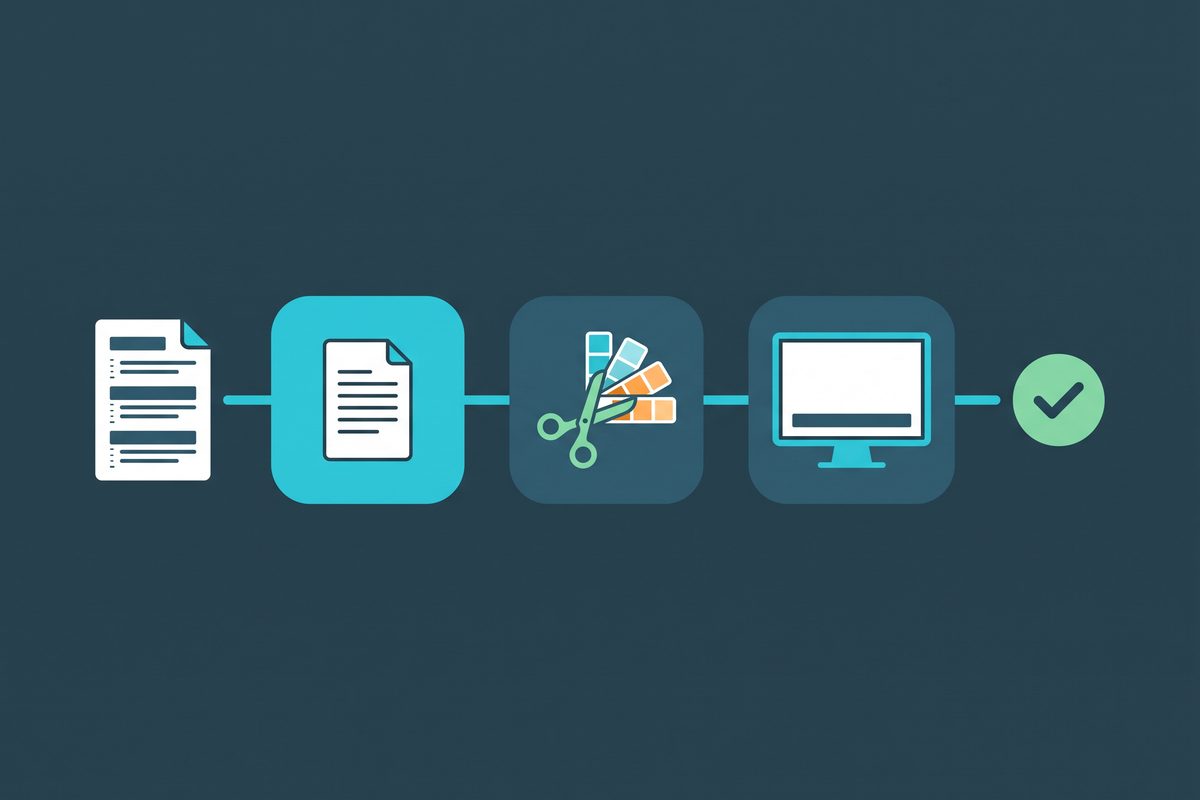
Before you upload a caption file to YouTube, run through this checklist (based on YouTube Help and Apple’s Final Cut guide):
- Use SRT or SBV if you are not sure. YouTube recommends SubRip or SubViewer for beginners because they need only basic timing and open in any text editor.
- Save it as plain UTF-8. YouTube requires that for SRT and SBV files.
- Drop the styling. YouTube ignores markup in SRT; VTT styling is limited to bold, italic and underline.
- No timing? Upload a plain transcript instead. In YouTube Studio choose “Upload file” then “Without timing,” or use auto-sync; the transcript must be in the same language as the video and in a language YouTube’s speech recognition supports.
- Do not rely on auto-sync for long or messy audio. YouTube does not recommend transcripts for videos over an hour or with poor audio quality.
- Fix automatic captions in place if that is faster. Editing creates a new caption track with your revisions; click Publish when done.
- Keep a copy. In the Subtitles section, Options then “Download subtitles” gives you the file to reuse or edit.
For Final Cut users, the import path is File, Import, Closed Captions, then assign a caption role and language. If you are still choosing an editor, our Final Cut Pro vs DaVinci Resolve comparison covers the caption tools built into each.
More tool comparisons for one-person businesses live in the tool stack section.
Take your most recent video’s audio, run it through YouTube’s automatic captions and Riverside’s free transcriber, and count the fixes each one needs. If cleaning up the better of the two takes less time than a paid plan would save you, stay free; if not, start with the paid tool that matches your row in the first table.
Frequently asked questions
What is the best free AI transcription tool for YouTube captions?
If the video is already on YouTube, start with YouTube's own automatic captions and correct them in YouTube Studio; YouTube's help page says to always review them. If you need a caption file before upload, Riverside's free transcriber exports SRT and TXT without an account, though it assigns all text to one speaker. Whisper is free too, but it runs from the command line.
Can I upload an SRT file to YouTube?
Yes. YouTube lists SubRip (.srt) as a supported caption format, with two conditions: only basic files are supported, so styling markup is ignored, and the file must be plain UTF-8. WebVTT (.vtt) also works, with styling limited to bold, italic and underline.
Does Otter.ai export SRT files on the free plan?
No. Otter's help center says Basic (free) users can export conversations only as TXT. SRT, DOCX, PDF and MP3 exports need a paid plan. The free plan also caps each conversation at 30 minutes and allows three file imports in the account's lifetime, as of October 2026.
Is OpenAI Whisper really free?
The open-source Whisper model is released under the MIT license and costs nothing to run on your own computer. You pay in setup and hardware instead: it needs Python and ffmpeg, and the default turbo model needs about 6 GB of video memory according to the repository. It writes SRT and VTT files directly but has no built-in speaker labels.
Do AI transcription tools train on my recordings?
Some do. As of October 2026, Otter's privacy policy covers training on de-identified audio and transcripts, Rev uses data anonymously for training with opt-out limited to Enterprise and Unlimited plans, and Riverside trains its own models with opt-out for business customers by written agreement. Descript lets you opt out with a setting. Sonix says it does not train on customer data.
Sources
- Descript — Pricing
- Descript Help — Export subtitles
- Descript — Privacy Policy
- Descript — Transcription
- Otter.ai — Pricing
- Otter.ai Help — Export conversations
- Otter.ai — Privacy Policy
- Rev — Pricing
- Rev — AI Transcription
- Rev Support — File formats Rev offers
- Rev Support — Transcription Editor
- Rev Support — AI Training Opt-Out
- Riverside — Pricing
- Riverside — Free AI transcription tool
- Riverside Support — Transcription formats
- Riverside — Privacy Policy
- Sonix — Pricing
- Sonix Help — Does Sonix train data?
- OpenAI — Whisper repository (README, license, model sizes)
- OpenAI Whisper — transcribe.py (output formats)
- OpenAI Whisper — tokenizer.py (language list)
- YouTube Help — Use automatic captioning
- YouTube Help — Supported subtitle and closed caption files
- YouTube Help — Add subtitles and captions
- YouTube Help — Edit or remove captions
- Apple — Import captions into Final Cut Pro for Mac
- Sonix — Security & Privacy
- Apple — Create captions in Final Cut Pro for Mac
- Apple — Export captions from Final Cut Pro for Mac
This article is general information based on the author's experience. It is not licensed financial, legal, or tax advice. See the editorial policy.