Final Cut Pro Library Too Big? What to Delete and What to Keep
Final Cut Pro library too big? See what's inside it, how many GB each part takes per hour of 4K, Apple's way to remove each one, and settings that keep it small.

The bulk of an oversized Final Cut Pro library is almost always generated media: render files, optimized ProRes and proxies. Select the library in the sidebar, choose File > Delete Generated Library Files, tick every box, and Final Cut Pro removes them without touching your original footage. If it is still large after that, the rest is camera media copied into the library, plus analysis files.
The table below lists every part of a library, how big each one gets, and the Apple-documented way to remove it.
What’s inside a Final Cut Pro library, and what you can delete
A library is one file in the Finder, but it is a container. Apple describes it as tracking your media files, editing decisions and metadata, with events and projects stored together inside it. By default, media and cache files live inside that container too.
Every part of a library, where Final Cut Pro keeps it, and how Apple says to remove it:
| Part | What creates it | Library Properties location | Apple’s way to remove it | Safe to delete? |
|---|---|---|---|---|
| Original media (managed) | Importing with Copy to library storage location | Media | Delete the clip or event, then empty the Trash; or consolidate out to an external folder | Only if you have another copy |
| Optimized media | Create optimized media at import, or Transcode Media later | Media | File > Delete Generated [item] Files > Delete Optimized Media | Yes, rebuild by transcoding |
| Proxy media | Create proxy media, or Transcode Media | Media | File > Delete Generated [item] Files > Delete Proxy Media | Yes, rebuild by transcoding |
| Render files | Background rendering, Render Selection, Render All | Cache | File > Delete Generated [item] Files > Delete Render Files (Unused or All) | Yes, they regenerate |
| Magnetic Mask analysis | Magnetic Mask on clips in a project | Cache | File > Delete Generated Library Files > Delete Unused Magnetic Mask Files | Unused ones, yes |
| Other analysis files, thumbnails, waveforms | Analysis at import, stabilization and similar | Cache | No delete command; set Cache to an external folder | Not through the Finder |
| Library backups | Automatic backups | Backups (Movies folder by default) | Choose Do Not Save, or remove old backups | Yes for finished work; they hold no media |
Source: Apple Final Cut Pro for Mac user guide (storage locations, render files, optimized and proxy files, Magnetic Masks) and Apple Support article 119914; checked November 9, 2026.
Apple is explicit about the limits of the cleanup command. The Delete Generated commands remove only render, optimized and proxy files, and the library-level dialog adds unused Magnetic Mask files when projects use them. Your originals are never in that dialog.
Render files rebuild themselves. Optimized and proxy files do not: Apple’s library-moving guide notes you have to recreate those manually. So delete optimized and proxy media freely for finished videos, and think twice for the project you are cutting this week.
How big each part gets: a worked 4K example
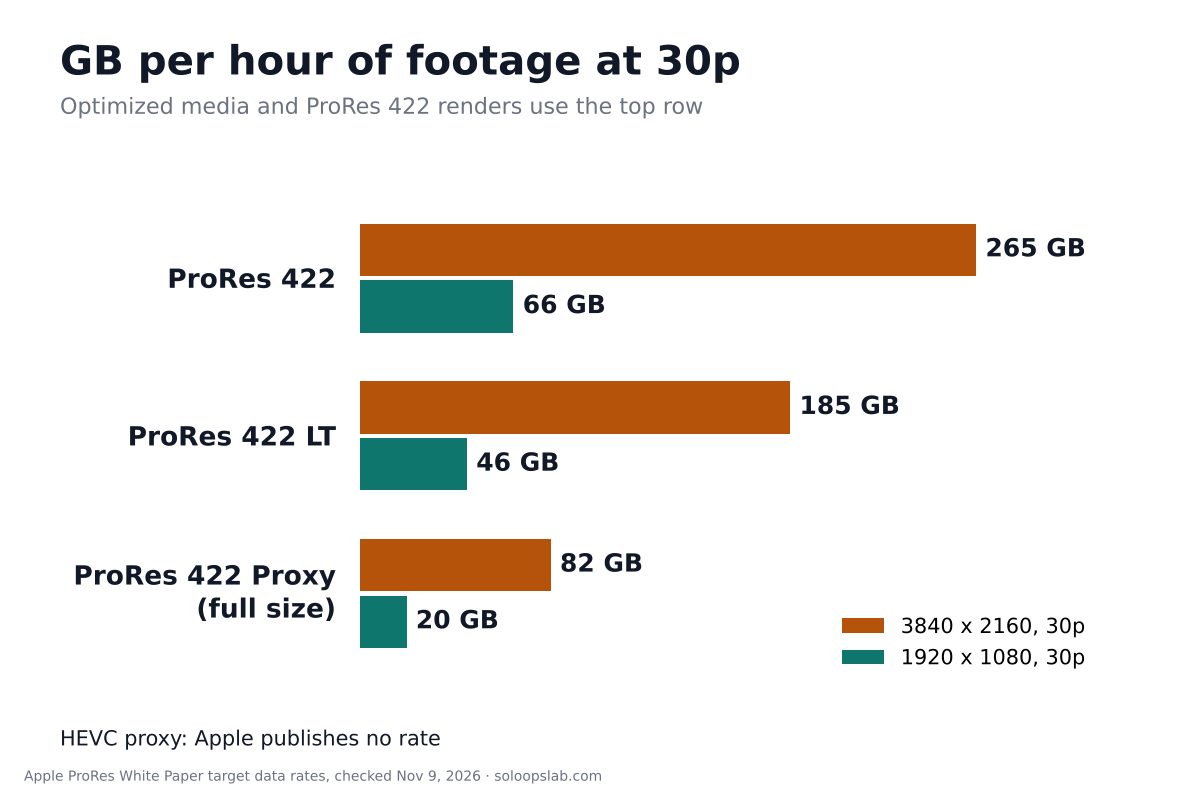
Apple publishes target data rates for every ProRes flavor in its ProRes white paper. Optimized media is ProRes 422, proxies are ProRes 422 Proxy or HEVC, and render files use whatever codec the project’s Rendering setting names. That makes the generated part of a library predictable.
Storage per hour of footage, from Apple’s ProRes target data rates:
| What Final Cut Pro writes | 1920 x 1080, 30p | 3840 x 2160, 30p |
|---|---|---|
| ProRes 422 (optimized media, or renders in ProRes 422) | 66 GB/hr | 265 GB/hr |
| ProRes 422 LT (renders, if chosen in project settings) | 46 GB/hr | 185 GB/hr |
| ProRes 422 Proxy at full frame size | 20 GB/hr | 82 GB/hr |
| ProRes 422 Proxy at 50% of 4K (1920 x 1080) | — | 20 GB/hr |
| HEVC proxy | Not published by Apple | Not published by Apple |
Source: Apple ProRes White Paper (April 2017), target data rates appendix; checked November 9, 2026. ProRes is variable bit rate, so real files land near these targets.
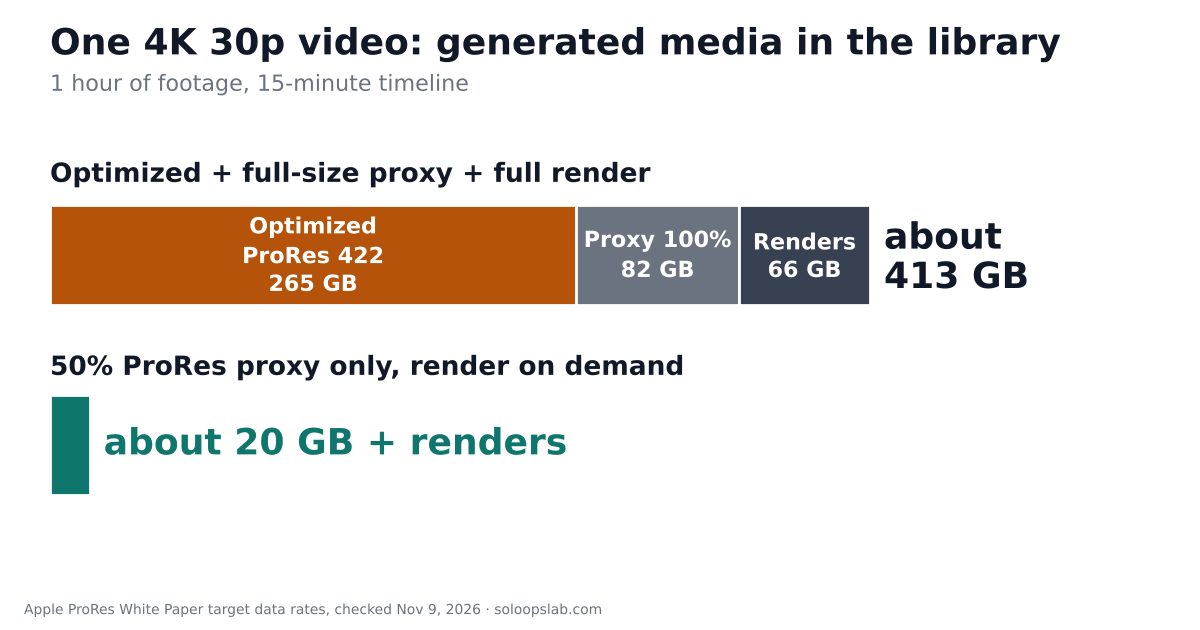
Now the worked example. Say you shoot one hour of 4K 30p for a video and cut it down to a 15-minute timeline. You import with Copy to library, tick Create optimized media and Create proxy media at full size, and let background rendering render the whole timeline in ProRes 422.
On top of the camera files, the library gains about 265 GB of optimized media and 82 GB of proxies. A fully rendered 15-minute timeline at 265 GB per hour adds roughly 66 GB more. That is around 413 GB of generated media for one video.
The lean version of the same edit: leave files in place, skip optimized media, make 50% ProRes proxies only if playback stutters, and render on demand. Generated media drops to about 20 GB plus whatever you render.
For the full trade-off between the two transcode options, see Final Cut Pro proxy vs optimized media, which uses the same Apple figures.
How to shrink a library without breaking it
Work in this order. Each step is less reversible than the one before it.
- Read the totals. Select the library and choose File > Library Properties (Control-Command-J). The Storage Used section lists original, optimized and proxy media for each storage device.
- Delete generated files at the library level. Select the library itself in the Libraries sidebar, not a clip, then choose File > Delete Generated Library Files. Tick Delete Render Files and pick All for finished work or Unused for a library you are still editing. Add Delete Optimized Media and Delete Proxy Media, plus Delete Unused Magnetic Mask Files if it appears.
- Close and reopen the library, or quit Final Cut Pro. Apple gives this step after the Magnetic Mask cleanup, and it is also when the Finder’s size reading catches up.
- Move the cache out. In Library Properties, click Modify Settings and set Cache to an external folder. New render and analysis files go there, and Final Cut Pro asks whether to move active render files across.
- Move managed originals out. Set Media to an external folder, then click Consolidate. Apple says files consolidated out of a library to an external folder are moved, not copied. Skip the optimized and proxy checkboxes in that dialog if you just deleted them.
- Delete clips and events you will never use, then empty the Trash, because deleted source media goes there first.
Do not open the library with Show Package Contents and delete folders by hand. None of Apple’s guides use that route, and the database can still point at what you removed.
Two checks before you buy a drive. Apple recommends an APFS-formatted drive; if yours is ExFAT or NTFS, copy the libraries off, reformat as APFS and copy them back. Apple also says not to use a drive set up for Time Machine.
If space is tight because renders keep piling up while you cut, the sibling guide on Final Cut Pro rendering slow covers when to render and when to leave it off.
Why the library is still big after deleting generated files
Three things survive Delete Generated Library Files.
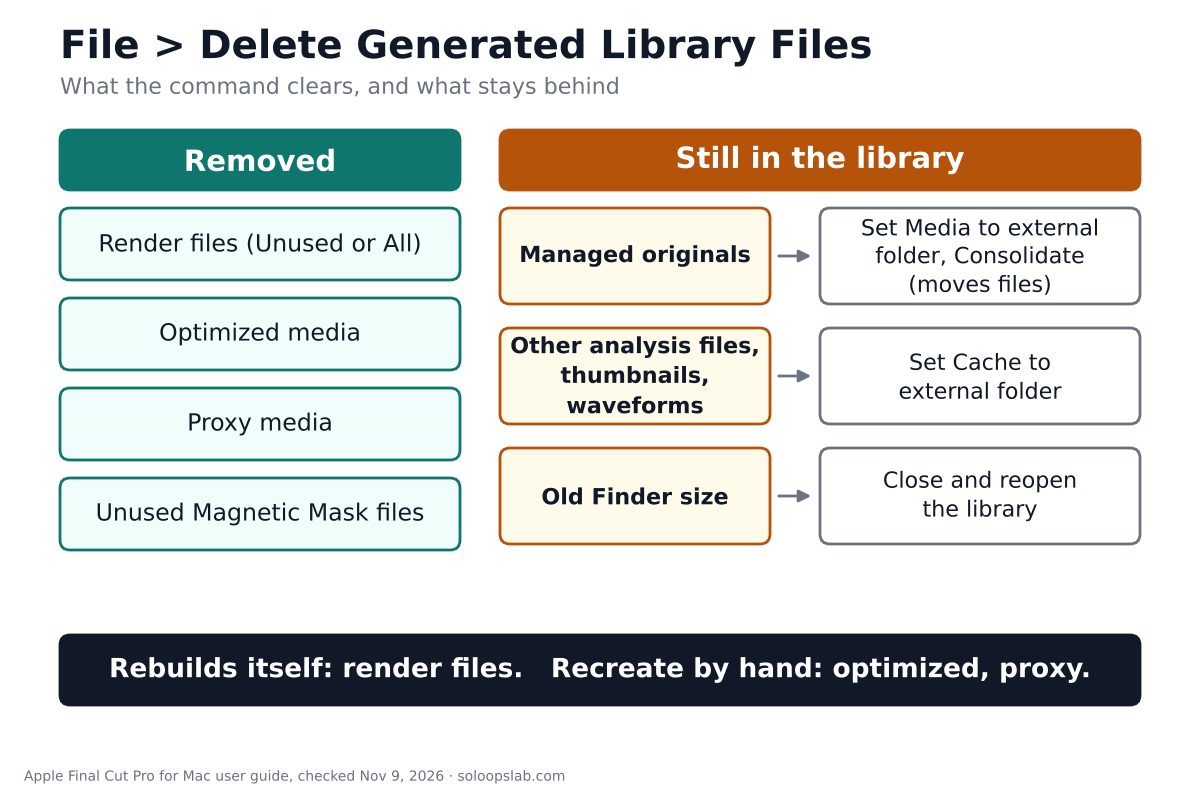
Managed originals are the first. If you imported with Copy to library storage location, Final Cut Pro duplicated the files into the library, so an hour of camera footage is still in there. Step 5 above is the Apple-documented way out.
Analysis files are the second. They live in the Cache location alongside render files, and the delete dialog does not touch them except for unused Magnetic Mask files. Apple warns that Magnetic Mask analysis can use a significant amount of storage on high-resolution projects.
The third is timing. The Finder can show the old size until the library is closed. Reopen it before deciding the cleanup failed.
Library vs event vs project
A library is the file on disk. Inside it, events hold clips and projects, and a project is the timeline you edit.
That hierarchy is also your cleanup scope. Apple offers Delete Generated Clip Files, Project Files, Event Files and Library Files, depending on what you select. For a library that holds several videos, select the event of the one you just published and clean only that.
Where the library, render files and backups are stored
The library is wherever you saved it. Render files, analysis files, thumbnails and waveforms sit in the Cache location, which is inside the library unless you changed it. Imported media, optimized and proxy files sit in the Media location.
Backups are the exception. They go to your Movies folder by default, outside the library, and they contain only the library database, not media. Old backups for finished videos can go; set Backups to Do Not Save only if you back up another way.
What about library cleaner apps?
Third-party cleaners exist, and some scan whole drives for media no project uses. They are useful for orphaned files outside libraries. Inside a library, run Apple’s own Delete Generated and Consolidate commands first, and back up before letting any app change the library file.
Keep libraries small from day one: a solo YouTuber checklist
I edit my own channel’s videos alone in Final Cut on a Mac. Nobody else opens those libraries, so cleanup only happens if the settings make it the default. These are the ones that matter, in the order you meet them.
Checklist:
- Import: in Final Cut Pro > Settings > Import, choose Leave files in place, which links to the source files instead of copying them. Because linked files must stay where they are, copy a memory card’s contents to a media folder on your drive first and import from that folder, not from the card.
- Transcode: leave Create optimized media and Create proxy media off by default. Transcode later, per clip, only when playback stutters.
- Background render: in the Playback pane, the Background render checkbox controls idle rendering. Final Cut Pro 12.3 set background rendering to Off by default; if you upgraded from an older setup, check it. When it is on, rendering starts 0.3 seconds after you stop working.
- Multicam: leave Create optimized media for multicam clips off unless multicam playback struggles; it transcodes multicam video to ProRes 422.
- Storage locations: when you create a library, open Library Properties and point Media and Cache at folders on an APFS external drive.
- One library per video: it keeps each library’s generated media easy to find and delete in one pass.
- At publish: run Delete Generated Library Files with everything ticked, after you have exported and checked the upload. For the export itself, see Final Cut Pro export settings for YouTube.
Final Cut Pro 10.4.9 also added a proxy-only copy of a library, made to cut size for portability. It is handy for editing on a laptop away from the drive that holds the originals.
More Final Cut guides are under tool stack.
Open Library Properties on your biggest library now, compare the optimized and proxy totals with the original media figure, and run Delete Generated Library Files on any video that is already published.
Frequently asked questions
Why is my Final Cut Pro library taking up so much space?
Usually because of generated media. Optimized ProRes 422 files for one hour of 4K 30p come to about 265 GB by Apple's own target data rates, and a project that renders in ProRes 422 writes render files at that same rate. If you imported with Copy to library, your camera originals sit inside the library too. Select the library and run File > Delete Generated Library Files to clear the generated part.
Where are Final Cut Pro render files stored?
Inside the library by default, in what Final Cut Pro calls the cache. Select the library, choose File > Library Properties and click Modify Settings to see or change it. The Cache location holds render files, analysis files, thumbnails and audio waveforms. Point it at an external folder and new render files go there instead.
Where is my Final Cut Pro library located?
A library lives wherever you saved it when you created it. To find it, select it in the Libraries sidebar and read the Library Properties inspector, which names its volume. If Final Cut Pro won't open, Apple suggests a Finder search for Final Cut Pro library, sorted by date modified.
What is the difference between a library, an event and a project in Final Cut Pro?
A library is the file on disk. It holds events, and events hold your clips and projects. A project is the timeline you edit. For storage this matters because Delete Generated works at each level: Delete Generated Clip, Project, Event or Library Files, so you can clean one finished video without touching the rest.
Is it safe to delete Final Cut Pro generated library files?
Yes. Apple says the Delete Generated commands remove only render, optimized and proxy files, and that original media is not deleted. Render files come back on their own when needed. Optimized and proxy files have to be recreated by hand with File > Transcode Media, so only delete those for projects you have finished or can wait to re-transcode.
Sources
- Apple ProRes White Paper (April 2017), target data rates appendix
- Apple — Set storage locations in Final Cut Pro for Mac
- Apple — Delete render files in Final Cut Pro for Mac
- Apple — Create optimized and proxy files in Final Cut Pro for Mac
- Apple — Delete unused Magnetic Mask files in Final Cut Pro for Mac
- Apple — Organize files during import into Final Cut Pro for Mac
- Apple — Import settings in Final Cut Pro for Mac
- Apple — Playback settings in Final Cut Pro for Mac
- Apple — Background rendering in Final Cut Pro for Mac
- Apple — Final Cut Pro release notes
- Apple — If you need more storage for a Final Cut Pro library
- Apple — What are libraries in Final Cut Pro for Mac?
- Apple — Project settings in Final Cut Pro for Mac
- Apple — Add Magnetic Masks in Final Cut Pro for Mac
- Apple — Consolidate projects and libraries in Final Cut Pro for Mac
- Apple — Move a Final Cut Pro library
This article is general information based on the author's experience. It is not licensed financial, legal, or tax advice. See the editorial policy.