Final Cut Pro Media Offline? Identify the Warning, Then Fix It
Final Cut Pro clips red or media offline? Match the alert to its cause, then use Apple's fix: Relink Files, Library Properties, Consolidate or the viewer menu.

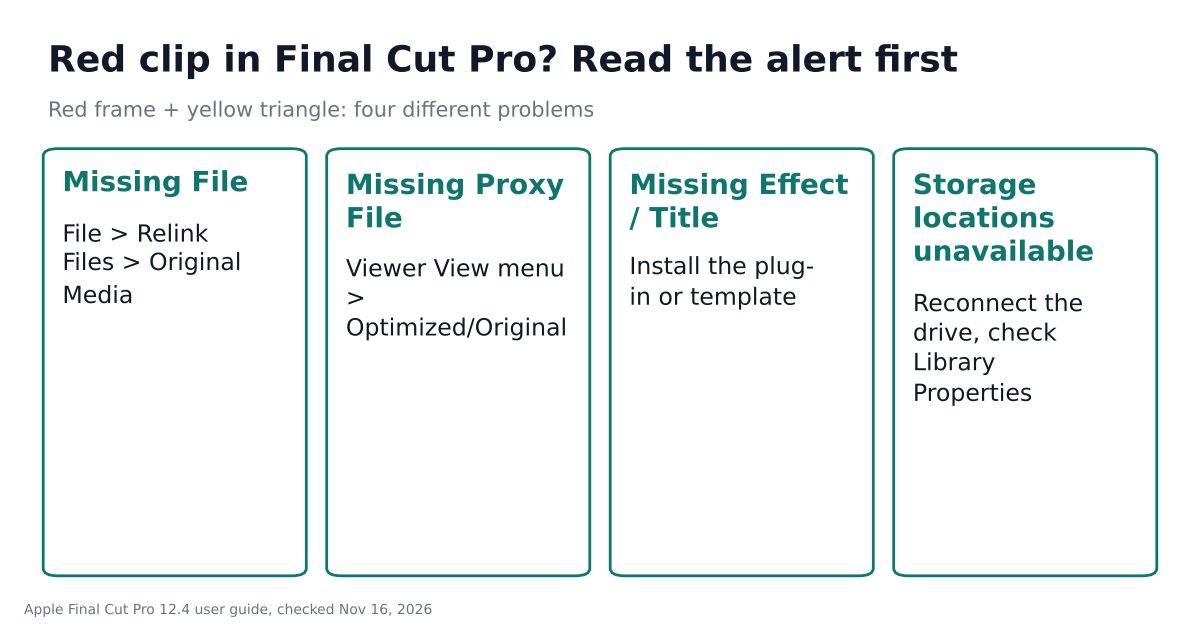
Red clips with a yellow warning triangle mean Final Cut Pro has lost track of something a clip depends on. Most often that is the media file itself, moved or renamed in the Finder or sitting on an external drive that isn’t mounted. Read the alert name first. Missing File is fixed with File > Relink Files, Missing Proxy File with the viewer’s View menu, and a missing effect by installing the plug-in.
Below is every warning Apple lists in the Final Cut Pro 12.4 guide, what causes it, and the documented fix.
Which red warning do you have?
Select the red clip and look at the alert it shows. Apple’s guide names each one, and the name tells you which part of the chain broke: the media, the proxy, the effect, or the folder the library points to.
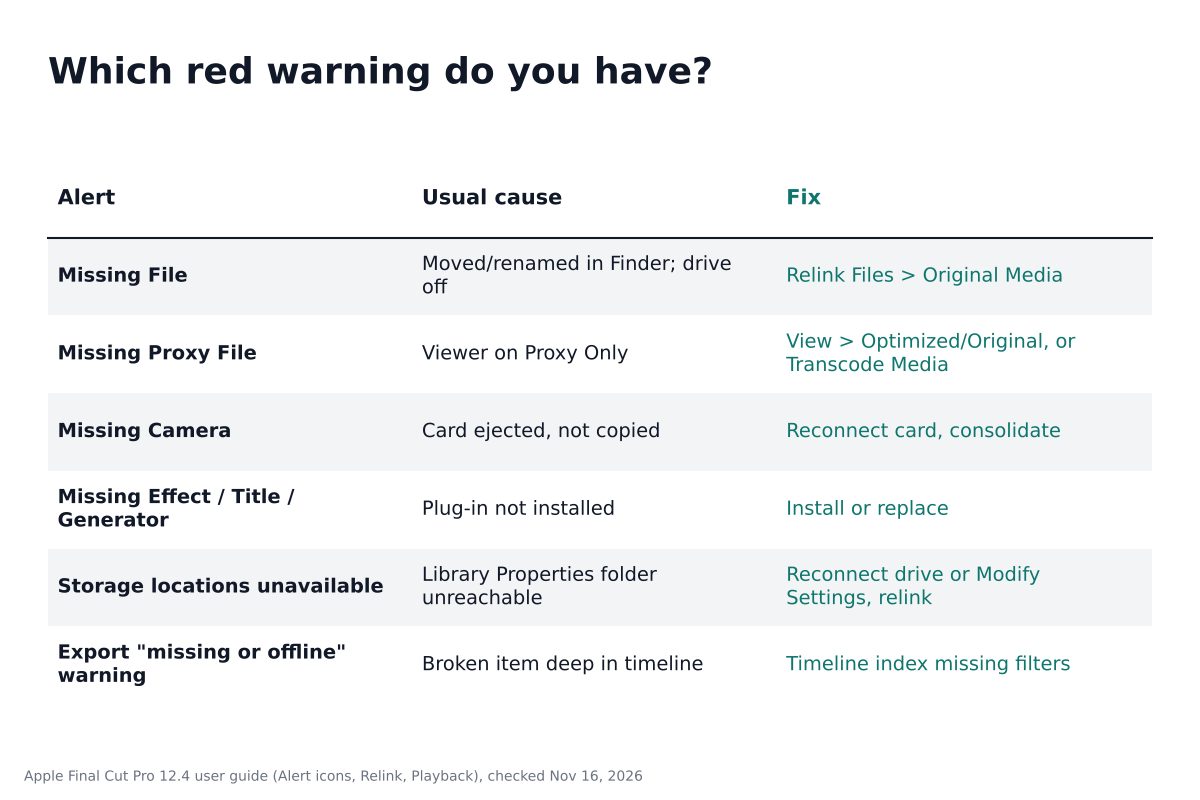
Every alert in Final Cut Pro 12.4, its usual cause, and the fix Apple documents:
| Alert or message | What it means | Usual cause | Fix |
|---|---|---|---|
| Missing File | The media file isn’t where the library expects it | Moved or renamed in the Finder; drive not connected | Reconnect the drive, or File > Relink Files > Original Media |
| Modified File | Another app changed the media file | File edited or re-exported outside Final Cut Pro | Relink to the intended version |
| Missing Proxy File | No proxy file in its expected location | Viewer set to Proxy Only; proxies never made or deleted | View menu > Optimized/Original, or File > Transcode Media |
| Missing Clip | A clip a project uses is gone from the library | Clip sent to the Trash, or moved with its event or project | Restore or move the event back, or relink |
| Missing Camera | Clips still point at a camera or card | Imported without copying, then ejected the card | Reconnect the card, then consolidate |
| Missing Plug-in | A media plug-in the format needs isn’t installed | Camera or codec plug-in missing on this Mac | Install or update the plug-in |
| Missing Effect, Title, Generator, Transition | The project uses one that isn’t available | Third-party or Motion content not installed here | Install it, or replace it in the timeline |
| Missing LUT | A LUT the clip uses is gone | Custom LUT file not on this Mac | Re-add the LUT file |
| Missing Remote Media | Remote media didn’t finish downloading | Network issue, expired access, file removed from server | Reconnect and let it download |
| “Some storage locations for the library are unavailable” | A folder set in Library Properties can’t be reached | Drive unmounted or renamed; library copied to another drive or Mac | Reconnect the drive, or Modify Settings, then relink |
| “Missing or offline titles, effects, generators, or media” at export | The project still contains one of the alerts above | A clip or effect deeper in the timeline is broken | Timeline index > Clips > missing media or missing effects filter |
Source: Apple Final Cut Pro for Mac 12.4 user guide (Alert icons, Relink clips, Control playback quality, Timeline index) and Apple Support 109026; checked November 16, 2026. The two quoted messages are dialog text, not alert icons.
Missing File: relink the original media
This is the common one. Apple’s relink guide names two triggers: someone renamed or relocated the files using the Finder, or moved the event or project holding them. If the file only moved, Final Cut Pro needs to be shown its new home.
- Select what’s broken. A single clip works, but so does a whole event or library in the Libraries sidebar.
- Choose File > Relink Files > Original Media.
- Leave the window on Missing, or pick All if you want to redo every link.
- Click Locate All and go to the folder that holds the files. You can pick one item and use Locate Selected instead.
- Click Choose. Final Cut Pro matches the rest by filename and by how close the files sit in the folder tree, then reports how many it matched.
- Open the results, remove any wrong matches, and click Relink Files.
Pointing at the top folder of a drive is usually faster than going event by event, because Final Cut Pro looks for the other files near the first one you choose.
There are limits. The replacement file must hold all the media the clip uses, be the same media type, share its frame rate, and have similar audio channels. Apple also says Relink Files can’t be undone, so if you’re relinking an hour-long timeline to new files, duplicate the project first.
The whole library turned red: drive unplugged or renamed
If every clip in an event or library goes red at once, the files probably didn’t move. The drive they’re on isn’t connected, or it mounts under a different name.
On a Mac, the drive’s name is part of every file path on it. Rename a drive from “Media” to “Media SSD” and each linked file’s path changes, so Final Cut Pro can’t find any of them.
Fix it in this order. Quit Final Cut Pro, connect the drive, and check it shows in the Finder under the name it had when you imported. If you renamed it, rename it back. Reopen the library. If clips are still red, run Relink Files on the whole library and point it at the drive.
Do not relink to a different copy of the footage just to get rid of the red. Relinking is permanent, and the wrong take with the same filename will match.
“Some storage locations for the library are unavailable”
This dialog is about the library’s settings, not a single clip. Every library has four storage locations in Library Properties: Media, Motion Content, Cache and Backups. The message appears when one of them points to a folder Final Cut Pro can’t open.
The usual trigger is an external folder on a drive that isn’t mounted, or a library copied to another drive or Mac while its Media or Cache folder stayed behind.
- Select the library in the Libraries sidebar and choose File > Library Properties (Control-Command-J).
- Read each location. Any path on a drive that isn’t connected is the culprit.
- Connect that drive under its original name, and the message should clear.
- If the drive is gone for good, click Modify Settings and choose a folder that exists, or In Library.
Step 4 has a catch. Apple says new locations apply only to future imports, Motion content, cache files and backups. Existing media stays where it was. So after changing the setting, run Relink Files for clips that are still red. If you changed the Cache location, Final Cut Pro asks whether to move existing render files across.
Drive format matters here too. Apple recommends APFS for external drives and warns that drives preformatted as ExFAT or FAT32 might not perform as expected. A Time Machine backup drive can’t hold a library at all.
Missing Proxy File: your originals are fine
A Missing Proxy File alert does not mean footage is lost. It means the viewer is set to play proxies and a clip has none where Final Cut Pro expects it.
Click the View pop-up menu in the upper-right corner of the viewer. Under Media Playback, Final Cut Pro 12.4 offers three choices:
| Viewer setting | What plays | If no proxy exists |
|---|---|---|
| Optimized/Original | Optimized ProRes 422, or the original if no optimized file | Not affected |
| Proxy Preferred | Proxy files, falling back to optimized or original | Falls back to optimized or original |
| Proxy Only | Proxy files only | Missing Proxy File alert |
Source: Apple Final Cut Pro for Mac 12.4 user guide, Control playback quality; checked November 16, 2026.
If you want proxies, make them: select the clips and choose File > Transcode Media, tick Create proxy media, and pick ProRes 422 Proxy or HEVC at a frame size from 12.5% to 100%. To see which clips have a proxy, open the Info inspector; a red triangle there means none exists yet. If the proxy files exist but moved, use File > Relink Files > Proxy Media.
Switch back to Optimized/Original before you share. Apple says to do that for best export quality. The trade-offs between the two transcode types are in Final Cut Pro proxy vs optimized media.
Missing effect, title, generator or LUT
These alerts mean the media is fine but a piece of the edit isn’t installed on this Mac. Usually that is a third-party plug-in, a Motion template that depends on one, or a LUT file.
Apple notes that a Motion-built title or effect that relies on an uninstalled third-party plug-in may render incorrectly or incompletely. Opening that template in Motion shows a warning if it has offline elements. Final Cut Pro also checks third-party plug-in compatibility at launch and lists any that are incompatible; Apple’s advice for those is to contact the maker for an update.
The export warning about “missing or offline titles, effects, generators, or media” is harder because the culprit may be buried. Use the timeline index:
- Press Shift-Command-2, or click Index at the top left of the timeline.
- Click Clips.
- Open the search field’s pop-up menu and choose the missing media filter, then the missing effects filter. Typing “missing” in the search field also lists clips with the alert.
Fix what it shows, or replace the effect with a built-in one. If the list is empty and the warning stays, check you’re on the latest version. Apple’s release notes for Final Cut Pro 11.0 and 10.7 both fixed alert badges that stuck on an event after media was relinked.
Opened the library on another Mac and everything is red
This is almost always an import setting coming back to bite. When you import with Leave files in place, Final Cut Pro doesn’t copy anything. It creates symbolic links that point at the original files. Apple’s import guide spells out the consequence: move or copy that event or project and only the links travel, not the media.
So the library arrives on the second Mac, but the footage is still on the first Mac’s drive.
Before moving a library, Apple’s moving guide says to consolidate media into it and to install your third-party plug-ins and fonts on the other Mac, since the library doesn’t carry them. Set Media to In Library in Library Properties, then click Consolidate. FxPlug content isn’t managed by the library at all, so track it by hand.
Know which direction Consolidate goes. Apple says consolidating out of a library to an external folder moves the files. Consolidating into a library, or from one external folder to another, copies them, so links from other libraries don’t break. A library full of consolidated 4K footage gets big fast; Final Cut Pro library too big covers what to delete afterward.
Why Relink Files won’t match your clips
Four causes cover most failed relinks, and Apple documents each.
The file was renamed. Apple’s fix is to rename it in the Finder back to the name the browser shows, then quit and reopen Final Cut Pro, which relinks it on launch.
The file came back from Compressor with a suffix. Matching tolerates a suffix after an underscore or hyphen, as in A_proxy.mov. A plus sign, slash or backslash before the suffix blocks the match.
Two files in the folder match. When there are two or more candidates, Final Cut Pro won’t relink to either automatically. Select the clip, click Locate Selected and pick the right one yourself.
The file isn’t compatible. Different frame rate, different media type, fewer audio channels, or shorter than the clip’s used range. Relinking a 30p clip to a 25p export of it will fail; find the true original.
If imports themselves are what’s failing, that’s a separate problem covered in Final Cut Pro not importing media.
Prevention checklist for a one-person setup with external SSDs
I edit my own YouTube videos alone in Final Cut on a Mac. With one editor and no shared storage, broken links almost always trace back to one of the habits below, so the checklist is short.
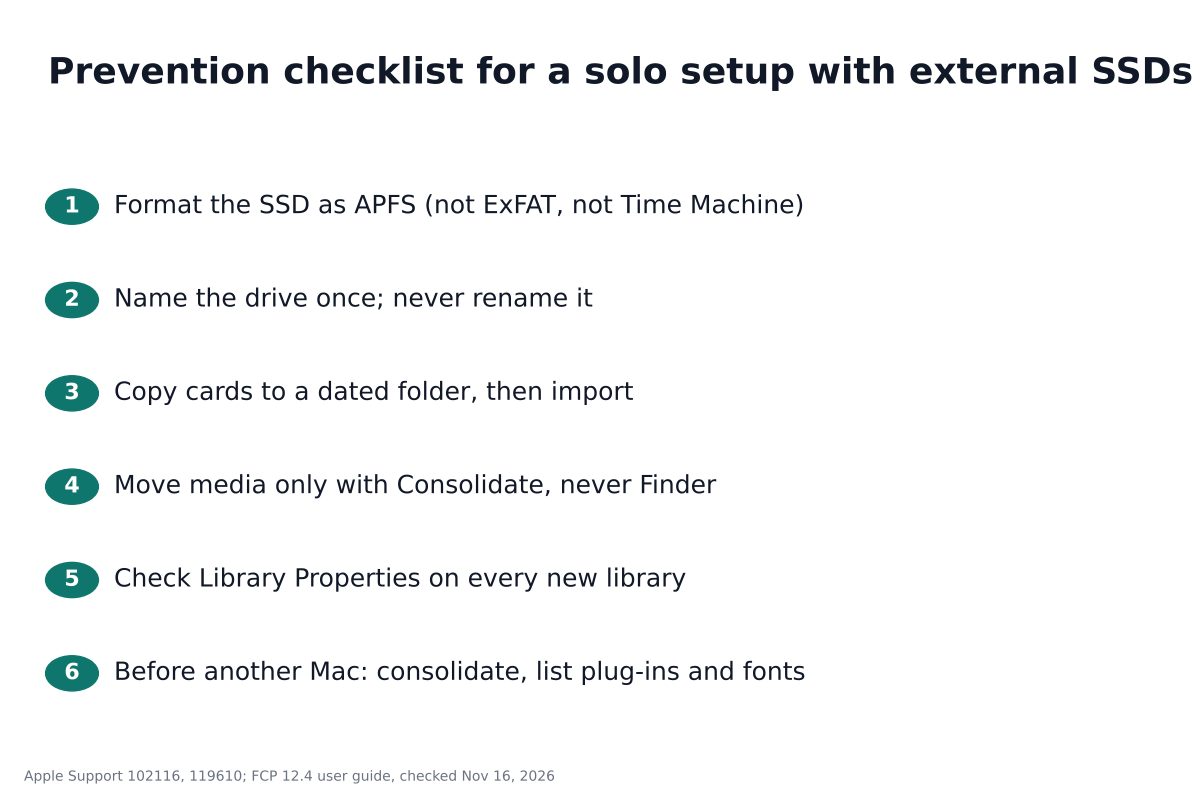
Checklist, in the order you meet each step:
- Format once: external SSD as APFS. Not ExFAT, and not the Time Machine drive.
- Name it once: give the drive a name and never rename it while libraries point to it.
- Copy cards first: copy each card to a dated folder on the SSD, then import from that folder. A clip linked to an ejected card shows Missing Camera.
- Pick the import mode on purpose: Leave files in place keeps the library small but means the media must never move. Copy to library storage location costs drive space but keeps the footage in a place the library manages.
- Never move media in the Finder. Move it inside Final Cut Pro with Consolidate, which updates the links.
- Check Library Properties on every new library: Media and Cache should point to folders on the drive that travels with it.
- Before another Mac: consolidate media into the library, and write down your third-party plug-ins and fonts so you can install them there.
- Before export: set the viewer back to Optimized/Original and run the timeline index missing filters. For export problems that aren’t about media, see Final Cut Pro export stuck.
More Final Cut Pro guides are under tool stack.
Right now, select your library, open File > Library Properties, and confirm that every storage location points at a drive that is connected and named the way it was on import day.
Frequently asked questions
Why are my clips red in Final Cut Pro?
A red frame with a yellow triangle means Final Cut Pro can't reach something the clip needs. Usually that is the media file, because it was moved or renamed in the Finder or sits on a drive that isn't connected. It can also be a missing proxy, effect, title, generator, transition or LUT. Select the clip and read the alert name; each one has a different fix.
How do I relink a whole Final Cut Pro library at once?
Select the library in the Libraries sidebar, choose File > Relink Files > Original Media, click Locate All and pick the top folder that holds your media. Final Cut Pro uses filenames and nearby folders to match the rest. Review the matches, remove any wrong ones, then click Relink Files. Relinking can't be undone, so duplicate the project first if you're unsure.
What does Missing Proxy File mean in Final Cut Pro?
Your originals are fine. The viewer is set to Proxy Only and the clip has no proxy file where Final Cut Pro expects one. Switch the viewer's View menu to Optimized/Original or Proxy Preferred, or create proxies with File > Transcode Media. If proxies exist elsewhere, relink them with File > Relink Files > Proxy Media.
What does 'some storage locations for the library are unavailable' mean?
One of the folders listed in the library's Library Properties, for media, cache, Motion content or backups, is on a drive or path Final Cut Pro can't reach right now. Reconnect that drive under the same name, or click Modify Settings and choose a folder that exists. Changing the setting only affects new files, so relink existing clips afterward.
How do I find missing titles, effects or generators before exporting?
Open the timeline index with Shift-Command-2, click Clips, and use the search field's pop-up menu to show clips with missing media or missing effects. You can also type missing in the search field. Missing titles and effects usually come from a third-party plug-in or Motion template that isn't installed on this Mac.
Sources
- Apple — Alert icons in Final Cut Pro for Mac (12.4)
- Apple — Relink clips to media files in Final Cut Pro for Mac (12.4)
- Apple — Solutions to media management issues in Final Cut Pro for Mac (12.4)
- Apple — Set storage locations in Final Cut Pro for Mac (12.4)
- Apple — Consolidate projects and libraries in Final Cut Pro for Mac (12.4)
- Apple — Control playback quality in Final Cut Pro for Mac (12.4)
- Apple — Create optimized and proxy files in Final Cut Pro for Mac (12.4)
- Apple — Organize files during import into Final Cut Pro for Mac (12.4)
- Apple — View your project in the timeline index in Final Cut Pro for Mac (12.4)
- Apple — Intro to effects in Final Cut Pro for Mac (12.4)
- Apple — About Final Cut Pro and Motion plug-in compatibility
- Apple — Move a Final Cut Pro library
- Apple — Format storage devices for Final Cut Pro, Motion and Compressor
- Apple — Final Cut Pro release notes
This article is general information based on the author's experience. It is not licensed financial, legal, or tax advice. See the editorial policy.