Final Cut Pro Not Importing Media: Causes and Fixes Table
Final Cut Pro not importing media? Match your symptom to the cause and fix: unsupported codecs, greyed-out files, exFAT or NTFS drives, camera cards and iPhone HDR.

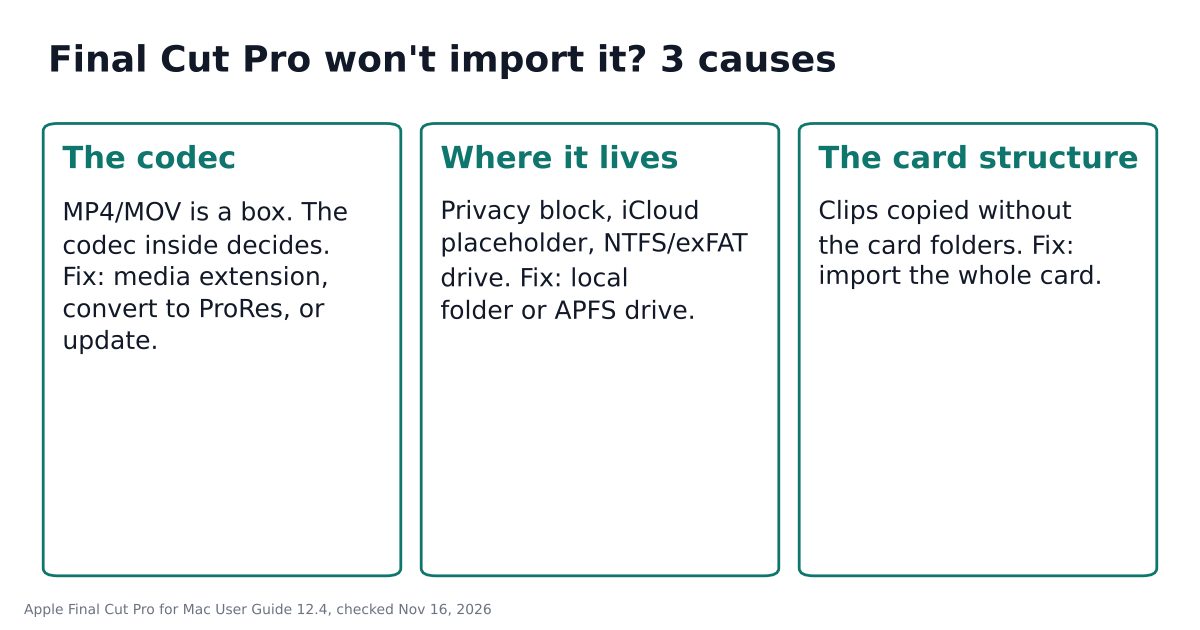
When Final Cut Pro is not importing media, the cause is almost always one of three things. The codec inside the file is one Final Cut Pro cannot decode. The file sits somewhere Final Cut Pro cannot read, such as a privacy-blocked folder, an iCloud-only placeholder or an NTFS drive. Or a camera card’s folder structure broke when it was copied. Find your symptom in the table below, check what your source file actually is, and apply the matching fix.
Everything here follows Apple’s Final Cut Pro for Mac User Guide for version 12.4, released September 29, 2026, and the Apple Support articles listed at the end.
The short answer
Work through these in order. Each one takes under a minute.
- Does the file play in QuickTime Player? If not, the file itself is the problem, not Final Cut Pro.
- What codec is inside it? Compare it with Apple’s supported list.
- Where does it live? Internal folder, iCloud Drive, external drive, camera card.
- How is that drive formatted? APFS is what Apple recommends.
- Is there free space on the drive that holds your library?
Most people stop at step 2.
Symptom, cause and fix table
Each row comes from Apple’s Final Cut Pro guide and Apple Support articles. Rows marked “reasoning” are troubleshooting logic rather than an Apple statement.
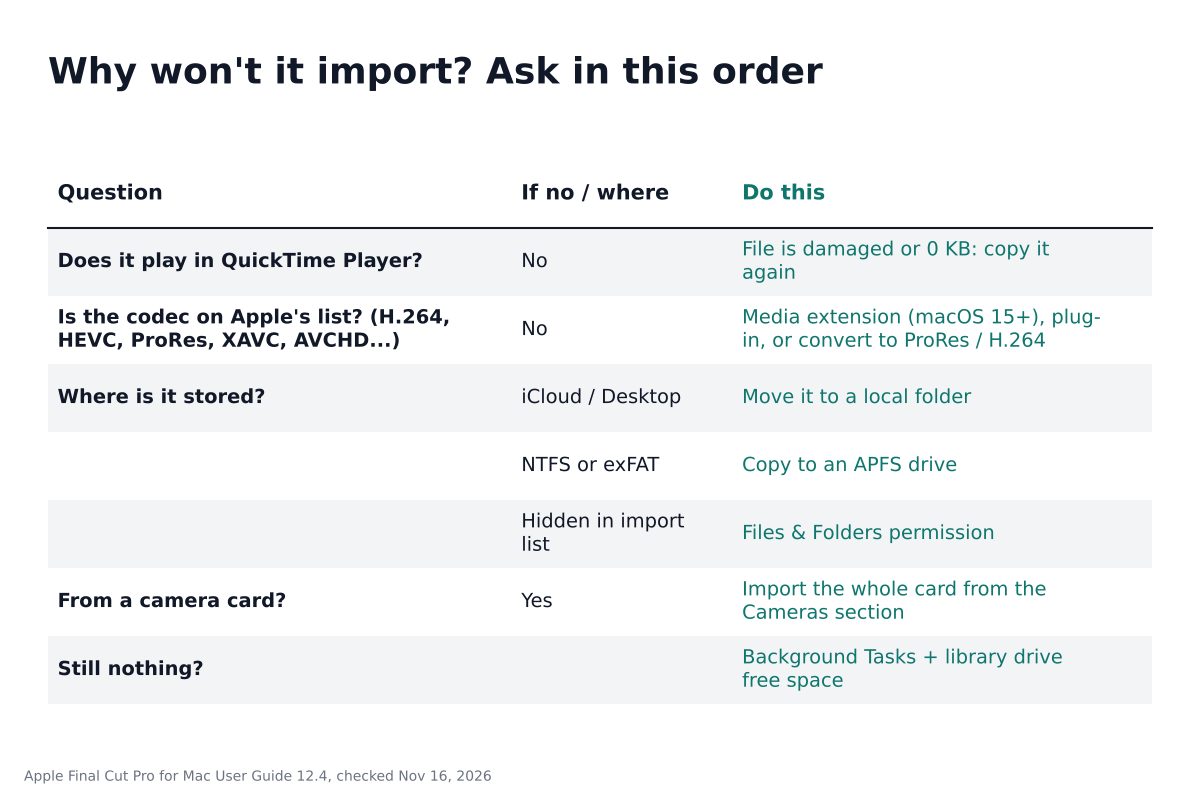
| What you see | Likely cause | Fix |
|---|---|---|
| File greyed out in the Media Import window | Codec Final Cut Pro cannot decode | Check codec; install a media extension, convert, or update Final Cut Pro |
| Message that required third-party plug-ins are not installed | Camera RAW or a third-party codec | Install the camera maker’s plug-in (Canon Cinema RAW Light, REDCODE RAW) or a media extension |
| File won’t play in QuickTime Player either | Damaged, incomplete or zero-byte file (reasoning) | Check the size in Finder; copy it again from the source by cable |
| File visible in Finder but missing from the import list | Privacy block or iCloud-only placeholder | Allow Final Cut Pro in Files & Folders; download the file or move it to a local folder |
| Can’t save or copy to the external drive | Drive is NTFS, which a Mac can read but not write | Copy media to an APFS drive, or back up and reformat as APFS |
| Imports behave oddly from a Windows-formatted drive | exFAT or NTFS, unsupported for libraries | Move the library and media to an APFS drive |
| Card clips missing or not recognized after copying | Card folder structure broken in the copy | Copy the whole card with its folders, or import from the card itself |
| Leave files in place dimmed | Source is treated as camera media and copied | Expected; import loose files from a normal folder if you need links |
| iPhone HDR clips look washed out | Library or project not set for HDR | Wide Gamut HDR library, Rec. 2020 HLG project |
| Alerts about “Permission denied” or a damaged library | Library volume full | Free space or move the library to an APFS drive |
| Import seems to finish but nothing appears | Still processing, or wrong event (reasoning) | Open Background Tasks; check which event and library were selected |
Source: Apple Final Cut Pro for Mac User Guide 12.4 and Apple Support articles 119914, 102116, 101830, 102241 and 116944, checked November 16, 2026.
Check what your source file actually is
MP4 and MOV are containers. They are boxes, and the box tells you nothing about the video inside. Apple’s supported list for Final Cut Pro 12.4 includes MP4, MOV, AVI, MXF, MTS/M2TS and 3GP as containers, and separately lists the codecs it decodes: H.264, HEVC, every Apple ProRes version, ProRes RAW, AVCHD, XAVC, XF-AVC, XF-HEVC, DV, HDV and others.
So “won’t import MP4” really means “won’t decode whatever is in this MP4.”
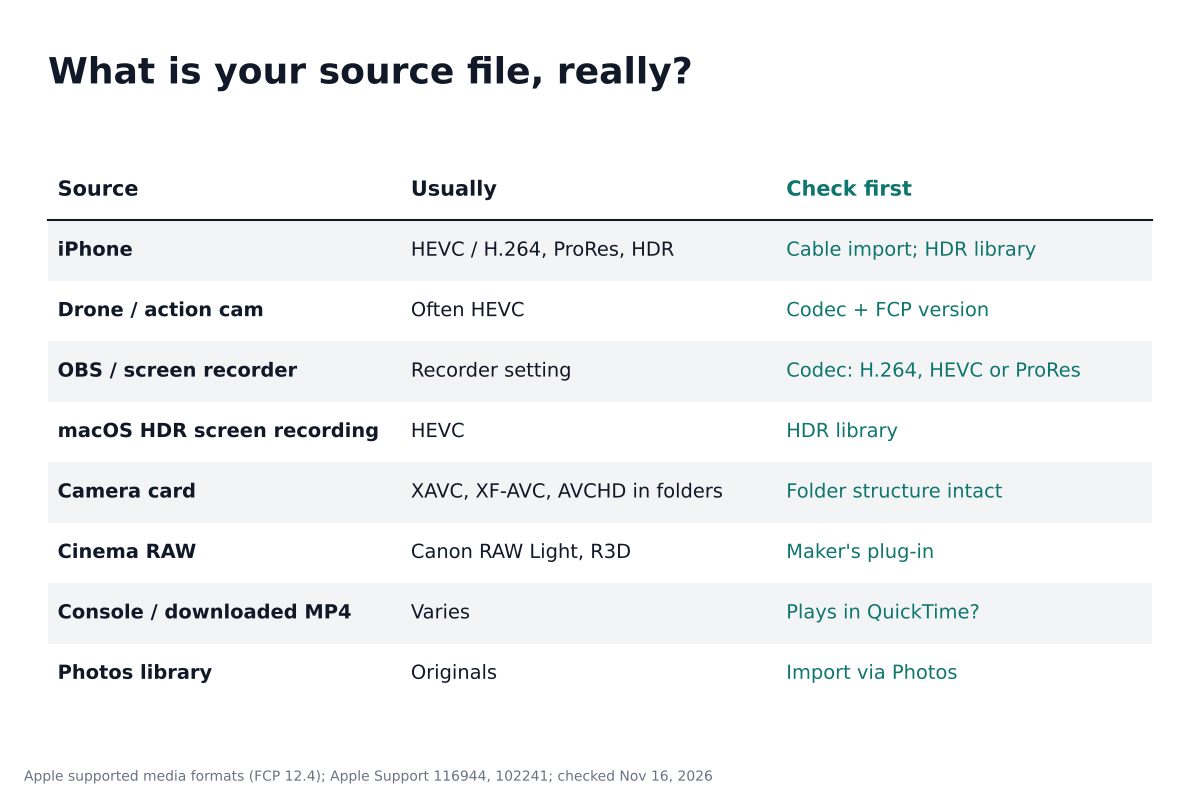
To see the codec, select the file in Finder and press Command-I, or open it in QuickTime Player and choose Window > Show Movie Inspector (Command-I), which lists the video format, frame rate, bit depth and HDR format. Then match your source to the first thing worth checking:
| Where the file came from | What it usually is | Check first |
|---|---|---|
| iPhone (Camera app) | HEVC or H.264; ProRes if you chose it; HDR if HDR Video is on | Import by cable from the Cameras section; HDR library settings |
| Drone or action camera | Often H.265 (HEVC) at high bit depth | Codec and Final Cut Pro version |
| OBS or another screen recorder | Depends on the recorder’s settings | Codec; record or convert to H.264, HEVC or ProRes |
| macOS screen recording with HDR capture (Tahoe) | HEVC | HDR library settings |
| Camera card (Sony, Canon, Panasonic) | XAVC, XF-AVC, AVCHD inside a folder tree | Folder structure intact |
| Cinema camera RAW | Canon Cinema RAW Light, REDCODE RAW | Maker’s plug-in installed |
| Game console or downloaded MP4 | Varies; sometimes a codec outside Apple’s list | Does it play in QuickTime Player? |
| Photos library | Originals from iPhone or camera | Import through Photos, not Finder |
Sources: Apple supported media formats (12.4), Apple Support 116944 and 102241, checked November 16, 2026.
I edit my own YouTube videos alone in Final Cut, so there is nobody else to blame when a clip refuses to come in. Checking the codec first is the habit that saves the most time, because it decides which half of this page you need.
Unsupported codec: extend, convert, or update
You have three ways out. Pick the cheapest that works.
Install a media extension
Since macOS 15, macOS media extensions let Final Cut Pro import formats it does not support natively. Download the extension for your format, then go to System Settings > General > Login Items & Extensions, click the Info button next to Media Extensions, and turn on its readers and decoders. Quit and reopen Final Cut Pro.
To confirm it worked, select the clip and open the Info inspector. A green dot in the Media Extensions section means the extension is decoding that clip; a red triangle means something is wrong.
For Canon Cinema RAW Light and REDCODE RAW, Apple says you need the camera manufacturer’s plug-in software instead.
Convert the file
If no extension exists, convert. Your options, from quickest to best quality:
- In Finder, Control-click the file and choose Encode Selected Video Files. You can pick a resolution and choose higher quality or greater compatibility.
- In QuickTime Player, choose File > Export As and pick the H.264 “Greater Compatibility” option rather than HEVC.
- In Compressor, convert to Apple ProRes 422. Larger files, but no further quality loss and smooth editing.
Convert to a new file name and keep the original. If the clip will end up in a long project, ProRes is the safer choice because Final Cut Pro would create ProRes 422 optimized media from it anyway.
Update Final Cut Pro
Older versions of Final Cut Pro decode fewer formats. The current release needs macOS 15.6 or later, 8 GB of RAM (16 GB recommended) and 6.5 GB of free disk space. If your Mac cannot run that, converting is your only route for newer codecs.
Once the file is in, you can still transcode it: select it in the browser and choose File > Transcode Media. If Create optimized media is dimmed, Apple’s explanation is that the format already edits well. The trade-offs between the two file types are in our guide to proxy vs optimized media.
Can’t import from an external drive
Start with the format. Select the drive in Finder, press Command-I and read the Format line.
- APFS or Mac OS Extended: fine. Apple recommends APFS for external storage used with Final Cut Pro.
- exFAT or FAT32: Apple warns these may not perform as expected with Final Cut Pro, and says exFAT is not supported for libraries.
- NTFS: a Mac might be able to read it but not write to it, and Apple lists NTFS as unsupported for libraries.
Reading clips off an exFAT drive often works. Keeping a library or a leave-in-place media folder there is what Apple says to avoid. If you plan to edit from that drive every week, copy the files off, reformat it as APFS in Disk Utility, and copy them back.
Privacy settings and iCloud
If the file shows in Finder but not in the Media Import window, check macOS privacy. Go to System Settings > Privacy & Security > Files & Folders, find Final Cut Pro, and make sure every location listed under it is switched on. Apple notes that apps need permission for the Desktop, Downloads and Documents folders.
Then check iCloud. When Desktop & Documents Folders is on in iCloud Drive settings, those folders live in iCloud Drive, and Optimize Mac Storage can leave a document stored in iCloud when space runs low. A file that is not fully downloaded is a placeholder Final Cut Pro cannot read (reasoning). Move the clip to a local folder such as Movies, or to an external drive, and import from there.
Camera cards and Leave files in place greyed out
File-based cameras record into a folder tree, and Final Cut Pro reads the tree, not just the clips. Insert the card, open File > Import > Media (Command-I), and pick the card in the Cameras section. Don’t dig into the folders and pick individual files.
If you copy a card to your Mac first, Apple’s instruction is to copy the recorded media with its original directory structure. Copy the whole card, not one folder of clips. When a copy keeps a typical camera file structure, Final Cut Pro treats it as a camera; when it does not, it appears under Devices instead.
Because Final Cut Pro handles this media as a camera import, it copies the clips into the library’s storage location, which is why Leave files in place can be dimmed. Expect a big library afterward. If that is already a problem, see why your Final Cut Pro library is so big.
If the camera is not recognized at all, Apple’s checklist is: confirm the format is supported, reconnect the cable at both ends, try another cable, restart the app and the Mac, or use a card reader. FireWire is not supported in macOS 26 or later, so old tape-era devices need another transfer path.
iPhone, HEVC and HDR clips
Connect the iPhone with a cable, close any app that opens on its own, and wake the phone with its passcode. In the Media Import window, select it in the Cameras section. Only videos show by default; a pop-up menu adds photos.
HEVC has been built into macOS since High Sierra, and it is on Final Cut Pro’s import list. HDR footage imports straight from the phone or from Photos. To see it correctly, Apple’s steps are:
- Create a new library and set its color processing to Wide Gamut HDR.
- Create a project with the color space Wide Gamut HDR - Rec. 2020 HLG.
- Import the HDR clips.
Two catches. Importing from Photos always copies the media into the Final Cut Pro library, whatever your import settings say. And Apple notes that moving HEVC media through Photos or Image Capture can convert it to H.264, so a cable import into Final Cut Pro keeps the original file.
If iPhone clips import but play out of sync, that is a different problem, covered in Final Cut Pro audio out of sync.
When the import starts but nothing appears
Imports run in the background. Open the Background Tasks window (Command-9) before you assume anything failed; transcoding and analysis only start after the copy finishes.
Then check storage. If the volume holding your library is full, Apple says alerts can mention “Permission denied” or claim the library is damaged. Find the volume in the Library Properties inspector, check its free space with Get Info, and move the library to an APFS drive with more room if needed.
Two more checks, both reasoning rather than Apple statements:
- A file showing 0 KB in Finder was never fully copied. Transfer it again by cable instead of AirDrop.
- If one clip refuses to come back into an event after you deleted it, import it into a new event and move it across.
If clips imported fine but now show red frames, that is missing media, covered in Final Cut Pro media offline.
Next time a clip won’t come in, press Command-I on it in Finder before you touch any Final Cut Pro setting. The codec and the Format line tell you which row of the table above you are on.
Frequently asked questions
Why are my files greyed out in the Final Cut Pro import window?
Final Cut Pro can see the file but cannot decode it. MP4 and MOV are only wrappers; the codec inside decides. Check the codec with Get Info or the QuickTime Player inspector, compare it with Apple's supported formats list, then install a media extension, convert the file to ProRes or H.264, or update Final Cut Pro.
Why won't Final Cut Pro import my MP4?
MP4 is a supported container, so the problem is almost always the codec inside it, a damaged or zero-byte file, or a file stored somewhere Final Cut Pro cannot read. If the file will not play in QuickTime Player either, fix the file first: re-copy it from the source or convert it.
Can Final Cut Pro import from an exFAT or NTFS drive?
It can often read media from them, but Apple says exFAT and NTFS are not supported for Final Cut Pro libraries and recommends APFS. A Mac can usually read an NTFS drive but not write to it. For anything you edit regularly, copy the media to an APFS drive or reformat the drive as APFS after backing it up.
Does Final Cut Pro import iPhone HEVC and HDR video?
Yes. HEVC is on Apple's supported import list, and Apple says HDR video can be imported straight from the iPhone or from Photos. For HDR to display correctly, use a library set to Wide Gamut HDR color processing and a project set to Wide Gamut HDR - Rec. 2020 HLG.
Why is Leave files in place greyed out?
When the source looks like camera media, such as a card or a copy that kept the card's folder structure, Final Cut Pro handles it as a camera import and copies the media into the library's storage location. Import loose MOV or MP4 files from a normal folder if you need to link them instead.
Sources
- Apple — Media formats supported in Final Cut Pro for Mac (12.4)
- Apple — Import into Final Cut Pro for Mac from your Mac or storage device
- Apple — Import settings in Final Cut Pro for Mac
- Apple — Import third-party formats with media extensions in Final Cut Pro for Mac
- Apple — Create optimized and proxy files in Final Cut Pro for Mac
- Apple — Import into Final Cut Pro for Mac from file-based cameras
- Apple — Import into Final Cut Pro for Mac from an archive or disk image
- Apple — If your camera isn't recognized in Final Cut Pro for Mac
- Apple — Import into Final Cut Pro for Mac from iPhone, iPad, or iPod touch
- Apple — Import into Final Cut Pro for Mac from Photos
- Apple Support — Edit HDR video recorded on an iPhone or iPad (102241)
- Apple Support — Using HEIF or HEVC media on Apple devices (116944)
- Apple Support — If you need more storage for a Final Cut Pro library (119914)
- Apple Support — Format storage devices for Final Cut Pro, Motion and Compressor (102116)
- Apple Support — If your Mac can't save files to an external drive (101830)
- Apple — Control access to files and folders on Mac
- Apple — Store files in iCloud Drive on Mac
- Apple — View information about a media file in QuickTime Player on Mac
- Apple — Automation tips in QuickTime Player on Mac
- Apple Support — Final Cut Pro tech specs (111903)
- Apple Support — Final Cut Pro release notes (102825)
This article is general information based on the author's experience. It is not licensed financial, legal, or tax advice. See the editorial policy.