Final Cut Pro Library Damaged? Recover It in This Order
Final Cut Pro says the library is damaged? Restart, update, then open an automatic backup. Apple's recovery order, what each path loses, and backup settings to fix.

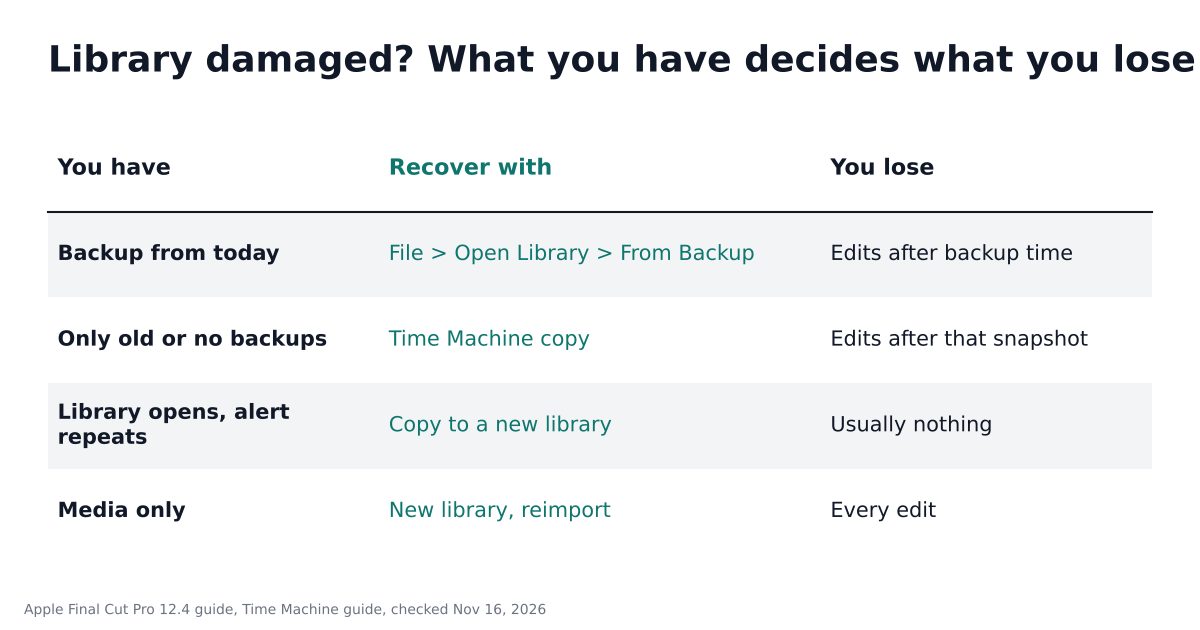
Final Cut Pro shows “The Library [name] is damaged. The item [name] could not be read.” when it can’t read an item inside the library. Restart the Mac first. Then update Final Cut Pro and choose File > Open Library > From Backup. Backups hold the database only, not media, so you lose whatever you edited after the newest backup.
If a recent backup exists, that is usually the whole fix. The rest of this page is the full order, what each recovery path costs you, and the settings that make the next failure cheap.
What “the library is damaged” actually means
A Final Cut Pro library holds two kinds of content: the database (events, projects, every edit decision) and, if you copied media into the library on import, the media files themselves. The alert names the item Final Cut Pro tried to read and couldn’t. Write that name down; it tells you which event or project is affected.
That distinction decides your recovery. Automatic backups cover the database only. If your footage lives outside the library, it is usually untouched, and the timeline is what’s at risk.
Users also report a variant of the alert that adds the library “won’t be backed up.” Take that wording literally. While the library is in that state, don’t expect new automatic backups of it, so the ones already on disk are what you’ll recover from. Copy them somewhere safe before anything else.
What causes it, according to Apple
Apple doesn’t publish a single list of causes for this alert. Its support pages do list the storage conditions it doesn’t support for libraries. If your library sits in one of them, fix that before you restore anything, or the restored copy can fail the same way.
| Condition | What Apple says | Source |
|---|---|---|
| Cloud-synced folder | Don’t store libraries in Desktop or Documents with iCloud Desktop & Documents on, or with third-party cloud storage services | Apple 105044 |
| Time Machine drive | You can’t store a library on a device used for Time Machine backups | Apple 102116 |
| ExFAT or NTFS drive | Unsupported format; reformat as APFS after copying libraries off | Apple 119914 |
| SMB network share | Must come from a macOS server or Linux with Samba 4.3.4 or later and Apple modules | Apple HT207128 |
| Drive ejected with library open | Close the library before disconnecting its drive | FCP 12.4 guide |
| Volume out of space | Alerts appear; move the library or free space | Apple 119914 |
| Software bug | 12.3 “Fixes an issue that could cause a damaged library alert to appear” | Release notes |
Sources: Apple Support articles and the Final Cut Pro 12.4 user guide, checked November 16, 2026.
The last row is easy to miss because it’s recent. Final Cut Pro 12.3 shipped June 30, 2026 with that fix, and 12.4 (September 29, 2026) fixed an issue that prevented backing up a library to a network volume. If you’re on anything older, updating is a real step, not busywork.
Low space is the cause that gets overlooked. If the library’s drive or the startup disk filled up during an edit, see how to shrink a Final Cut Pro library that’s too big after you’ve recovered.
Recover the library in this order
Each step below either fixes the alert or keeps the next step safe. Don’t skip ahead to deleting things.
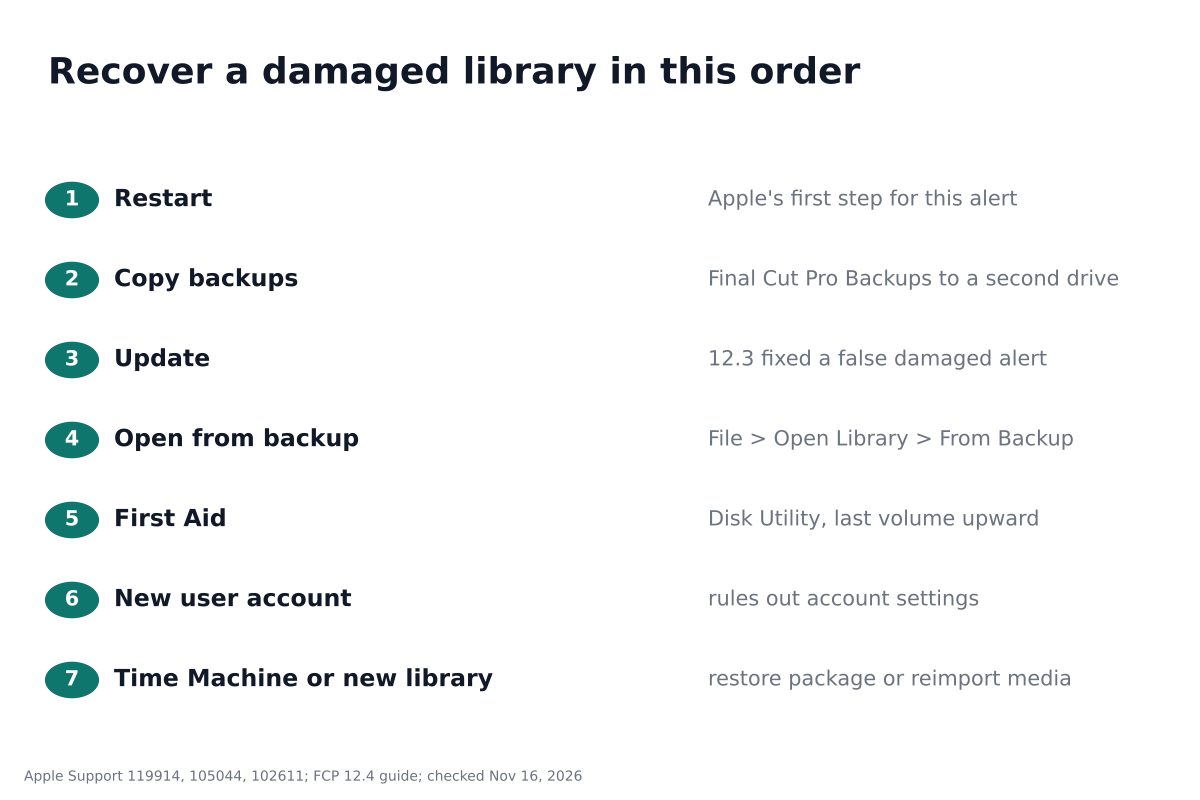
- Restart the Mac. Apple lists this as the first action for the damaged-library alert and for the “already in use” and permission alerts. If you’re seeing the in-use version instead, the library already in use fix covers it.
- Copy the backups folder to another drive. In the Finder, open your Movies folder and copy the Final Cut Pro Backups folder (Apple’s default location) to a second drive. Final Cut Pro deletes backups more than several days old, and you don’t want that clock running on your only copies.
- Update Final Cut Pro and confirm compatibility. Apple’s troubleshooting order includes updating from the App Store after backing up the app and libraries. Apple also recommends keeping a zipped copy of the current app before updating, so you can go back.
- Open the library from a backup. Select the library in the Libraries sidebar, choose File > Open Library > From Backup, pick a date and time in the Restore from menu (or click Other to find a backup file yourself), and click Open. The backup opens as its own library in the sidebar. Check the timeline you care about before anything else.
- Check the drive with Disk Utility First Aid. Apple’s order is to select the last volume on the drive, run First Aid, then work upward through containers to the device itself. Apple says to have a current backup first. If First Aid reports errors it can’t repair, Apple’s next step is erasing the disk, so copy everything readable off it before that.
- Test in a new user account. Apple’s troubleshooting article has you create another administrator account and try to reproduce the problem; if it doesn’t happen there, settings or files in your original account may be the cause.
- Fall back to Time Machine or a new library. Restore the library package from Time Machine, which keeps hourly, daily and weekly backups. If no copy of the database survives, create a new library and reimport the original media.
After step 4 or 7, some clips may show as missing. That’s expected when the backup’s media paths don’t match where the files are now; the Final Cut Pro media offline guide walks through Relink Files.
If Final Cut Pro quits on launch before you can reach the File menu, the alert isn’t your first problem. Work through the Final Cut Pro keeps crashing steps first.
Recovery decision table: what you have, what you get back
Find the row that matches your situation. The right-hand column is the honest part.
| What you still have | Best recovery path | What you lose |
|---|---|---|
| Automatic backup from today | File > Open Library > From Backup | Edits after the backup’s timestamp |
| Only backups several days old, or none | Time Machine copy of the library package | Edits after that Time Machine snapshot |
| A manual library copy on another drive | Open the copy directly | Everything since you made the copy |
| Library opens, but the alert returns each time | Copy events into a new library (File > Copy to Library > New Library) | Usually nothing, if the copy completes |
| Media files only, no readable database | New library, reimport media | Every edit: timelines, titles, color, audio mix |
| Media stored inside the damaged library | Disk Utility First Aid, then copy the package off | Possibly media too; stop writing to that drive |
Source: Final Cut Pro 12.4 user guide (Restore a library, Copy or move a library), Apple 102611, Time Machine guide; checked November 16, 2026.
Two judgments sit behind the table. If a backup from today exists, use it and stop; nothing else on this list gets you closer to the moment of failure. If the only backup is weeks old, a Time Machine copy is usually newer, so check it before restoring the stale one.
How much work you lose: a worked example
Apple’s 12.4 guide says Final Cut Pro backs up the library “at regular intervals” and doesn’t publish the interval. So don’t plan around a number. Read your actual exposure from the timestamps Final Cut Pro shows you.
Here’s how that plays out. Say you edit a 12-minute video from 9:00 to 15:10, and at 15:10 the library throws the damaged alert.
- In File > Open Library > From Backup, the newest entry in Restore from reads 14:52. Restoring it costs you 18 minutes of edits.
- Time Machine runs hourly, so its newest copy might be from 15:00, or 14:00 if the last hourly backup didn’t finish. You’d lose 10 to 70 minutes.
- If you only kept a manual copy of the library from last night, you lose the whole day: about 6 hours.
Now flip the situation. You open a library you last touched three weeks ago and get the alert. Final Cut Pro deletes backups more than several days old, so the Restore from menu may be empty. Time Machine is the only path that still covers that date, and only if the drive holding the library was being backed up.
The practical rule: Final Cut Pro’s backups win on recency, Time Machine wins on age. You want both.
Why the backups folder is empty
An empty Restore from menu is where most recoveries stall, and Apple’s own wording explains it. Backups older than several days are deleted automatically. A library that hasn’t been edited recently has no fresh backups to replace them.
Three other reasons to check:
- Backups were turned off. In Library Properties, the Backups pop-up has a Do Not Save option.
- Backups go somewhere else. If the Backups location was changed, they’re in that folder, not Movies. Existing backups stay where they were when the location changes.
- The library was already damaged. If the alert says the library won’t be backed up, new backups stop arriving.
To check the first two, select the library, choose File > Library Properties (Control-Command-J), and click Modify Settings.
What not to do
Don’t open the library package in the Finder and delete or move files inside it. Trashing database files or pulling folders out one by one is a fix people try in desperation. Apple documents no such procedure. Every Apple workflow for changing a library, from Copy to Library to Consolidate to deleting render files, runs inside Final Cut Pro. Editing the package by hand can turn a recoverable library into one where even the backup paths stop matching.
Don’t make a Finder duplicate of the damaged library and keep editing in it. Apple’s documented way to copy a library is File > Copy to Library > New Library inside Final Cut Pro.
Don’t erase the drive because First Aid failed until everything readable is copied off.
Don’t keep editing in the damaged library to “see if it holds.” If it opens but the alert keeps coming back, move the work to a new library now while it still opens.
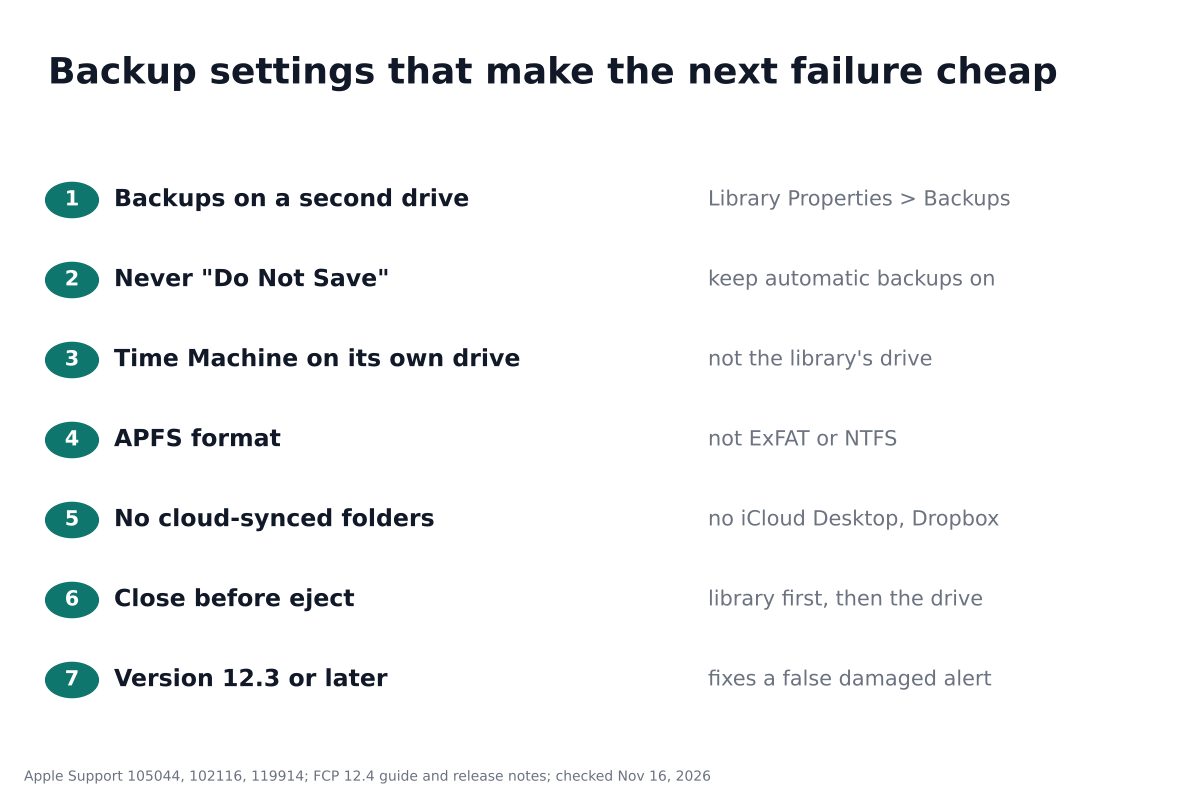
Backup settings checklist
This takes a few minutes and decides how much a damaged library costs you next time. I edit my own YouTube videos alone in Final Cut, so there’s no second editor holding a copy. The checklist below is the setup that covers that gap.
- Backups location on a different drive. Library Properties > Modify Settings > Backups > Choose, and pick a folder on a drive other than the library’s. Apple recommends backing up to a different device or partition from your media.
- Backups not set to Do Not Save.
- Time Machine on its own drive, never the drive the library lives on. Confirm the library’s drive is included in the backup.
- Library drive formatted APFS, not ExFAT or NTFS.
- Library outside iCloud Desktop & Documents, Dropbox and similar sync folders.
- SMB shares only from a macOS server or Samba 4.3.4+ with Apple modules.
- Close the library in Final Cut Pro before ejecting its drive.
- Final Cut Pro 12.3 or later.
- A zipped copy of the current app on a backup drive before each update.
If your library opens right now, do one thing before your next edit: open Library Properties, click Modify Settings, and set Backups to a folder on a second drive.
Frequently asked questions
Where are Final Cut Pro library backups stored?
By default in the Final Cut Pro Backups folder inside your Movies folder, with the date and time in each backup's filename. You can point backups somewhere else in Library Properties: click Modify Settings and use the Backups pop-up menu. The new location only applies to future backups; existing ones stay where they were.
How often does Final Cut Pro back up a library?
Apple's 12.4 guide says only that Final Cut Pro backs up the library at regular intervals, and that it deletes backups more than several days old. Apple does not publish the exact interval. To see what you actually have, choose File > Open Library > From Backup and read the timestamps in the Restore from menu.
Why won't my Final Cut Pro library open at all?
Restart the Mac first, which is Apple's first step for the damaged-library alert. Then check the drive: it should be APFS, have free space, and not be a Time Machine drive, a cloud-synced folder or an SMB share that misses Apple's requirements. Update to Final Cut Pro 12.3 or later, which fixed one cause of a false damaged-library alert, then open a backup.
Can I keep a Final Cut Pro library in Dropbox or iCloud Drive?
Apple says no. Its troubleshooting article tells you not to store libraries in Desktop or Documents when iCloud Desktop & Documents is on, or with third-party cloud storage services. Keep the library on a local or external APFS drive and back it up separately.
Why is my media offline after opening a backup?
Backups contain only the library database, not media files. If the media was stored inside the damaged library, or the backup's paths no longer match, clips show as missing. Relink them with File > Relink Files to the original media you still have.
Sources
- Apple — Restore a library in Final Cut Pro for Mac (12.4)
- Apple — Set storage locations in Final Cut Pro for Mac (12.4)
- Apple — If you need more storage for a Final Cut Pro library
- Apple — If Final Cut Pro isn't working
- Apple — Format storage devices for Final Cut Pro, Motion and Compressor
- Apple — Use shared storage with Final Cut Pro
- Apple — Final Cut Pro release notes
- Apple — How to repair a Mac storage device with Disk Utility
- Apple — Back up your files with Time Machine on Mac
- Apple — Copy or move a library in Final Cut Pro for Mac (12.4)
- Apple — Open and close libraries in Final Cut Pro for Mac (12.4)
- Apple — Back up projects and libraries in Final Cut Pro for Mac (12.4)
- Apple — Back up Final Cut Pro
- Apple — Create a new library in Final Cut Pro for Mac (12.4)
This article is general information based on the author's experience. It is not licensed financial, legal, or tax advice. See the editorial policy.