TestFlight "No Builds Available": Every Cause and Fix
TestFlight or App Store Connect says no builds available? Find the cause by who sees it: you, an internal tester, or an external tester, then apply Apple's fix.

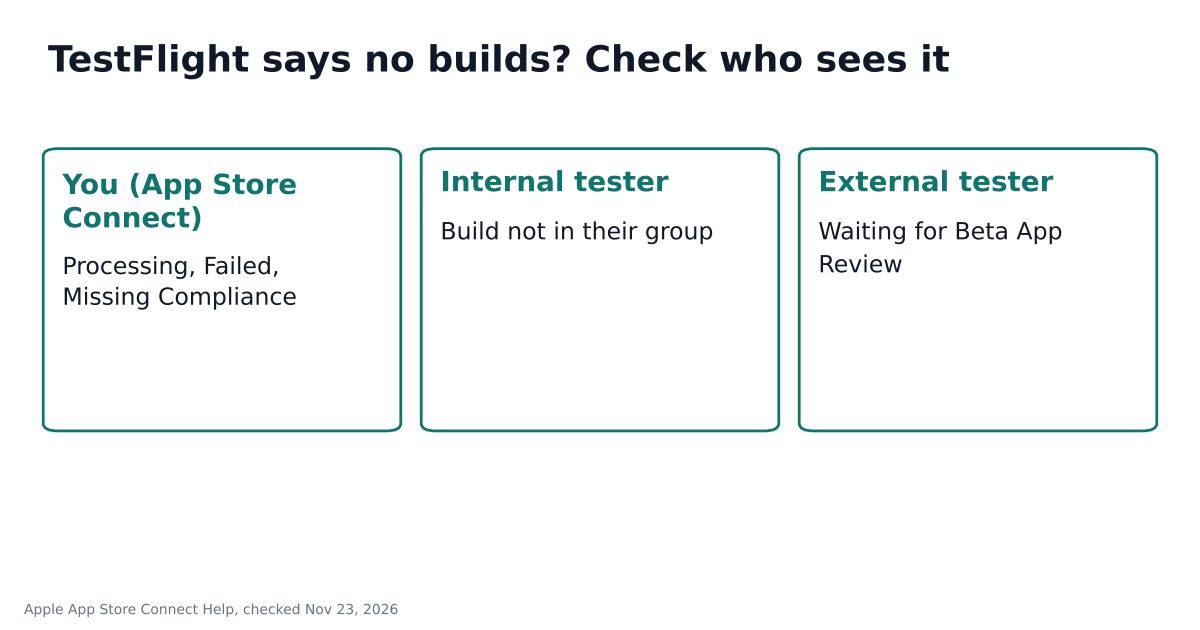
“No builds available” means your build uploaded but hasn’t been released to the person looking. The cause is one of five: it’s still processing, it’s waiting for the encryption (export compliance) answer, it isn’t added to that tester’s group, it’s waiting on TestFlight App Review for external testers, or the tester’s device or Apple Account doesn’t qualify. Who sees the message tells you which one to check first.
I’ve shipped my own apps, and the useful thing to know about this message is that it rarely means the upload failed. In most of the causes below, the fix is a click in App Store Connect, not a new upload.
Find your symptom: who sees “no builds”
Start with where the message appears. A build missing from your own App Store Connect is a processing problem. A build you can see but a tester can’t is a release problem. The table sorts each case by who sees it, using Apple’s build status, upload, tester, and export compliance pages.
| Who sees it | Symptom | Likely cause | Fix |
|---|---|---|---|
| You, in App Store Connect | Upload “succeeded” but no build in the TestFlight tab | Still Processing | Check Build Uploads; wait. Over 24 hours, contact Apple |
| You | Build Uploads shows Failed | Processing found an error | Open the build, fix the errors, re-upload (same build number allowed) |
| You | Build shows Invalid Binary | Didn’t meet upload requirements | Fix and redeliver; it never appears in TestFlight |
| You | Build is under the wrong app or version | Bundle ID or version number in the bundle doesn’t match the record | Match the bundle ID and version, rebuild, upload |
| You | Missing Compliance on the build | Encryption questions unanswered | Click Manage, answer; add the Info.plist key for next time |
| You | Not Available for Testing | Provisioning profile lacks an application identifier | Upload a new build signed with one |
| Internal tester | “No builds available” in TestFlight | Build not added to their internal group | Add the build to the group, or turn on automatic distribution |
| Internal tester | Can’t be added at all | Not an App Store Connect user on your team | Add them as a user, or move them to an external group |
| Internal tester | Newest build never arrives | Xcode Cloud build, or automatic distribution off | Add each build to the group by hand |
| External tester | “No builds available” | Build is Waiting for Review or In Beta Review | Wait for TestFlight App Review approval |
| External tester | Approved build, still nothing | “Automatically notify testers” was off | Click Notify Testers on the build |
| External tester | Build can’t be added to the external group | Uploaded as TestFlight Internal Only | Upload a build without that option |
| External tester | Status is Rejected | Failed TestFlight App Review | Read the reason under App Review, fix, upload a new build |
| Any tester | Build disappeared | Expired after 90 days | Upload a new build |
| Any tester | Invite accepted on one device, nothing on another | Invite email isn’t their device’s Apple Account, or device below minimum OS | Re-invite the right address; check OS against the build’s minimum |
Source: Apple App Store Connect Help (app build statuses, build upload statuses, view builds, add internal and external testers, export compliance), Apple tester requirements page; collected November 23, 2026.
If you only read one row, read Missing Compliance. It’s the most common silent blocker, and it takes under a minute to clear.
When the build is missing from App Store Connect itself
After an upload, Apple processes the build before it appears anywhere in App Store Connect. Open the app, click the TestFlight tab, and expand Build Uploads. Each upload shows one of three statuses: Processing, Failed, or Complete.
Processing has no published typical duration. Apple’s only number is a ceiling: if a build sits in Processing for more than 24 hours, there may be an issue, and Apple wants a Feedback Assistant report or a Developer Support contact.
Failed means processing finished and found a problem. Select the build to read the errors, fix every one, and upload again. Apple lets you reuse the same build number after a failed upload, so you don’t need to bump it.
Apple’s pages aren’t consistent about email here. The Upload builds page mentions an email when processing completes; the more detailed View builds and metadata page says you get emails when a build is Processing, Failed, or Complete. Check the Build Uploads table rather than waiting for the inbox.
Two quieter causes:
- The build landed somewhere else. Each upload uses the bundle ID and version number inside the app bundle to match an app and version record. If either doesn’t match the record you’re looking at, the build won’t show up there.
- Apple is having a bad day. Apple has had incidents where uploads reported success and never appeared until Apple fixed something on its end. Check Apple’s developer System Status page for App Store Connect and TestFlight before you rebuild anything.
Don’t re-upload a Processing build out of impatience. You’ll have two builds stuck in the same queue.
Missing Compliance: the encryption question
Missing Compliance is red on Apple’s status list, which means it’s waiting on you. App Store Connect asks whether your app uses encryption, because uploading to Apple’s US servers and distributing outside the US and Canada brings the app under US export rules.
To clear it on the current build:
- Open the app’s TestFlight tab and pick the platform under Builds.
- Click the build marked Missing Compliance, then Manage.
- Answer the export compliance questions and click Save.
You need the Account Holder, Admin, or App Manager role. As a solo developer enrolled as an individual, that’s you.
To stop the question on every upload, set ITSAppUsesNonExemptEncryption in Info.plist. Apple’s guidance is to set it to NO if the app, including its third-party libraries, uses no encryption or only exempt forms. HTTPS through the operating system, such as URLSession, is typically exempt. Proprietary encryption isn’t. If yours isn’t exempt, set YES and upload documentation under App Information.
When documentation is required, Apple says it expects to review complete submissions in about two business days. After approval you get a code for the ITSEncryptionExportComplianceCode key, and later builds stop asking. Until then the build shows Waiting for Export Compliance Review or In Compliance Review, and there’s nothing to do but wait.
Internal testers see no builds
Internal testers are App Store Connect users on your team, up to 100 per group. If you try to add a friend who isn’t a user on your account, App Store Connect won’t let you; put them in an external group instead.
They don’t need TestFlight App Review. Apple’s status page says a Ready to Submit build can go straight to internal testers. So when an internal tester sees nothing, the build almost always isn’t in their group.
Check three settings:
- Automatic distribution. When you create an internal group, “Enable automatic distribution” sends new builds from Xcode to everyone in it. If it’s off, you add every build by hand under Add Builds.
- Xcode Cloud. Apple says Xcode Cloud builds always have to be added manually, whatever the group setting.
- The build’s Groups list. Open the build under Builds and look next to Groups. If the tester’s group isn’t listed, click the add button and select it.
Internal testers can test each build for 90 days, then it’s gone.
External testers see no builds
External testers can be anyone with an email address, up to 10,000 per app. The trade-off is review. Adding a build to an external group submits it to TestFlight App Review, and the build shows Waiting for Review, then In Beta Review. Testers see nothing until it’s approved.
Only the first build of a version needs a full review; later builds of that version may not. Apple caps you at six builds submitted for TestFlight review in 24 hours, with one build per version in review at a time.
Before the first submission, fill in Test Information (TestFlight tab, sidebar, under Additional). The Beta App Description is required, and the Feedback Email becomes the reply-to address on invitations.
Then the step people miss. If you didn’t tick “Automatically notify testers” when adding the build, approval alone doesn’t release it. Open the build row and click Notify Testers; the status changes to Testing and invitations go out.
Two more traps:
- TestFlight Internal Only. A build uploaded with that option can go to internal groups only. It will never reach an external group, so upload a new one.
- Public link filters. A public link can filter by device and OS, and can carry a tester limit from 1 to 10,000. Insight cards on the group page flag incompatible builds and a full public link, so check them before blaming the build.
If you’re gathering beta testers ahead of a launch, the people who sign up from a public link are your warmest early users. Promoting an app with no budget covers where to find them.
Tester-side causes: device, OS and Apple Account
Sometimes everything in App Store Connect is right and the tester’s phone is the problem.
The TestFlight app itself needs iOS 16 or iPadOS 16 or later for iOS and iPadOS apps, macOS 13 for Mac apps, tvOS 18, visionOS 1, or watchOS 9. On top of that, your build has its own minimum OS, which Apple calculates from your build settings and shows on the build’s Build Metadata tab. A tester on an older OS than either number won’t get an Install button.
Then the account. Apple’s tester reference says the email you invited may or may not be the Apple Account on the tester’s device. If someone opens the invite on a phone signed into a different Apple Account, ask which address they actually use and re-invite that one. Testers who haven’t accepted can be re-sent an invite from the All testers page; their status there reads Invited, Accepted, or Installed.
Apple’s tester page caps each beta app at 30 devices. And every build expires 90 days after upload; testers see the days left under the app name in TestFlight.
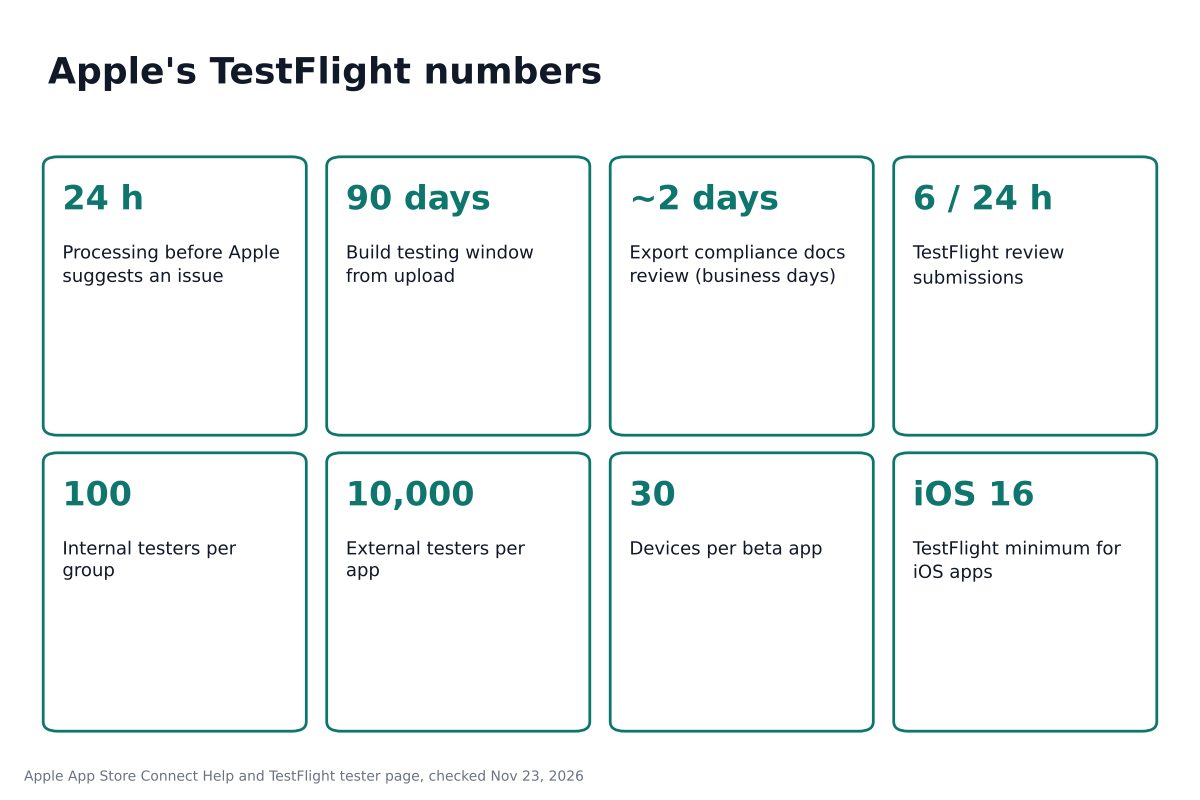
| Apple’s published number | Value |
|---|---|
| Processing before Apple suggests there’s an issue | More than 24 hours |
| Build testing window | Up to 90 days from upload |
| Export compliance documentation review | About 2 business days |
| TestFlight review submissions | 6 builds per 24 hours |
| Internal testers | Up to 100 per group |
| External testers | Up to 10,000 per app |
| Devices a beta app can be installed on | Up to 30 |
| TestFlight minimum for iOS apps | iOS 16 or iPadOS 16 |
Source: Apple App Store Connect Help and Apple’s TestFlight tester page, collected November 23, 2026.
Pre-invite checklist
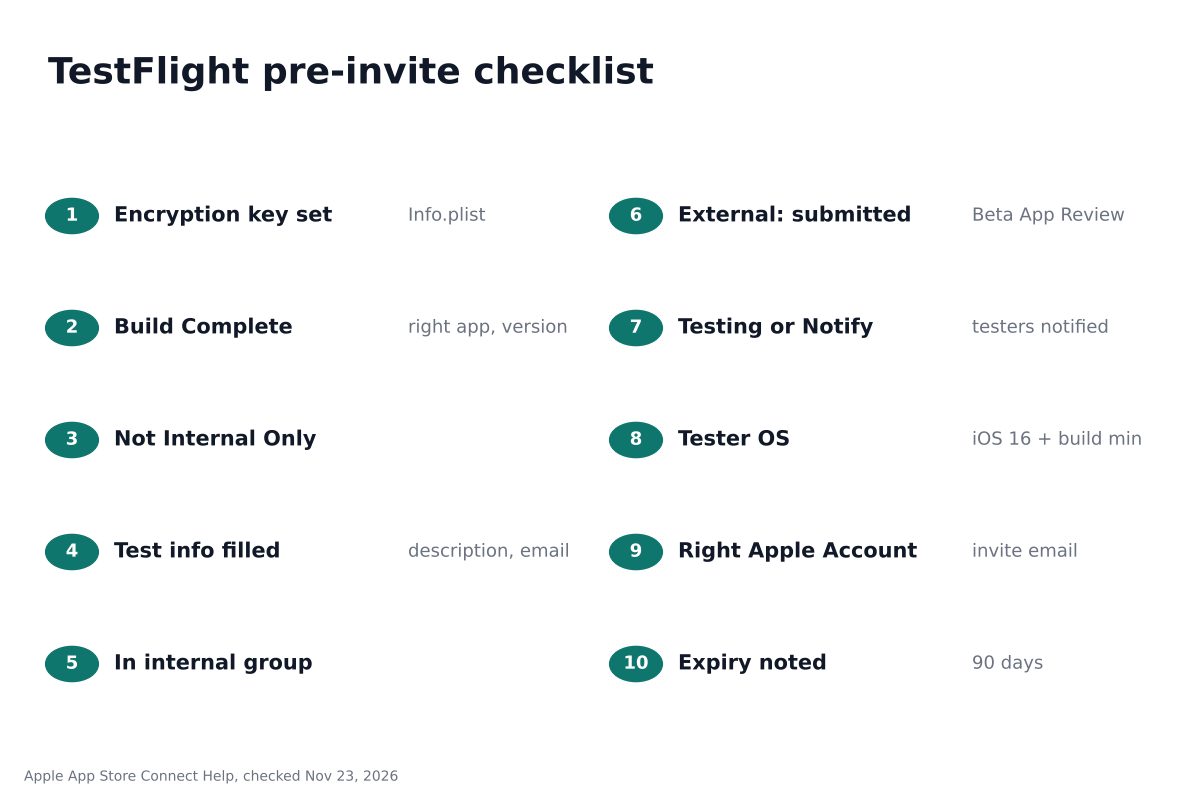
Clear this list before you send anyone a TestFlight link. Each item maps to one row of the table above. Run it once per release:
- Info.plist has
ITSAppUsesNonExemptEncryptionset correctly, so the build won’t stop at Missing Compliance. - Build Uploads shows Complete, and the build sits under the right app and version.
- The build wasn’t uploaded as TestFlight Internal Only if outsiders will test it.
- Test Information has a Beta App Description and a Feedback Email you read.
- An internal group exists with the build added, or automatic distribution on.
- The external group has the build submitted, and you’ve noted whether testers are notified automatically.
- After approval, the status reads Testing; if not, click Notify Testers.
- The build’s minimum OS on Build Metadata is one your testers actually run, and none are below iOS 16.
- Each invite goes to the address tied to the tester’s Apple Account.
- You’ve noted the expiry date, 90 days from upload, so a release slip doesn’t strand your testers.
Once testing turns up a paid feature to verify, the sandbox needs an Active agreement too; Paid Apps Agreement Pending User Info covers that screen.
When it’s Apple, not you
If the build is Complete, has no compliance flag, sits in the right group, and is approved, and the tester meets the OS and account rules, stop changing settings. Check System Status, then file a Feedback Assistant report under Developer Tools & Resources > TestFlight, or contact Apple Developer Support. Include the version, build number, upload date and time, and your upload logs; Apple asks for exactly those.
Recreating groups and re-adding testers feels productive, but during an Apple-side incident it changes nothing. A support ticket with build details does.
Open your app’s TestFlight tab now, click the build, and read two things: its status and its Groups list. Those two fields point to the right row in the table above.
Frequently asked questions
Why does TestFlight say no builds available when my build shows in App Store Connect?
The build exists but hasn't been released to that tester. The usual reasons: it still needs the export compliance answer, it isn't added to the tester's group, it's waiting on TestFlight App Review for external testers, or the tester's device or Apple Account doesn't match. Open the build in the TestFlight tab, read its status, then check its Groups list.
How long does it take for an uploaded build to show up in App Store Connect?
Apple doesn't publish a typical processing time. It does publish a threshold: if a build stays in Processing for more than 24 hours, there may be an issue, and Apple asks you to file a Feedback Assistant report or contact Developer Support with the version, build number, upload time, and logs.
Do internal testers need Beta App Review?
No. Apple's build status page says a build that is Ready to Submit can go straight to internal testers. TestFlight App Review applies when you add a build to an external group, and only the first build of a version gets a full review.
Why is my TestFlight build Missing Compliance?
App Store Connect needs your answer to the export compliance questions about encryption. Click Manage next to the build in the TestFlight tab and answer them. To skip the prompt on future uploads, add ITSAppUsesNonExemptEncryption to Info.plist: NO if you use no encryption or only exempt encryption such as HTTPS through the operating system, YES otherwise.
How long do TestFlight builds last?
Each build can be tested for up to 90 days from the day it was uploaded. After that its status turns Expired and testers can't open it. Testers see the days remaining under the app name in TestFlight. Upload a new build with a higher build number to keep testing.
Sources
- App Store Connect Help: App build statuses
- App Store Connect Help: Build upload statuses
- App Store Connect Help: View builds and metadata
- App Store Connect Help: Upload builds
- App Store Connect Help: TestFlight overview
- App Store Connect Help: Add internal testers
- App Store Connect Help: Invite external testers
- App Store Connect Help: Add testers to builds
- App Store Connect Help: Provide export compliance information for beta builds
- App Store Connect Help: Determine and upload app encryption documentation
- Apple Developer Documentation: Complying with encryption export regulations
- Apple: Testing apps with TestFlight (tester requirements)
- App Store Connect Help: TestFlight tester information
- App Store Connect Help: View and manage tester information
- App Store Connect Help: Provide test information
- Apple Developer: System Status
This article is general information based on the author's experience. It is not licensed financial, legal, or tax advice. See the editorial policy.