Best Scheduling Tools for Solopreneurs (Checked October 2026)
Seven booking tools compared on what one person actually uses: free tier, payments, reminders, calendar sync. Plus when Google Calendar alone is enough.


If you still swap three emails to land one call, you need a booking page. You probably don’t need the one most vendor roundups push. This guide compares seven scheduling tools on what a one-person business actually touches: the free tier, payment at booking, reminders, and how many calendars each plan checks before it offers a slot. Every figure comes from the vendor’s own pages, collected on October 5, 2026. The first option may cost you nothing.
The short answer
- Already run your week in Google Calendar? Turn on its free appointment schedule before buying anything. One booking page, email reminders, and conflict checks against your Google calendars come with a personal account.
- Need several meeting types for free? Cal.com’s individual plan lists unlimited event types and calendars, plus Stripe and PayPal.
- Allergic to subscriptions? TidyCal’s Individual plan is $29 once.
- Selling sessions or packages? Acuity Scheduling, from $16 a month billed annually; there is no free plan.
- Already paying for Microsoft 365? Bookings is in the box, but it cannot take payments.
Calendly is the name everyone knows. For a solo operator its free plan is the narrowest on this list, so either pay for Standard or skip it.
The comparison table (prices as of October 2026)
I pulled every cell below from the official pricing page or help center for each tool on October 5, 2026. No cell is copied from another review. Prices are in US dollars and are the lowest listed figure for one person.
| Tool | Free tier | Cheapest paid for one person | Payments at booking | Reminders | Buffers and limits | Calendars checked for conflicts |
|---|---|---|---|---|---|---|
| Google Calendar appointment schedules | Yes: one booking page on a personal account | Workspace Business Standard, $14/user/mo annual or $16.80 monthly | Stripe, paid plans only | Automatic email reminders, free | Buffer time and max bookings per day settings | Several of your Google calendars, free |
| Calendly | One event type, one calendar | Standard, $10/seat/mo billed yearly | Stripe, PayPal from Standard | Automated reminders from Standard | Buffers and daily meeting limits | One on Free; multiple on Standard |
| Cal.com | Unlimited event types and calendars | Teams, $12/user/mo yearly (team features) | Stripe, PayPal on Free | Email and SMS on Free | Before/after buffers per event type | Unlimited on Free |
| TidyCal | Unlimited booking types, one calendar | Individual, $29 one-time | Stripe, PayPal; 1% platform fee except Pro | Email at 24 h and 1 h by default; SMS on Agency ($79) or Pro | Buffers on all plans; booking caps from $29 | 1 Free, 10 Individual, unlimited Pro |
| Acuity Scheduling | None (7-day trial) | Starter, $16/mo annual or $20 monthly | Stripe, Square, PayPal, Venmo | Email on Starter; SMS from Standard ($27/mo annual) | Padding before/after appointments | One sync each: Google, iCloud, Outlook |
| Microsoft Bookings | No standalone free version | Inside Microsoft 365 Business Basic (with Teams), $7/user/mo paid yearly | None | Email; SMS in North America via Skype or Twilio | Minimum lead time and max days ahead | Your Outlook calendar |
| Zoho Bookings | One user, email reminders | Basic, $6 or $8/user/mo depending on billing term | Stripe, PayPal, Razorpay on Premium | Email on all; SMS workflows on Premium | Appointment limits from Basic | Two-way sync with Zoho, Google, Microsoft 365 |
Every figure links back to the vendor pages in the source list at the end of this article.
There is no round-robin column on purpose. Round-robin rotates bookings across several people, and every vendor uses it to justify its team tier. You are one person. Ignore it.
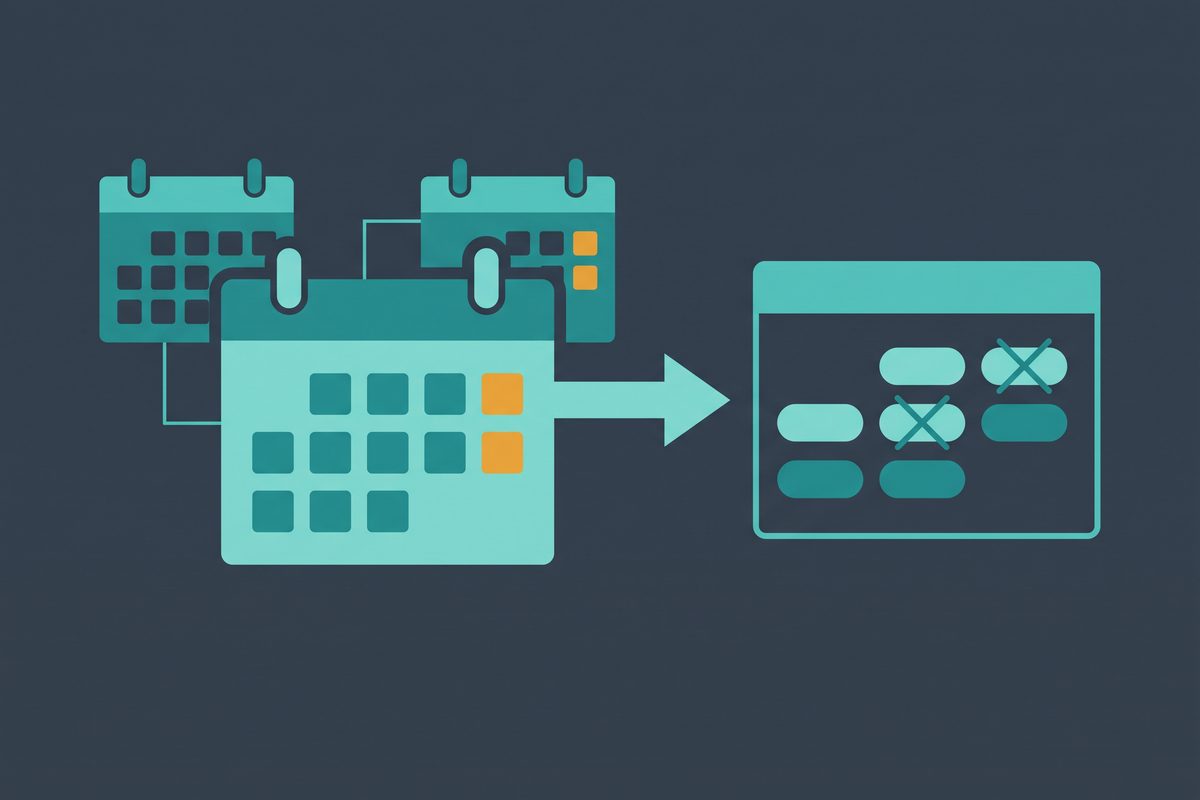
The column that saves the most grief is the last one. A free plan that checks one calendar will happily offer a slot that your personal calendar already holds — a dentist appointment, a school pickup, a launch day. Calendly Free and TidyCal Free both stop at one connection. If your life lives on two calendars, either merge them or pick a tool that reads both.
Do you need a separate booking tool at all?
Google Calendar is the only scheduling tool I run. I operate several small online businesses alone — an app I’m promoting through outreach and this site — and all of it is planned in one Google Calendar. Claude and GPT do most of the drafting around it, with Hermes as the open model on the side. That shape decides the answer more than any feature list.
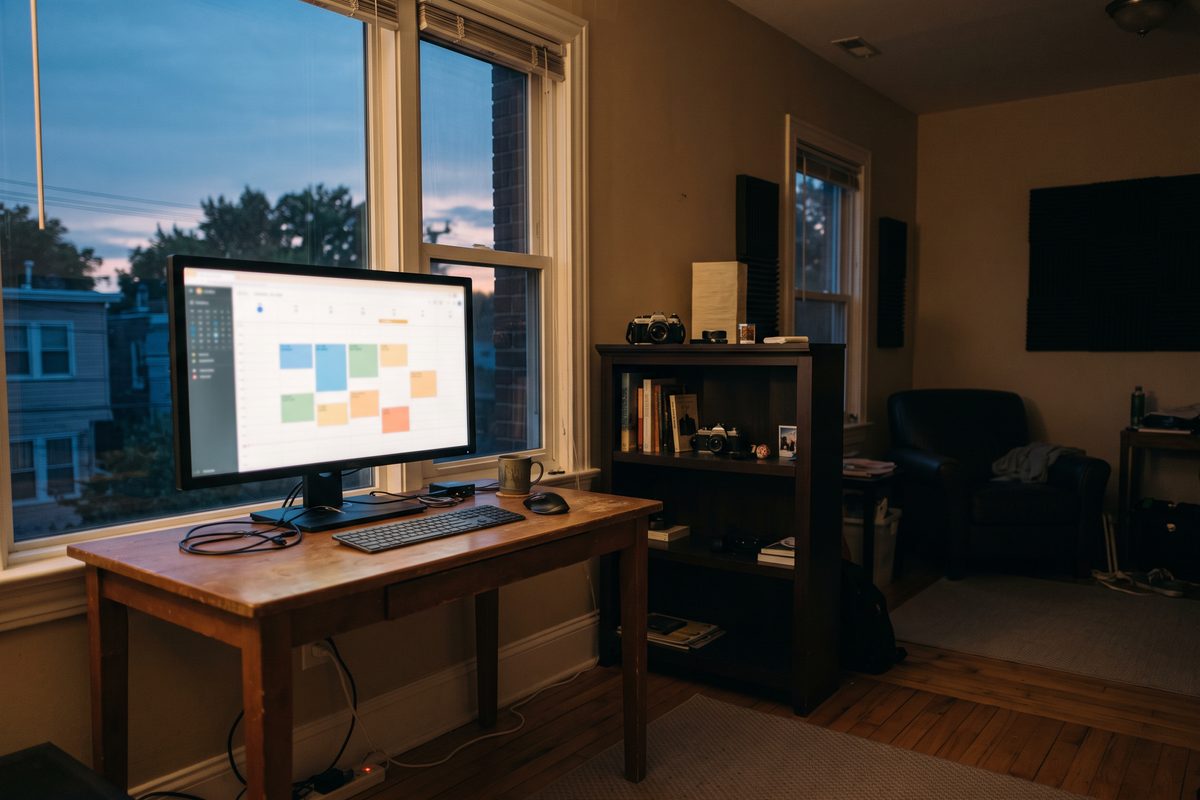
My calendar is mostly production blocks I place myself — writing and app work — rather than slots other people pick. For that kind of business, a paid booking tool is a second system watching a calendar that already works. The free appointment schedule inside Google Calendar covers the occasional external call, and it can’t drift out of sync with a calendar it lives inside.
The test I’d apply before paying for anything is simple. Count how often in the last month someone asked when you were free. If the answer is “rarely,” use Google’s free page or just reply by hand. If you need more than one meeting type, or you want money collected before the call, that’s the point where a dedicated tool earns its fee — and the table above tells you which one.
One rule holds whichever way you go: one calendar is the source of truth. Everything else reads from it. My weekly planning happens in Claude with the calendar pasted in, which is the method in how I use Claude for business operations, and the rest of my stack is in the AI tools I’d actually pay for.
Tool by tool: what each one is for
Google Calendar appointment schedules
The free version on a personal Google account gives you one booking page, automatic email reminders, and availability checks across several of your calendars. The paid layer adds more than one appointment schedule, payment collection, email verification to block spam bookings, and up to 20 co-hosts. Payments run through Stripe.
Eligible paid plans include Google One Premium, Google AI Pro and Ultra, and Workspace Business Standard and above. Business Standard is $14 per user per month on an annual commitment or $16.80 month to month, as of October 2026. Workspace Business Starter does not list appointment booking pages. If you’re on Starter, check what your account actually shows before you plan around it.
Pick it if you take a few external calls a week and live in Google already. Skip it if you need intake logic or more than one meeting type and refuse to pay Google for the upgrade.
Calendly
Calendly Free is one event type, one calendar connection, and one-on-one scheduling. Standard is $10 per seat per month billed yearly and adds unlimited event types, multiple calendars, Stripe and PayPal, and automated reminders. Teams, at $16 per seat billed yearly, is where round-robin lives.
The product is polished, and many people already recognize the link. That recognition is worth something if you sell to corporate buyers. For a solo creator or app founder, $10 a month buys features that Cal.com lists for free.
Cal.com
Cal.com’s free plan for individuals lists unlimited event types and calendars, Stripe and PayPal payments, and email and SMS notifications. Buffers can be set before or after each event type. The $12-per-user Teams plan is for managed event types and round-robin, which a single operator doesn’t need.
The pricing page also links a self-hosted version on GitHub. Most solo operators should use the hosted free plan and leave servers alone. If you want the most features for zero dollars, start here.
TidyCal
TidyCal’s Individual plan is $29 once and checks up to 10 calendars; the free plan checks one. Paid bookings go through Stripe or PayPal with a 1% platform fee on every plan except Pro, which is $12 a month or $99 a year. Reminder emails go out 24 hours and 1 hour before by default, and only paid plans can edit the templates. Buffers work on every plan.
Only one connected calendar receives new bookings; the others are read for availability. That’s fine for one person. Pick TidyCal if a one-time payment matters more to you than a long feature list.
Acuity Scheduling
Acuity has no free plan, only a 7-day trial without a card. Starter is $20 a month, or $16 a month billed annually, and includes intake forms, automatic time zone conversion, and payments through Stripe, Square, PayPal or Venmo. SMS reminders start at Standard, which also adds packages, memberships and gift certificates: $34 a month, or $27 billed annually.
A note on the word “calendars” in Acuity’s plans: each one is a separate set of bookable hours inside Acuity, typically one per staff member or location, and Starter allows one. It has nothing to do with outside calendars. For outside calendars, each user gets one two-way sync per service — Google, iCloud, Outlook Office 365, Exchange, or Outlook.com. Padding can be added before and after appointments. Pick Acuity if you sell sessions and packages. For simple calls it’s more tool than you need.
Microsoft Bookings
Bookings comes with every Microsoft 365 Business plan from Basic up, among others. Business Basic is $7 per user per month paid yearly, and Bookings is included in the version with Teams. The personal page, Bookings with me, is for one-on-one meetings, connects to your Outlook calendar, and can send email reminders; people booking you don’t need a Microsoft account.
Two hard limits. Microsoft’s own FAQ says there is no payment support in Bookings, and SMS works only in North America through a Skype or Twilio account. Lead time and maximum days in advance can be set. Use it only if you already pay for Microsoft 365.
Zoho Bookings
Zoho’s free plan is one user with email reminders and two-way sync with Google and Microsoft 365 or Outlook.com, plus Zoho’s own calendar. Basic costs $6 or $8 per user per month depending on the billing term and adds appointment limits. Payment collection and SMS workflows sit in Premium, at $9 or $12, with Stripe, PayPal, and Razorpay among the supported gateways.
The free tier is a quiet alternative to Google’s if your calendar is in Outlook and you don’t want Microsoft 365.
Payments at booking: the details that change the pick
Charging before a call is the single feature most likely to push a solo operator onto a paid plan. As of October 2026, the cheapest routes look like this:
- Cal.com Free lists Stripe and PayPal.
- TidyCal Free takes Stripe and PayPal but keeps a 1% platform fee until Pro.
- Calendly needs Standard; Google needs a premium plan; Zoho needs Premium.
- Acuity includes payments from Starter.
- Microsoft Bookings can’t take payments at all.
The processor’s own fees come on top of any platform fee. If you’re still choosing between Stripe and PayPal, the trade-offs are in Stripe vs PayPal for digital products. A paid booking also changes the tone of the call; use it for consulting time, not for a free intro chat.
Booking page setup checklist
Whichever tool you pick, the settings matter more than the brand. This is the checklist I’d run through before the link goes anywhere public.

- Time zones. Set your home zone in the tool, then confirm the booking page shows times in the visitor’s zone. If you travel, change your calendar’s zone first; your availability should move with you, not stay pinned to home hours. Check again the week daylight saving time changes in either country.
- Buffers and a daily cap. Add 10 to 15 minutes after each call so the next one doesn’t start late. Set a maximum per day if the tool allows it, so a busy week can’t eat your production blocks.
- Minimum notice and booking window. Stop same-day surprises with a minimum notice of several hours. Limit how far ahead people can book so the calendar can’t be claimed two months out.
- A no-show and cancellation line. Put one sentence on the booking page and in the confirmation email: how late someone can cancel or reschedule, and what happens if they don’t show. If you charge, say whether the fee is refundable.
- Three intake questions, no more. What they want from the call, any link you should look at first, and one qualifying question. Don’t ask for anything you won’t read.
- Reminders. Keep a 24-hour reminder and a short one an hour or two before. TidyCal ships with exactly that default.
- A test booking. Open the page in a private browser window, book a slot under a different email, then reschedule and cancel it. Confirm the event, the video link, and the reminder all arrive.
One more check people skip: block your production time on the calendar itself, not inside the booking tool. Then every tool reads the same truth.
Where a booking link fits in outreach
I’m doing outreach for my own app launch right now, and the lesson carries over to booking links. Leading a cold email with “grab a slot on my calendar” asks a stranger to spend time before they’ve agreed anything is worth discussing. Send the link after someone replies with interest. The first message should earn the reply; the booking page should only remove friction once there is something to schedule. The full approach is in cold outreach for an app launch, and more stack comparisons sit under tool stack.
Today, open Google Calendar, create an appointment schedule, and run the checklist above against it with one test booking. If it falls short on a specific feature in the table, that row tells you which tool to try next.
Frequently asked questions
Is Google Calendar's appointment scheduling free?
Partly. A personal Google account gets one booking page, automatic email reminders, and availability checks across your Google calendars at no cost. More than one appointment schedule, payments, and email verification for guests need an eligible paid plan, such as Google Workspace Business Standard ($14 per user per month on an annual plan as of October 2026) or a qualifying Google One tier.
Is Calendly's free plan enough for a solopreneur?
Only if you offer exactly one kind of meeting and keep everything on one calendar. As of October 2026, Calendly Free allows one event type and one calendar connection, with reminders and payments reserved for paid plans. Standard is $10 per seat per month billed yearly. If you need more than that for free, Cal.com's individual plan covers it.
What's the cheapest scheduling tool that takes Stripe payments?
Cal.com's free individual plan lists Stripe and PayPal payments as of October 2026. TidyCal's free plan also takes Stripe and PayPal, but adds a 1% platform fee on paid bookings unless you are on its Pro plan. Your payment processor's own fees apply on top either way.
Do I need round-robin or team scheduling?
No. Round-robin spreads bookings across several people's calendars. With one person there is nobody to rotate to, so skip any plan whose main upgrade is team routing. Calendly Teams and Cal.com Teams are priced for exactly that feature.
Sources
- Learn about appointment schedules in Google Calendar — Google Calendar Help
- Compare premium features available for appointment schedules — Google Calendar Help
- Google Workspace Business Standard (appointment scheduling plan page)
- Calendly pricing
- Calendly features
- Cal.com pricing
- Event buffers — Cal.com Help
- TidyCal pricing
- Comprehensive FAQ — TidyCal
- Customize email templates for booking confirmations — TidyCal
- Creating buffers — TidyCal
- Acuity Scheduling pricing
- Syncing your calendar — Acuity Scheduling Help
- Adding padding between appointments — Acuity Scheduling Help
- Microsoft Bookings overview — Microsoft Learn
- Compare all Microsoft 365 business plans
- Bookings FAQ — Microsoft Learn
- Personal Bookings FAQ — Microsoft Learn
- Set scheduling policies — Microsoft Learn
- Zoho Bookings pricing
- Zoho Bookings payment gateway integrations
- Managing availability and calendars — Acuity Scheduling Help
This article is general information based on the author's experience. It is not licensed financial, legal, or tax advice. See the editorial policy.