Using Claude for Business Operations: Templates for Solo Owners
Four copy-paste Claude templates for running a one-person business, from weekly planning to SOPs, plus a plan-by-feature table checked September 28, 2026.


You run the whole business yourself, and every guide to using Claude for business operations is written for a team of twenty with QuickBooks, HubSpot and a manager who approves things. That is not your week. Your week is deciding what ships, writing to people who do not know you, making calls nobody reviews, and doing the same chores again because nothing is written down.
This article gives you four copy-paste templates for exactly those jobs, written from how I run several online businesses alone on Claude, GPT, an open-weights model called Hermes and Google Calendar. It also gives you a table of which Claude plan includes which operations feature, copied from Anthropic’s pricing page and help center on September 28, 2026.
What operations means when the business is one person
For a company, operations means payroll, month-end close and a CRM. Anthropic’s own small-business package, launched May 13, 2026, targets exactly that. It is a toggle inside Cowork that ships 15 workflows and 15 skills and connects to QuickBooks, PayPal, HubSpot, Canva, Docusign, Google Workspace and Microsoft 365, with the owner approving before anything sends, posts or pays. If that is your stack, go read Anthropic’s announcement. If it is not, keep reading.
A one-person online business has a smaller and stranger set of operations. There is no payroll. There is a calendar with three businesses fighting for the same Tuesday. Mine looks like that: an app I am promoting through outreach and this site, all of it planned in Google Calendar and drafted in Claude.
So in this article, operations means four recurring jobs:
- Planning the week against the time you actually have.
- Writing to one person you want something from.
- Deciding something with nobody to argue with you.
- Writing down a chore so it stops living in your head.
Two things this article does not repeat. Which assistant to open for which writing job is in Claude vs ChatGPT for business writing. Routing tasks across ChatGPT, Claude and Gemini, with the Gmail and Calendar comparison, is in ChatGPT vs Claude vs Gemini for solopreneurs. This one assumes you picked Claude and want to put it to work.
Which plan includes which operations feature (checked September 28, 2026)
Most guides still quote a five-seat minimum for Team or a 200k context window. Neither matches Anthropic’s pages today. Below is what the pricing page and help center say, limited to features that matter for operations work.

Plan-by-feature table, collected from claude.com/pricing and support.claude.com on September 28, 2026:
| Operations feature | Free | Pro | Max | Team |
|---|---|---|---|---|
| Price, as of September 2026 | $0 | $20 billed monthly, or $17 a month billed annually | From $100 a month, at 5x or 20x Pro usage | Standard seat $25 monthly or $20 a month annual; 2 to 150 people |
| Projects | Up to 5 | Unlimited | Unlimited | Unlimited, shareable with “Can view” or “Can edit” |
| Expanded project knowledge (RAG, up to 10x capacity) | No | Yes | Yes | Yes |
| Connectors from the directory | Yes | Yes | Yes | Yes |
| Custom connectors (remote MCP) | One | Multiple | Multiple | Multiple |
| Gmail, Google Calendar, Google Drive connectors | Yes | Yes | Yes | Yes, once an admin enables them |
| Cowork | No | Yes | Yes | Yes |
| Scheduled tasks | No | Yes | Yes | Yes |
| Research | No | Yes | Yes | Yes |
Read it this way. The free plan runs every template below, because they are prompts plus a Project, and five Projects is enough for one person. Pro is the floor the moment you want Claude to do anything on a schedule or touch files in Cowork. Max buys more usage, not new operations features. Team only makes sense once a second person needs your Projects.
One note on usage. Anthropic’s help center says activity across claude.ai, the desktop app and Claude Code counts toward the same limit, and that long conversations and heavier models use more of it. It does not publish message counts. If you hit the wall, start a fresh chat inside the Project rather than dragging a 40-message thread along.
Template 1: the weekly plan, built from your calendar export
Google Calendar is the one tool my whole week hangs on. Planning in a chat window without it is guessing. So the first operations job starts with getting the week out of the calendar and into Claude.
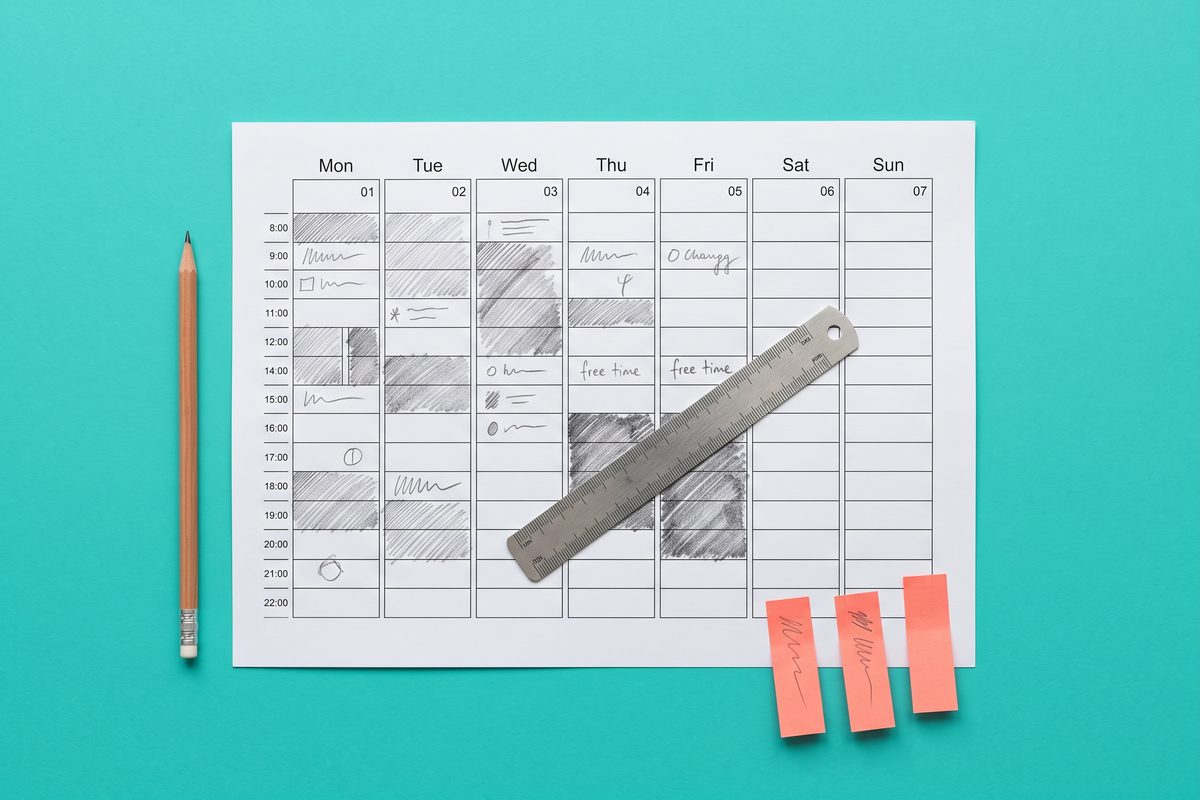
You have two routes. The Google Workspace connector lets Claude view events and create, update and delete them, and Anthropic lists it for all users. The other route is an export. Google’s help page is blunt about one detail: you cannot export from the Google Calendar app, only on a computer. Settings, then Import & export, then Export gives you a .zip of every calendar; a single calendar’s “Export calendar” option gives you one .ics file.
For planning, I prefer pasting the week over a live connection. The model sees exactly the days you gave it and nothing else, and nothing gets moved until you say so. Use the connector at the end, to create the blocks you approved.
Weekly plan template (paste into a chat inside an “Operations” Project):
I run [number] small businesses alone: [one line each].
Below is my calendar for [dates], followed by the open work in each business.

CALENDAR:
[paste the week's events, or the contents of the .ics file]

OPEN WORK:
[Business A]: [items, with any real deadline]
[Business B]: [items, with any real deadline]

Do this in order:
1. List the fixed commitments you see (calls, deadlines, travel). Do not move them.
2. Count the free hours left, in blocks of 90 minutes or more. Show the count.
3. Pick at most three items that must ship this week. For each, name the business it serves and why it beats the others.
4. Name what gets pushed to next week and what breaks if it slips.
5. Propose calendar blocks for the three items: day, start, end, title. Do not create anything yet.
If the free hours cannot cover three items, say so and pick two.
Step 2 is the one that earns its place. Most weekly plans fail because the list assumes forty free hours and the calendar holds twenty-two. Making Claude count the gaps first turns an optimistic list into an honest one.
If you run more than one business, rule 3 matters more than it looks. It forces a sentence explaining why the app outreach beats the video edit this week, and writing that sentence is half the decision.
Template 2: one outreach email, drafted with guardrails
My outreach emails for the app start in Claude. They go out under my name, one at a time, and the failure I guard against is not bad prose. It is a confident sentence about the recipient or the product that is not true.
That is why this template is built around a facts sheet. The model may only use facts you gave it, and it has to show its work. For who to contact, how often to follow up and where the legal lines sit, see the cold outreach playbook for an app launch. This is the drafting step inside that process.
One-person outreach template:
Draft one email to one person. Not a sequence and not a template for a list.

WHO: [name, role, what they publish or build, the link I actually read]
WHY THEM: [the specific thing of theirs that made me write, one sentence in my words]
WHAT I MADE: [product name, one-line description, link]
FACTS SHEET: [price, platforms, release date, anything they could check. Only these facts may appear.]
THE ASK: [one small thing they can say yes to in a minute]
MY VOICE: [three sentences I wrote that sound like me]

Rules:
- Under 120 words. Subject line under 8 words, no tricks.
- Use no fact that is not in the facts sheet. If one is missing, write [CHECK] instead of guessing.
- One specific reason for writing. No generic praise.
- End with the ask and an easy way to say no.
After the draft, list every claim in it next to the facts-sheet line it came from.
The last instruction is the point. A claim with no matching line is either invented or yours to verify, and you catch it before the recipient does.
If you connect Gmail, Anthropic documents that Claude can draft, send, reply and forward, and that sending requires approval by default. Keep it that way. Draft in Claude, read it once aloud, send it yourself.
Template 3: a decision memo that argues with you
In a company, a bad idea meets a colleague who asks “why?” Alone, it meets nobody. The most expensive operations mistake a solo owner makes is not a wrong call. It is a call made late, because nothing forced the question.
I know that one personally. I sold an ebook that lived entirely on paid ads. When I stopped the ads, sales stopped with them, and I shut it down. A decision memo with a kill date forces that look before the money runs out, not after.
So this template does two things a chat usually does not. It asks for the case against you, and it asks for a kill rule with a date.
Decision memo template:
I need to decide: [the decision, one line]. Deadline: [date].
I am the only person who will review this, so your job is to argue with me.

CONTEXT: [the numbers I have, what I have tried, limits on my time and cash]
MY CURRENT LEAN: [what I think I will do, and why]

Write a one-page memo:
1. The options, including "change nothing for 30 days".
2. For each option: hours per week, money, and how hard it is to reverse.
3. The strongest case against my current lean, as a skeptical partner would make it.
4. What would have to be true for my lean to be right, and how I could check each item this week.
5. A kill rule: the date and the signal that would make me stop.
Mark any number you assumed rather than took from my context.
Paste the memo’s kill rule into Google Calendar as an event on that date. A chat thread will not remind you of a deal you made with yourself six weeks ago. Your calendar will.
Template 4: an SOP written for Claude to follow
Most SOP prompts produce a document for a human employee. A one-person business has no employee, so write the SOP for the other reader you do have: the model, next week, with none of today’s context.
Record yourself doing the chore once and talking through it, or type rough notes as you go. Then run this.
SOP template for an AI hand-off:
Turn my notes below into an SOP that you, or another assistant, will follow later without me present.

MY NOTES: [a messy walkthrough of doing the task once]

Structure:
- Name and trigger: what starts this task and how often.
- Inputs: the exact files, links or pasted text it needs. If an input is missing, the SOP stops and asks.
- Steps: numbered, one action each, in the order I actually do them.
- Done means: a checkable description of the finished output.
- May do without asking: [list]
- Must ask first: anything that sends, publishes, pays, deletes or changes a price.
- Failure log: a small table (date, what broke, fix) to fill in after a bad run.
Before finalizing, list the three steps in my notes that were ambiguous and ask me about them.
Save the finished SOP where Claude will find it. Anthropic’s help center describes project instructions and a project knowledge base for exactly this, and paid plans get expanded project knowledge. One Project per recurring chore is a reasonable default.
The “must ask first” line is the most important one in the file. It is what lets you hand the SOP to Cowork later without worrying about what it will do at step seven. The AI content repurposing workflow is a good first candidate: the same steps every time, with a clear finished output.
What to schedule, and what to keep manual
Scheduling is where “using Claude” turns into “Claude runs something while you sleep”, so read the documentation before you trust it.

According to Anthropic’s help center, scheduled tasks are on every paid plan (Pro, Max, Team and Enterprise). You can set them hourly, daily, weekly, on weekdays or manually, and they run remotely, so they fire even when your computer is asleep or the desktop app is closed. They work with your connectors and the files saved to your Claude account. They cannot be tied to a folder on your computer.
That last line surprises people. A scheduled task will not pick up the spreadsheet on your desktop. Whatever it needs has to live in your Claude account or behind a connector.
Anthropic’s own safety page is stricter than most guides. It advises against scheduling tasks that involve sensitive data, financial transactions, purchases or sending messages, and it recommends manual approval for anything hard to undo. It also warns about prompt injection: instructions hidden inside content Claude reads, like a web page or an email, that try to make it act against you.
Hand-off checklist, built from Anthropic’s Cowork documentation:
- Schedule only jobs whose output is a draft, a summary or a file you will read.
- Keep sending, paying, buying and deleting behind a human click, every time.
- Give Cowork a dedicated working folder, not your whole drive.
- Switch to manual approval the first time a task uses a new tool or connector.
- Keep financial documents out of the folders Claude can reach.
- Install connectors and plugins only from sources you trust; each one is a new way in.
A good first scheduled task for a solo business is a weekday digest: read the connected calendar and inbox, list what needs a reply today, draft nothing it would send. If that runs clean for a few weeks, you have earned the right to widen it.
Where Claude sits next to your other tools
Claude is not my only assistant. GPT gets variants, captions and anything next to a generated image. Hermes, the open-weights model, gets batch runs and anything I would rather keep off a vendor’s server. The reasons are in the AI tool stack for solopreneurs.
What makes the split workable is that the templates above are plain text. None of them depends on a Claude-only feature except the scheduling. If Anthropic changes a plan tomorrow, you paste the same four blocks somewhere else and lose an afternoon, not a system. More workflows like these live under AI workflows.
Before your next week starts, export your calendar, open a new Project called Operations, and run Template 1 on it. Create only the blocks you agree with.
Frequently asked questions
Can Claude read and edit my Google Calendar?
Yes, once you connect it. Anthropic's help center says the Google Calendar connector can view events, create, update and delete them, find mutual availability and set up recurring meetings, and it is available to all users. For weekly planning you do not need the connector at all: export the calendar from Google Calendar on a computer and paste the week in.
Do I need Claude Pro to use it for business operations?
Not for the four templates in this article; they work on the free plan, which includes up to five projects and connectors. You need a paid plan (Pro at $20 a month, or $17 a month billed annually, as of September 2026) for Cowork, scheduled tasks, Research and unlimited projects.
Can a Claude scheduled task send emails for me?
Technically it works with your connectors, but Anthropic's own safety page advises against scheduling tasks that involve sending messages, financial transactions, purchases or sensitive data. Use scheduled tasks to prepare drafts and summaries, then send by hand. Gmail sending also asks for approval by default.
Is Claude for Small Business worth it for a solo online business?
Only if you already run QuickBooks, PayPal or HubSpot. Anthropic built its 15 workflows around those tools, inside Cowork. A one-person business selling apps or digital products gets more from four good templates and a Project that holds its context than from a payroll workflow it has no payroll for.
Sources
- Claude pricing — Anthropic
- What are projects? — Claude Help Center
- Use connectors to extend Claude's capabilities — Claude Help Center
- Use Google Workspace connectors — Claude Help Center
- Schedule recurring tasks in Claude Cowork — Claude Help Center
- Get started with Claude Cowork — Claude Help Center
- Export events from Google Calendar — Google Calendar Help
- Use Claude Cowork safely — Claude Help Center
- Introducing Claude for Small Business — Anthropic
- Understanding usage and length limits — Claude Help Center
This article is general information based on the author's experience. It is not licensed financial, legal, or tax advice. See the editorial policy.