How to Build an Email List From YouTube (2026 Link Rules)
Where YouTube lets you put a signup link in 2026, per its own help pages, and the setup checklist to finish before you send a single viewer to it.

This post contains affiliate links. If you sign up through them, Solo Ops Lab may earn a commission at no extra cost to you. It does not change what we recommend; see the editorial policy.
You have a channel, people watch it, and none of them are on a list you can email. Most guides say “put your link everywhere,” but YouTube decides which spots are clickable for a channel your size, and several popular ones need the Partner Program or simply don’t work in Shorts. Below is where a signup link actually works according to YouTube’s own help pages, checked on October 5, 2026, what the policies rule out, and the setup to finish before any viewer clicks.
I grew a YouTube channel past 130,000 subscribers as a one-person operation, and the gap between that number and the people I could actually reach is why this post exists. More on audience building lives under launch and growth.
Why a subscriber count is not a list
A subscriber count measures how many people asked YouTube to show them more of you. It does not hand you a single address. When YouTube decides a video isn’t worth recommending, many of those subscribers never hear about it, and you have no second door to knock on.
I learned the price of that on a different product. I sold an ebook with paid ads, and when the ads stopped, the sales stopped. Every buyer had arrived through a channel I was renting, and none of them had left me a way to reach them again. I shut the ebook down; the post-mortem is in why ebooks stop selling and how I’d sell one without ads.
A channel is a slower version of the same deal. The fix is unglamorous: move the viewers who care most onto a list you can export and take with you.
The rest is plumbing.
Where YouTube lets you put a signup link (checked October 5, 2026)
Every row below comes from YouTube Help, read on October 5, 2026. Two gates decide most of it. “Advanced features” is an account status you earn with phone verification plus channel history, ID verification or video verification. The YouTube Partner Program (YPP) is the monetization program, and it gates the two most visual link spots.
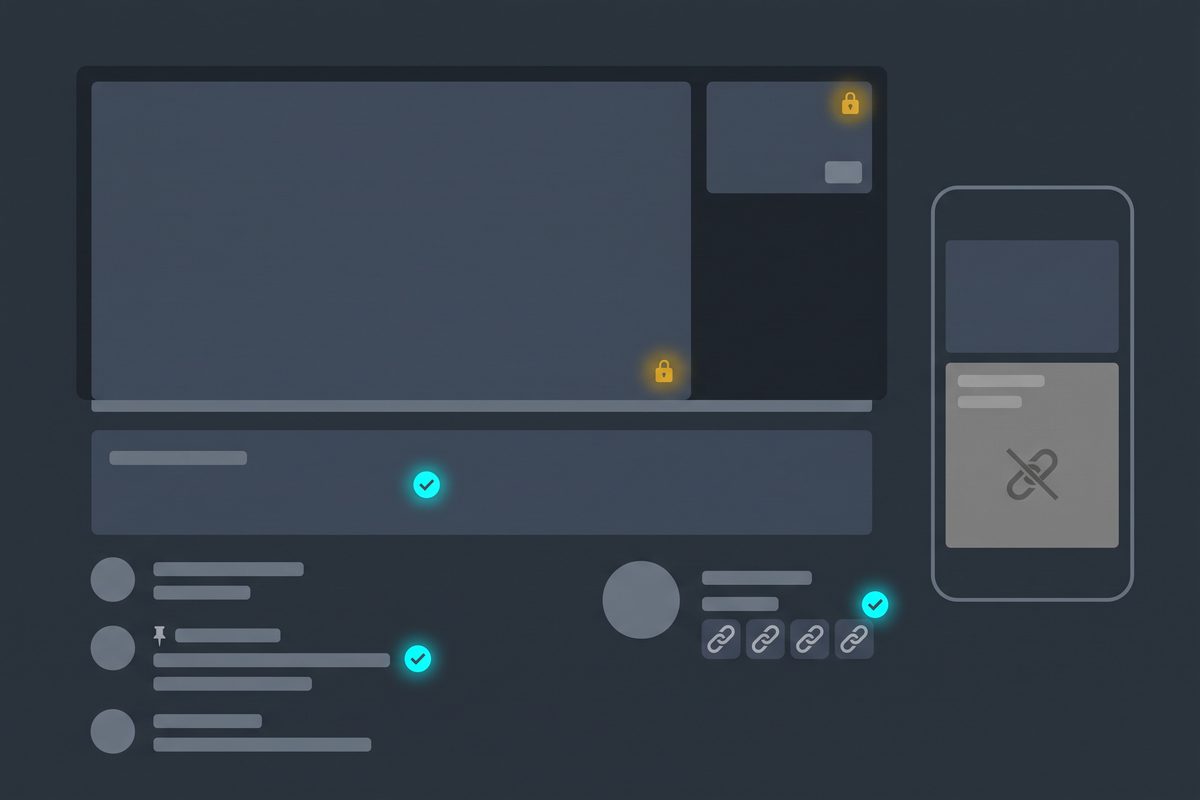
Where a signup link works on YouTube, and what each spot needs (collected October 5, 2026):
| Spot | Clickable? | What it needs | Fine print |
|---|---|---|---|
| Channel profile links | Yes | No gate listed beyond the external links policy | Up to 14 links on your Home tab, the first shown prominently; set in YouTube Studio > Customization > Profile |
| Long-form video description | Yes | Advanced features | Put it in the first line, above timestamps and gear lists |
| Long-form comments, including your pinned one | Yes | Advanced features; pinning is itself an advanced feature | Pinning a new comment unpins the old one |
| End screen Link element | Yes | YPP | Last 5 to 20 seconds; video at least 25 seconds; up to 4 elements on 16:9; not on made-for-kids videos or mobile web (iPad excepted); viewers can hide end screens |
| Link card | Yes | YPP | Up to 5 cards per video; hidden on made-for-kids videos; on mobile, a card icon appears whenever the player controls are showing |
| Shorts description and comments | No, URLs are not clickable | n/a | YouTube turned them off to reduce spam |
| Shorts related video | Yes, to your own video only | Advanced features | A public or unlisted video, Short or live stream from your channel |
| Shorts brand link | Yes | A reported brand deal | Must go to the partner brand’s site, not yours |
| Posts | Treat as no | n/a | The link-sharing page says posts don’t support clickable links; the features page lists clickable post links under advanced features |
| Live chat | On horizontal streams; not in the vertical feed | n/a | Same split applies to channel descriptions shown in live streams |
How to read it. Before anything else, open YouTube Studio, go to Settings, then Channel, then Feature eligibility. Without advanced features, the description and pinned-comment links that most guides lead with won’t be clickable for you. Phone verification gets you intermediate features. Advanced comes from channel history, or from an ID or video check, which YouTube says usually takes about 24 hours.
End screens and link cards only send people off YouTube if you’re in YPP. A channel with 300 subscribers can still use an end screen, just to point at another video, a playlist or the subscribe button.
The channel profile link is the one spot on this list where YouTube names no eligibility gate at all.
If you’re not in YPP yet, or you mostly post Shorts
That describes most channels, so it gets its own plan. Without YPP, your working spots are the channel profile link, the description and a pinned comment, and the last two depend on advanced features. That is enough. Put the signup link at the very top of the description so it isn’t buried under timestamps and gear lists, then repeat it in a comment you write yourself and pin.
Shorts need a detour. A URL typed into a Shorts description goes nowhere, so give each Short a related video that points to one long-form video of yours, and make that video the one carrying the signup link in its description and pinned comment. You can also say the URL out loud; YouTube’s external links policy treats spoken directions as links, which cuts both ways: allowed for a clean signup page, not for anything the policy bans.
If your channel is Shorts-only, make one long-form “start here” video before you build the freebie. Without it, Shorts viewers have nowhere clickable to land. For the subscriber side of that climb, how to get your first 1,000 subscribers lays out what each YouTube milestone opens up.
What YouTube’s policies rule out
The external links policy reaches further than most creators assume. It covers videos, channels, comments, pinned comments and live streams, and it counts on-screen URLs, spelled-out addresses and verbal directions as links. Your signup page is fine. The policy targets destinations such as malware, phishing pages and sexually explicit sites, plus the other categories it lists. A first violation usually brings a warning; another within 90 days brings a strike, and three strikes inside 90 days ends the channel.

The spam policy is the one list builders trip over. It names high-volume, repetitive or deceptive comments used to drive traffic, and content created solely to push people off YouTube. In practice, skip these three tactics:
- Dropping your signup link under other creators’ videos. Older guides still suggest commenting on other channels to grow; add a link and it reads as comment spam.
- Emailing people who commented on your videos but never signed up. They didn’t ask. CAN-SPAM runs on opt-out rather than opt-in, but inbox providers judge you on complaints, and Yahoo wants your spam rate under 0.3%.
- Uploads that exist only to say “go to my site.” A short plug for the freebie inside a useful video is normal. A channel made of plugs is what the policy describes.
Pick a lead magnet that finishes the video
The freebie that works is the part of the video people would otherwise pause and screenshot: the checklist you read aloud, the settings you used, the template on screen. It completes the video instead of competing with it.
Start with one, attached to the video people keep finding through search, because that video will still be sending viewers a year from now. A trending video sends a crowd for a week and then nobody.
Build one per topic cluster, not one per upload. A solo creator who designs a new PDF for every video soon stops making videos.
A PDF you can make in an afternoon beats a course you’ll finish next quarter.
The setup checklist, in order
Finish these before you point a single viewer anywhere. Each step assumes the one above it is done. This is not legal advice; for the exact rules, read the FTC’s own guide.

- Confirm advanced features. YouTube Studio > Settings > Channel > Feature eligibility. Verify your phone, then qualify through channel history, an ID check or a video check.
- One landing page with one job. A headline, what the freebie is, a form. Most email platforms host one for free. Put it on your own domain if you have one, so the URL you say out loud survives a tool switch.
- One lead magnet, matched to your top search video, as above.
- Double opt-in, with the freebie delivered after confirmation. The subscriber clicks a confirmation link before joining, which keeps typos and bots off the list. In Kit, double opt-in is the default, and the confirmation step can hand over a file or send people to a URL once they confirm.
- One welcome sequence. Two or three emails: deliver the freebie, say who you are and what the channel covers, point to your best video. Write it before traffic arrives.
- Authenticate your sending domain. Yahoo asks every sender for SPF or DKIM; bulk senders also need both, plus DMARC, one-click unsubscribe and unsubscribes honored within 2 days. Gmail’s version is broken down in the email tools comparison.
- Add a CAN-SPAM footer. A valid physical postal address, a clear way to opt out, and opt-outs honored within 10 business days. The FTC puts the penalty at up to $53,088 for each email that violates the law.
- Place the link. Channel profile link first, top line of the description, pinned comment, then end screen and link card once you’re in YPP.
Which tool for steps 2 to 5? For a YouTuber whose list is a backstop to the channel, Kit’s free Newsletter plan covers all four. As of October 2026 it allows up to 10,000 active subscribers, unlimited forms and landing pages, and one basic automation with one email sequence, which is exactly a welcome sequence. That is the case where I’d start on Kit’s free plan. If the emails themselves are the product, compare Substack and beehiiv first, and the prices for six tools at real list sizes are in the email tools comparison.
Say it in the video, once early and once at the end
A description link only works for viewers who open the description. Saying it reaches everyone else, including people watching a Short, where nothing typed is clickable.
Mention the freebie early, as a tool for what you’re about to show rather than a pitch: “the checklist for this is free, link’s in the description.” Then say it once more at the end for the people who stayed. Two mentions is plenty. Four sounds like an ad read.
Keep the URL short enough to say in one breath, on your own domain, with a slug that matches the video’s topic. The spoken version then works even where no link does.
If you only have time for one placement this week, make it the spoken mention plus the top description line. Cards and end screens are extras.
Use the list for what YouTube won’t do
Some guides tell you to wait a set number of days after an upload before emailing your list. YouTube publishes no such rule, so treat those numbers as one creator’s habit. My judgment: don’t use the list mainly to push views. Use it for what the recommendation system won’t deliver reliably: the welcome sequence, launches, and the occasional note that a video your subscribers may have missed is up.

On the day you launch something, an app, a digital product, a course, the list is the only audience that hears about it because you decided they should. That is what the ebook never had.
This week, open Feature eligibility in YouTube Studio and confirm you have advanced features. Then take the video people find most through search, put your signup link in its first description line and a pinned comment, and say it out loud once in your next upload.
Frequently asked questions
Can you put clickable links in YouTube Shorts?
Not in the description or comments. YouTube's help page on sharing links says URLs in Shorts descriptions and comments are not clickable, to reduce spam. What a Short can carry is a related video link, which points to a public or unlisted video from your own channel and needs advanced features. Send Shorts viewers to one long-form video that holds your signup link, and say the URL out loud.
Do I need the YouTube Partner Program to link to my site from an end screen?
Yes. YouTube's end screen help page lists the Link element as available to channels in the YouTube Partner Program, and link cards have the same requirement. Below YPP you can still use end screens for videos, playlists and the subscribe button. Your signup link goes in the channel profile links, the description and a pinned comment instead.
Why can't I add a clickable link to my video description?
Clickable external links in long-form descriptions and comments require advanced features. In YouTube Studio, open Settings, then Channel, then Feature eligibility. Verify your phone first, then qualify through channel history, ID verification or video verification. YouTube says ID and video checks usually take about 24 hours. Pinning a comment is also an advanced feature.
Do I need double opt-in for a YouTube email list?
The US CAN-SPAM Act does not require opt-in at all; it requires a way to opt out, a physical postal address and opt-outs honored within 10 business days. Double opt-in is still worth it for a list fed by YouTube, because it keeps typos and bots off the list and protects your spam-complaint rate. Kit, for one, turns it on by default.
Sources
- YouTube Help — Sharing links with your audiences
- YouTube Help — Standard, intermediate and advanced features
- YouTube Help — Access intermediate and advanced features
- YouTube Help — Manage your YouTube channel's profile
- YouTube Help — Add end screens to videos
- YouTube Help — Add info cards to videos
- YouTube Help — Add a related video to your YouTube Shorts
- YouTube Help — Add a link to a brand's site to your Short
- YouTube Help — External links policy
- YouTube Help — Spam, deceptive practices and scams policies
- YouTube Help — Review and reply to comments (pinning)
- Kit pricing
- Kit Help — The Kit Newsletter plan
- Kit Help — The confirmation email
- Kit Help — The all-important double opt-in
- FTC — CAN-SPAM Act: A Compliance Guide for Business
- Yahoo Sender Hub — Sender best practices
This article is general information based on the author's experience. It is not licensed financial, legal, or tax advice. See the editorial policy.